Parker-Hannifin Corporation · NYSE:PH
Parker-Hannifin — Technical Presentation (May 2020)
48 slides from Parker-Hannifin's technical presentation, May 7, 2020
Slide 1: Industrial Cylinder Division Configuration/PH Connect Training Refresher
Industrial Cylinder Division Configuration/PH Connect Training Refresher Cathy Laskero Division Tech/Quote Manager Email: [email protected] Phone: 847-294-2645 May 7, 2020
Slide 2: Getting Started: Accessing Configurator
Getting Started…. Accessing Configurator 8
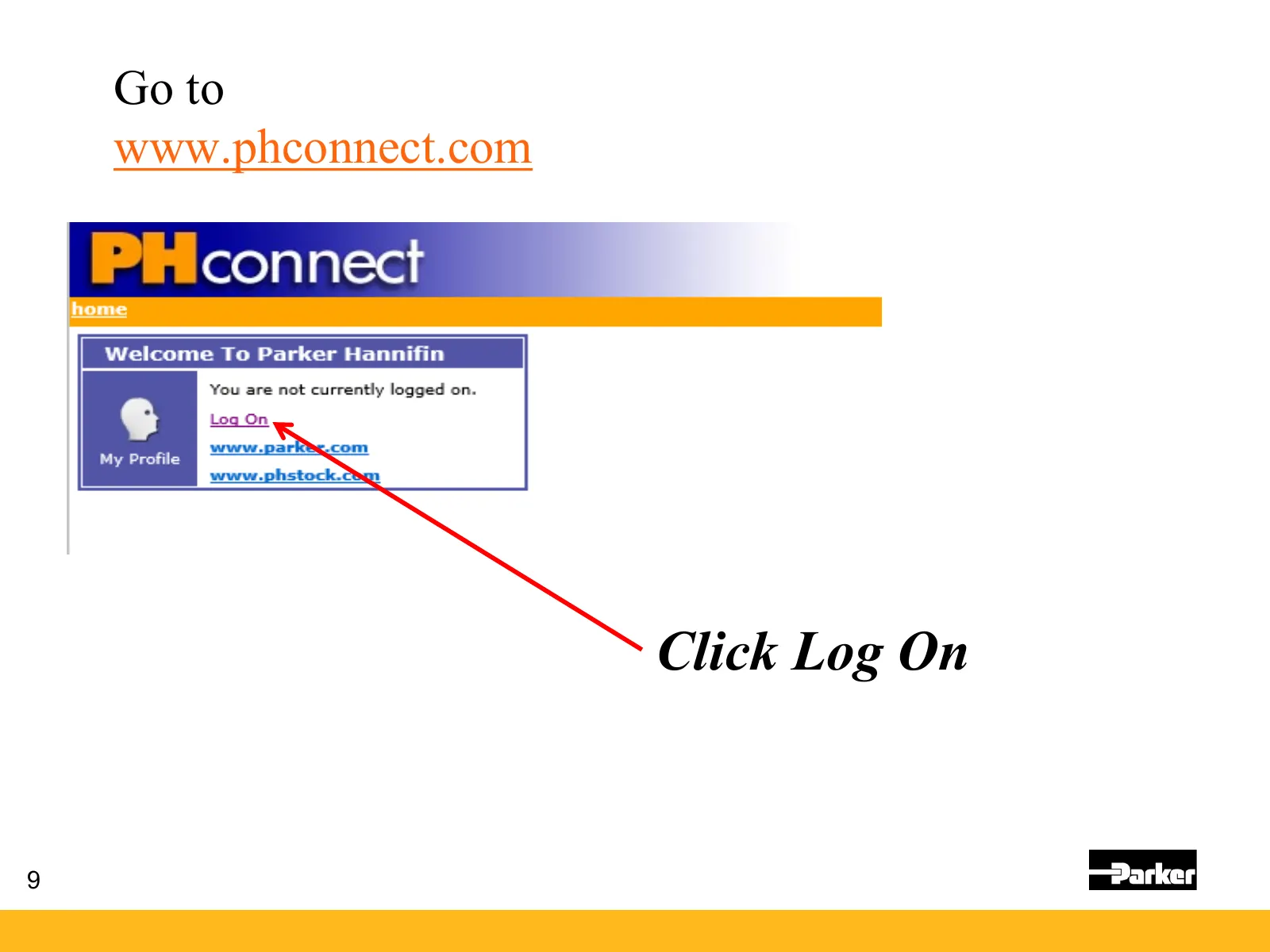
Slide 3: Go to www.phconnect.com and Click Log On
Go to www.phconnect.com Click Log On 9
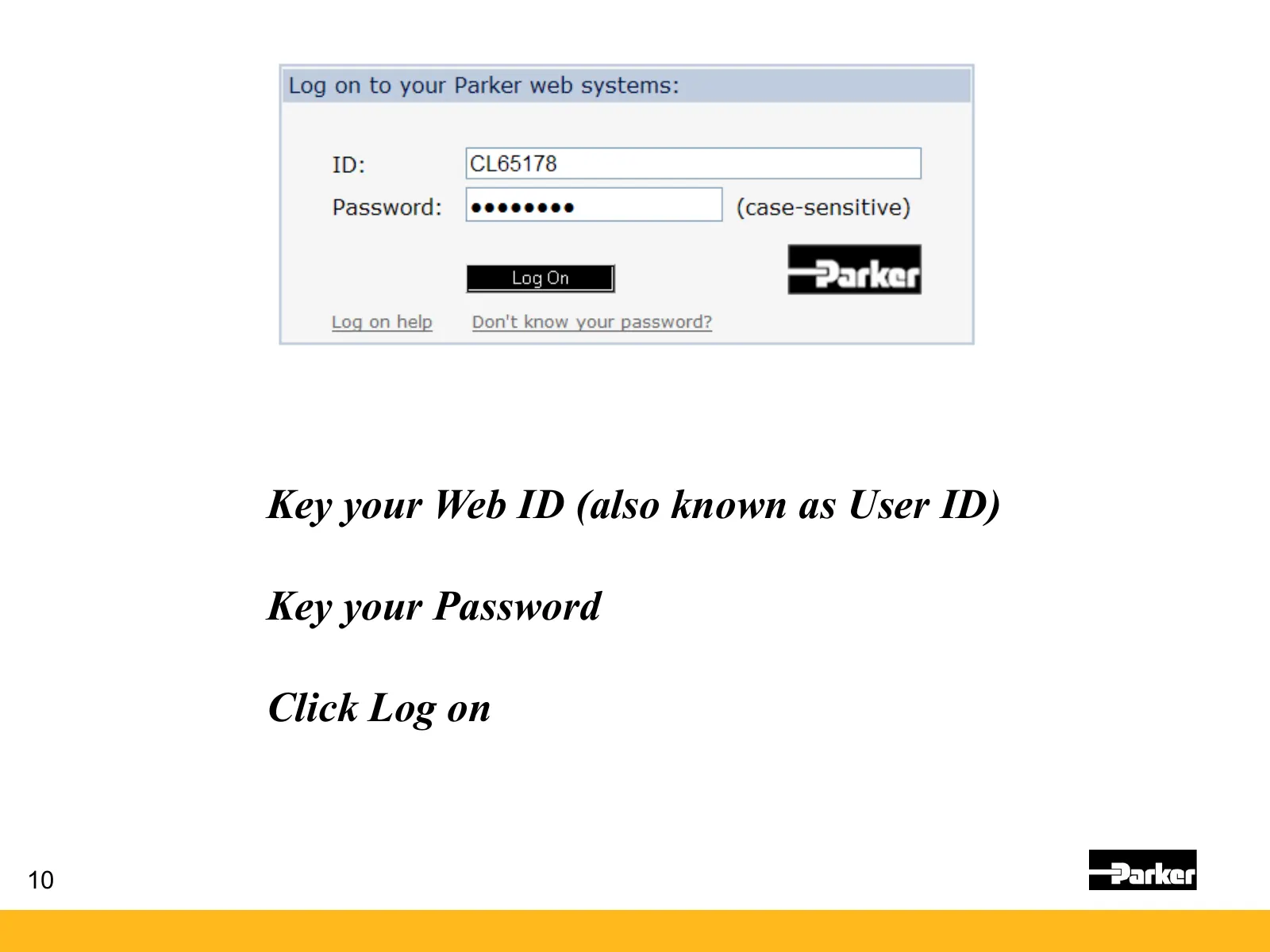
Slide 4: Key your Web ID and Password
Key your Web ID (also known as User ID) Key your Password Click Log on 10
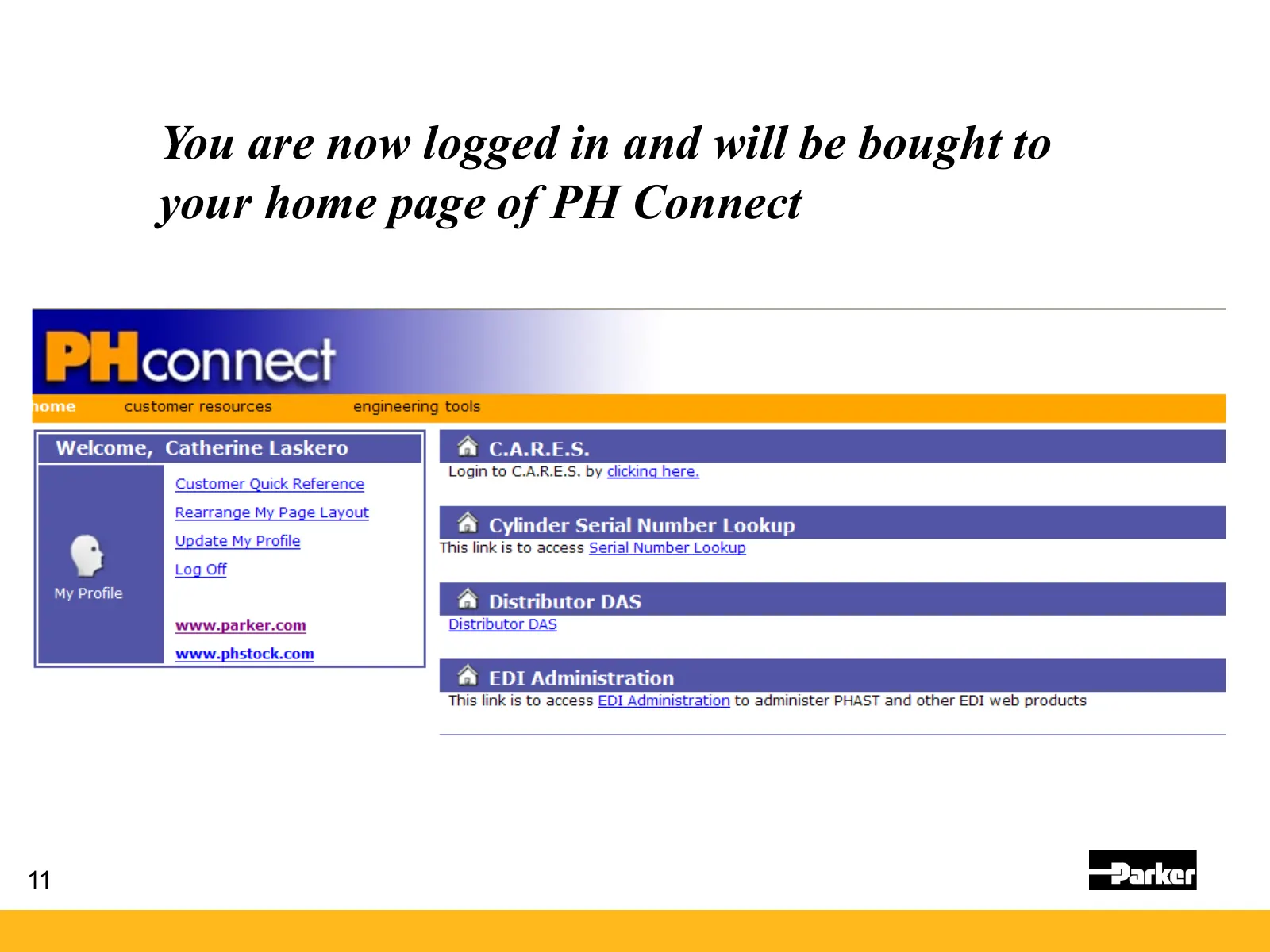
Slide 5: You are now logged in
You are now logged in and will be bought to your home page of PH Connect 11
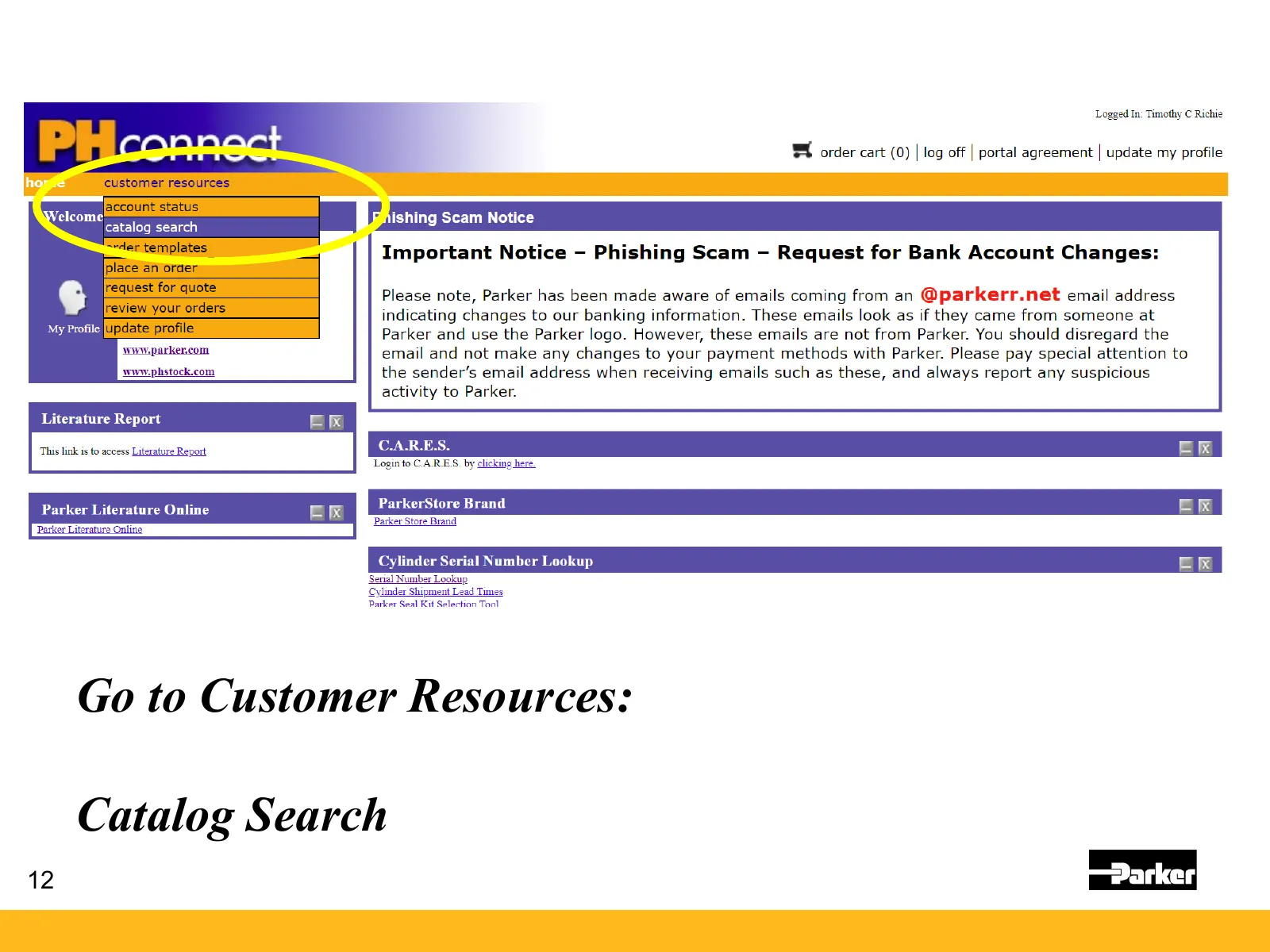
Slide 6: Go to Customer Resources: Catalog Search
Go to Customer Resources: Catalog Search 12
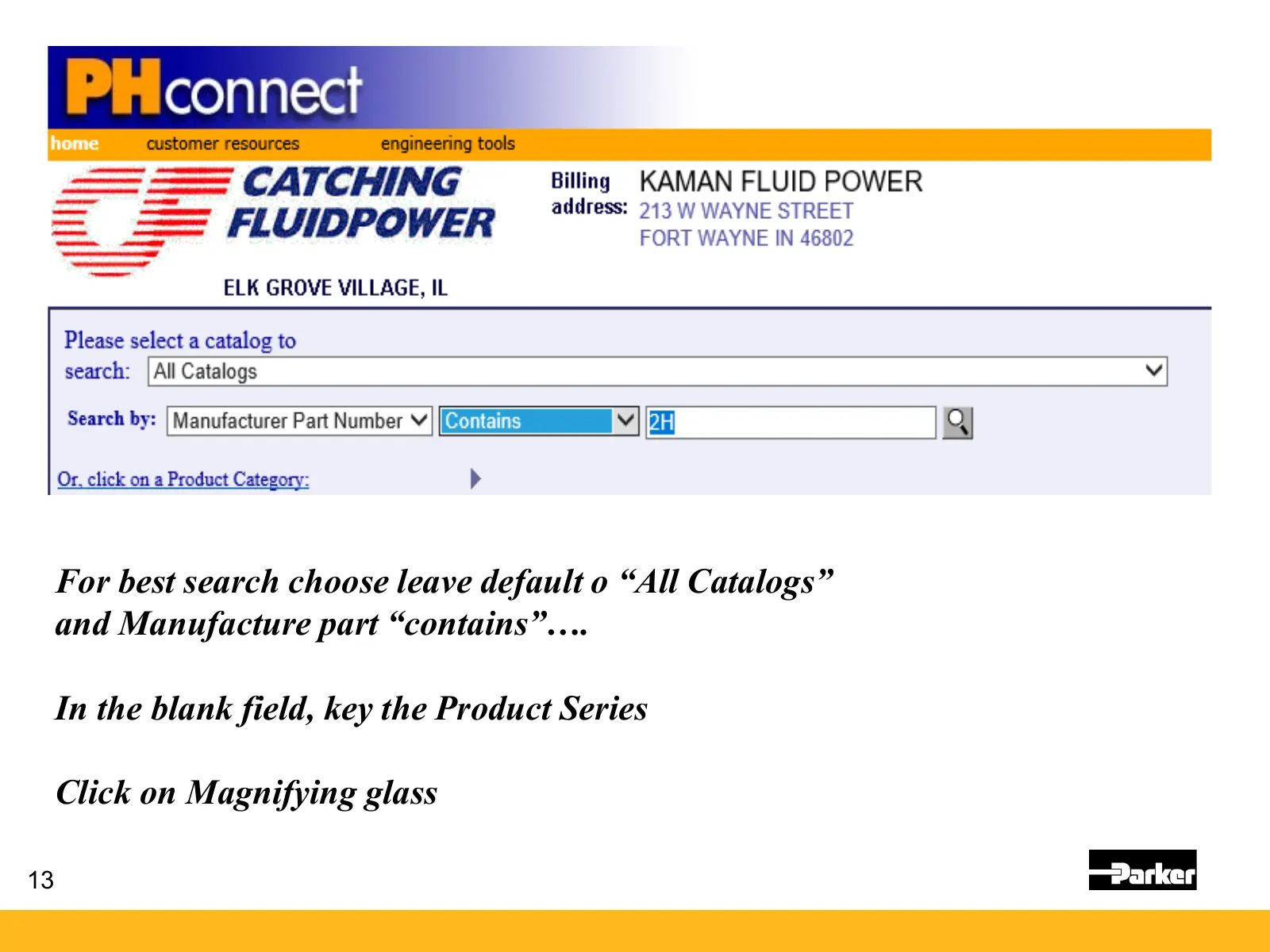
Slide 7: Catalog search by product series
For best search choose leave default o “All Catalogs” and Manufacture part “contains”…. In the blank field, key the Product Series Click on Magnifying glass 13
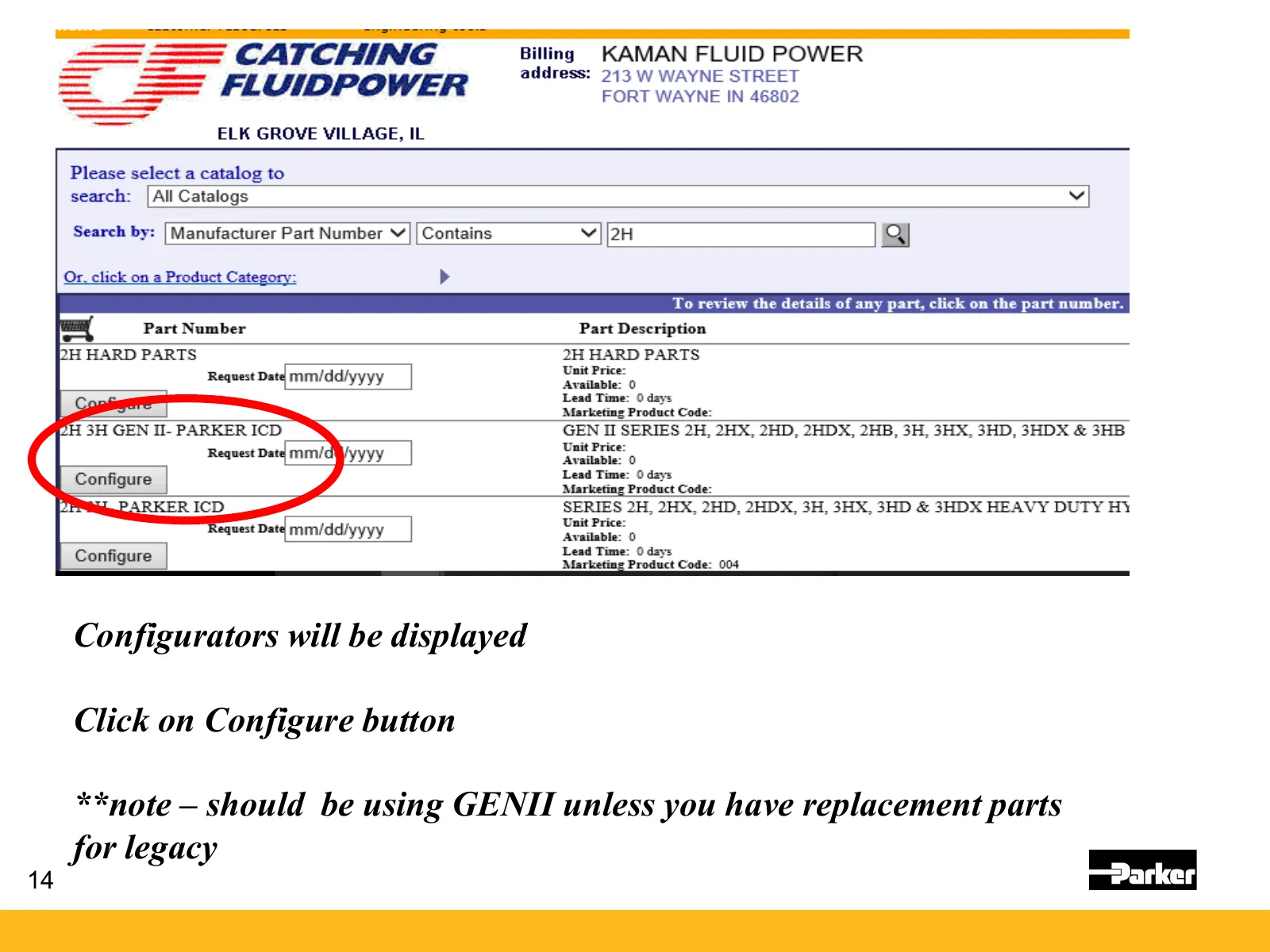
Slide 8: Configurators will be displayed
Configurators will be displayed Click on Configure button **note – should be using GENII unless you have replacement parts for legacy 14
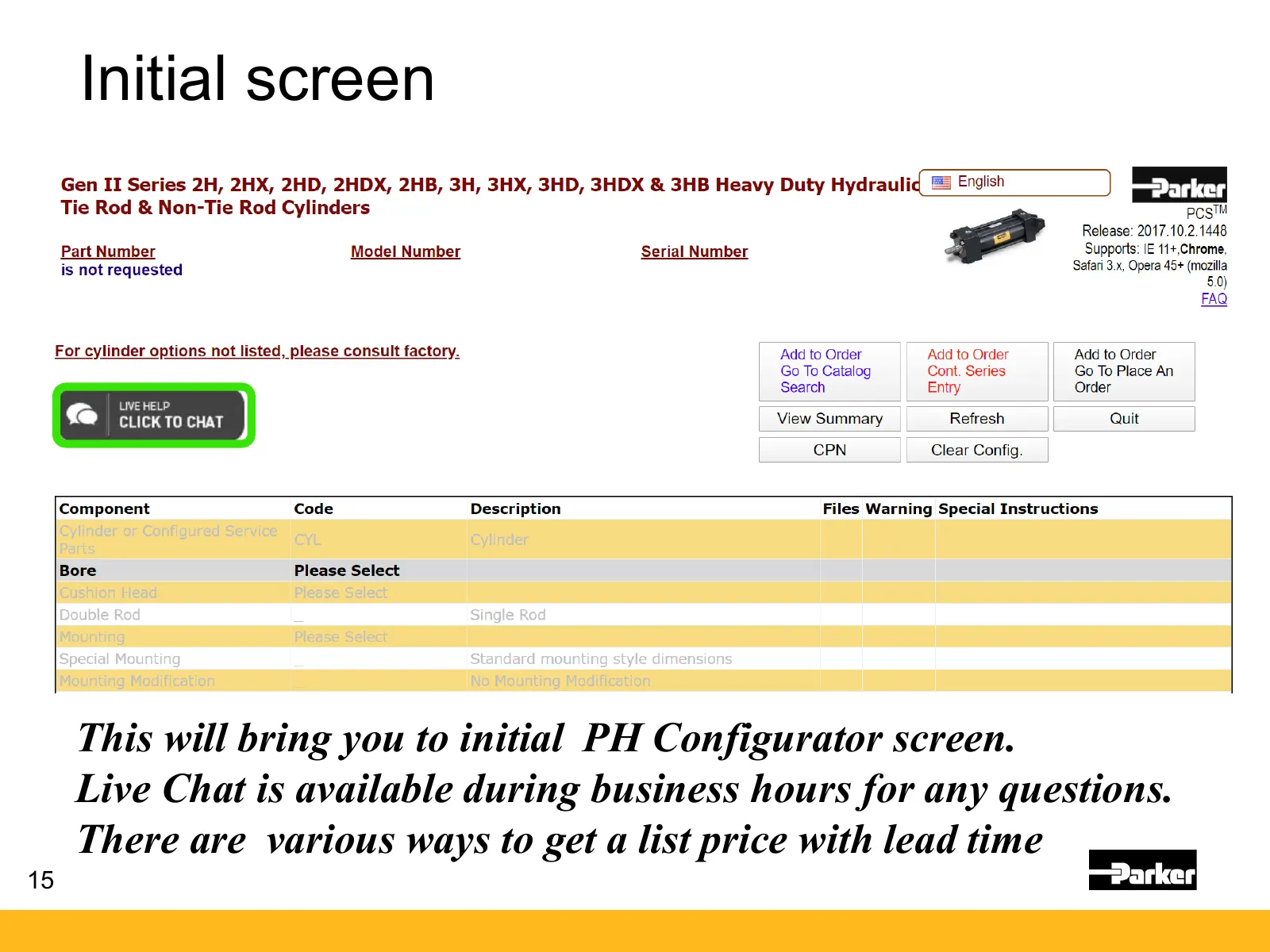
Slide 9: Initial screen
Initial screen This will bring you to initial PH Configurator screen. Live Chat is available during business hours for any questions. There are various ways to get a list price with lead time 15
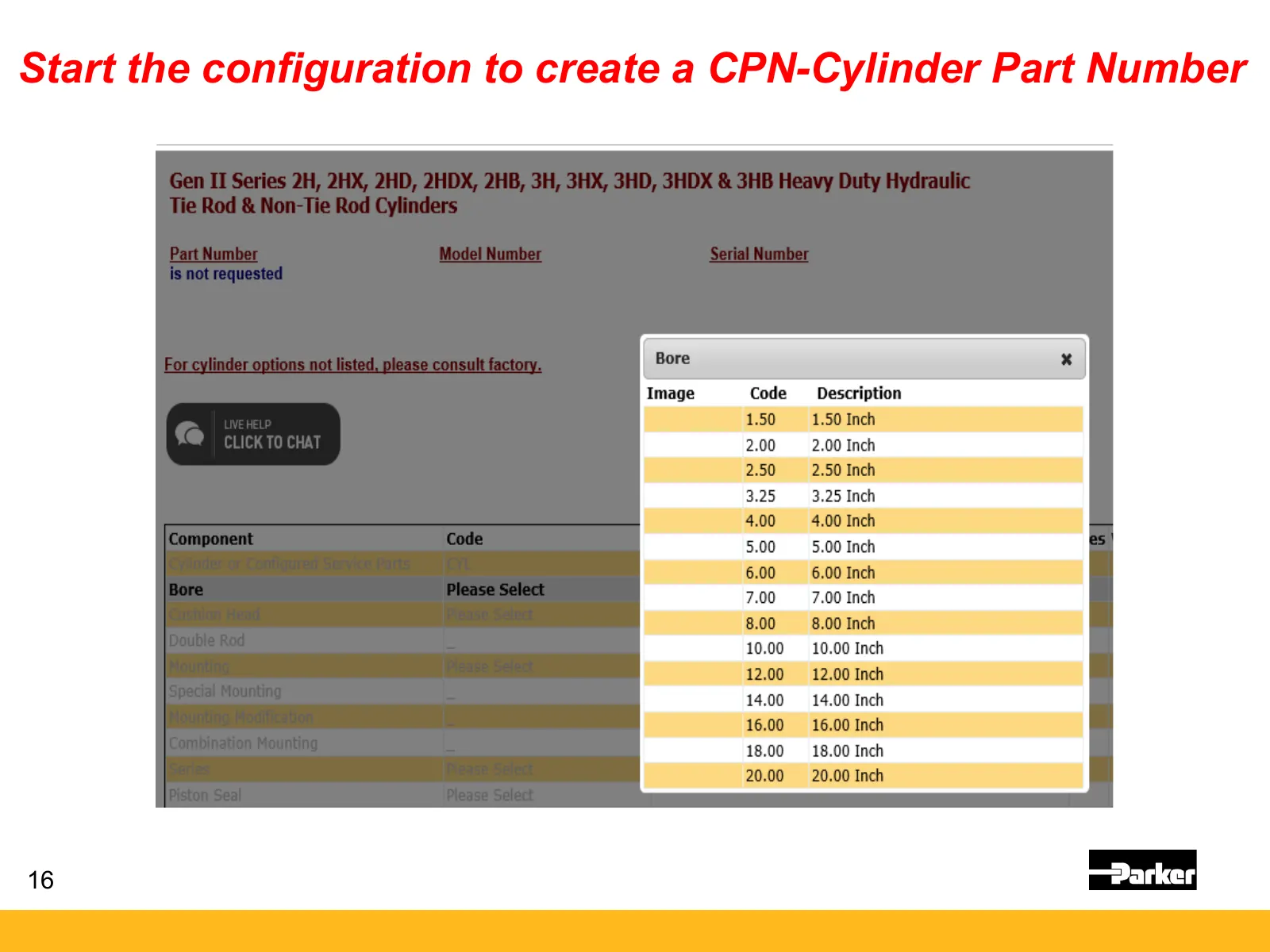
Slide 10: Start the configuration to create a CPN
Start the configuration to create a CPN-Cylinder Part Number 16
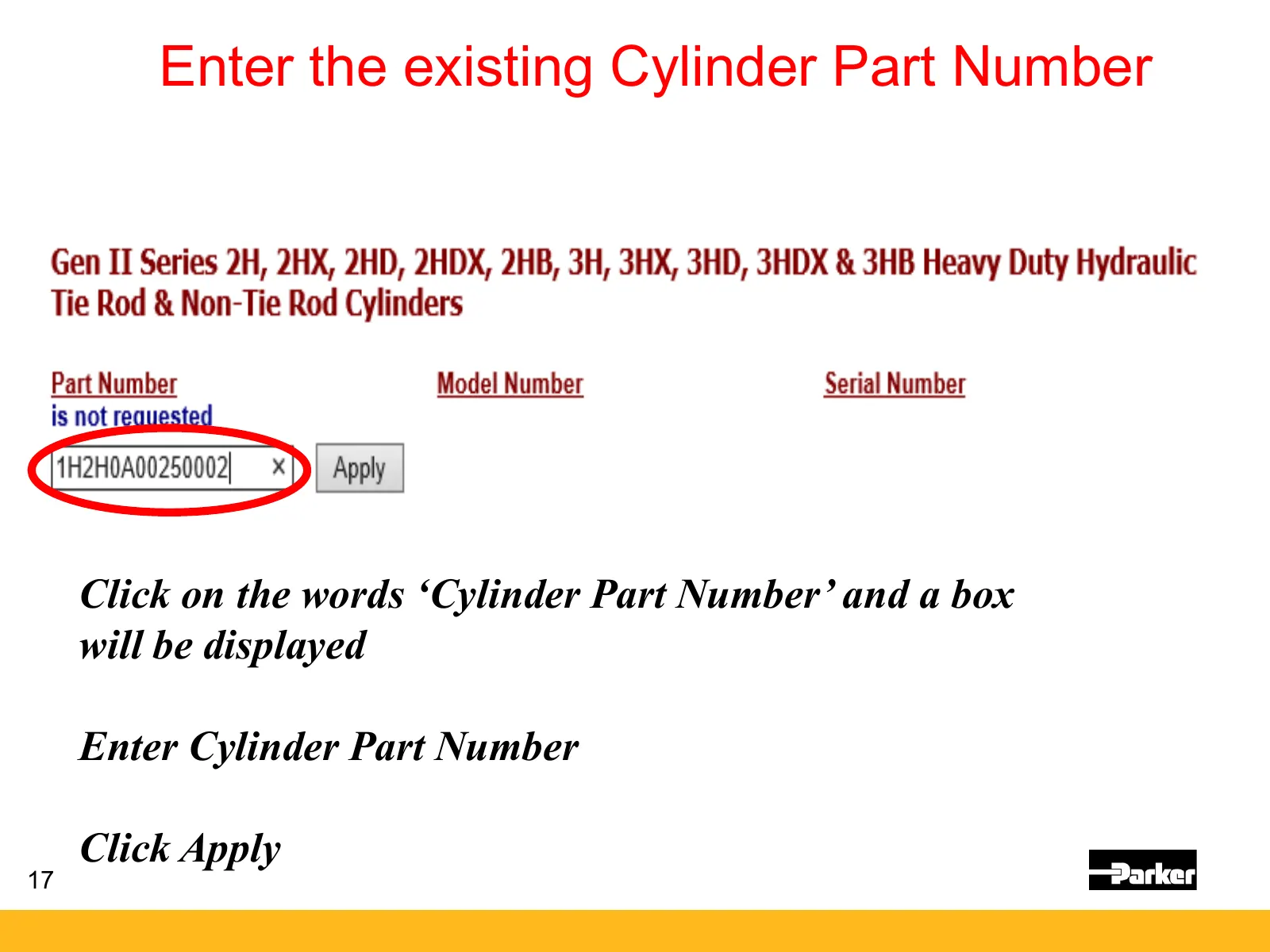
Slide 11: Enter the existing Cylinder Part Number
Enter the existing Cylinder Part Number Click on the words ‘Cylinder Part Number’ and a box will be displayed Enter Cylinder Part Number Click Apply 17
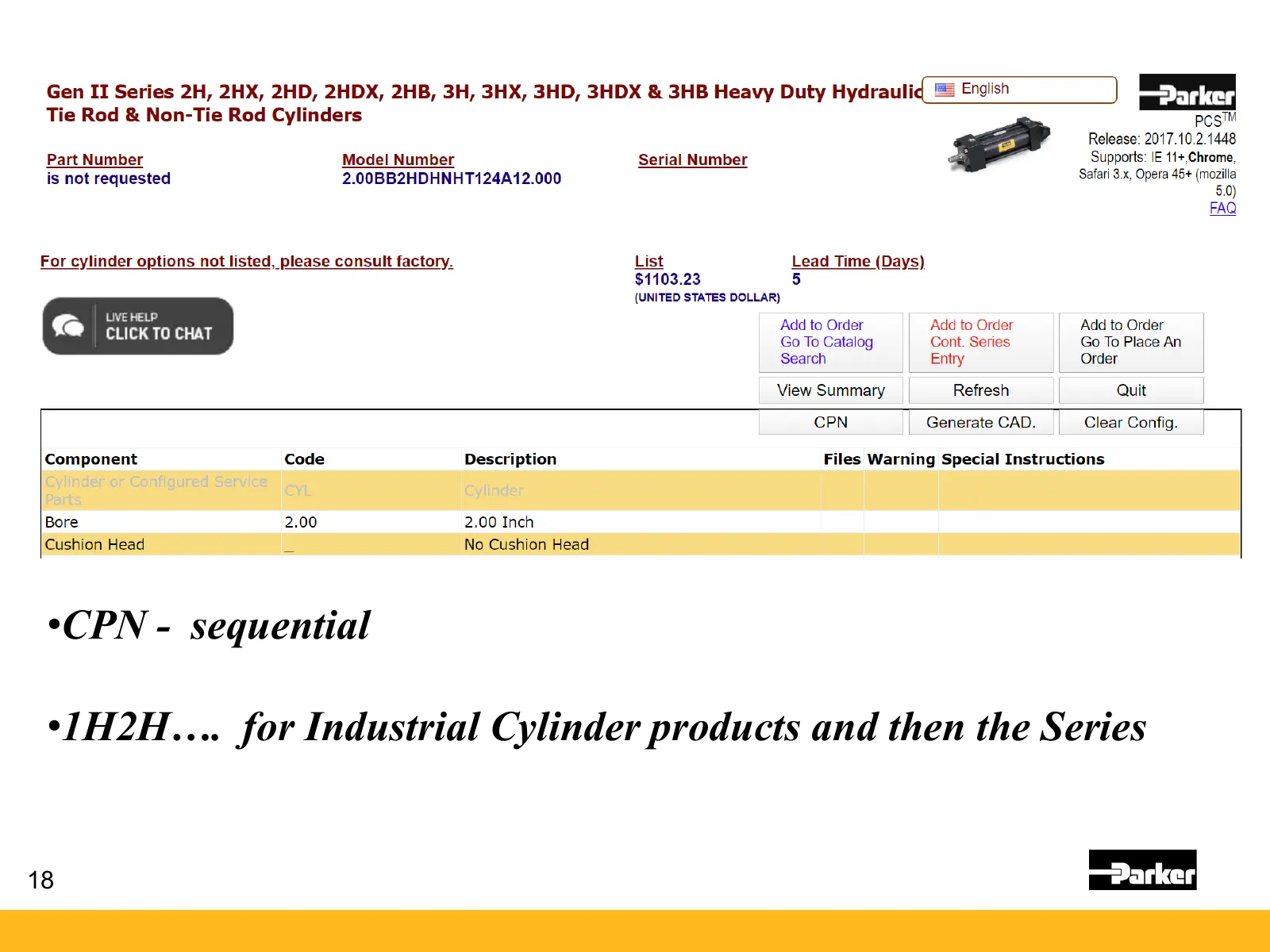
Slide 12: CPN sequential prefixes for Industrial Cylinder products
•CPN - sequential •1H2H…. for Industrial Cylinder products and then the Series 18
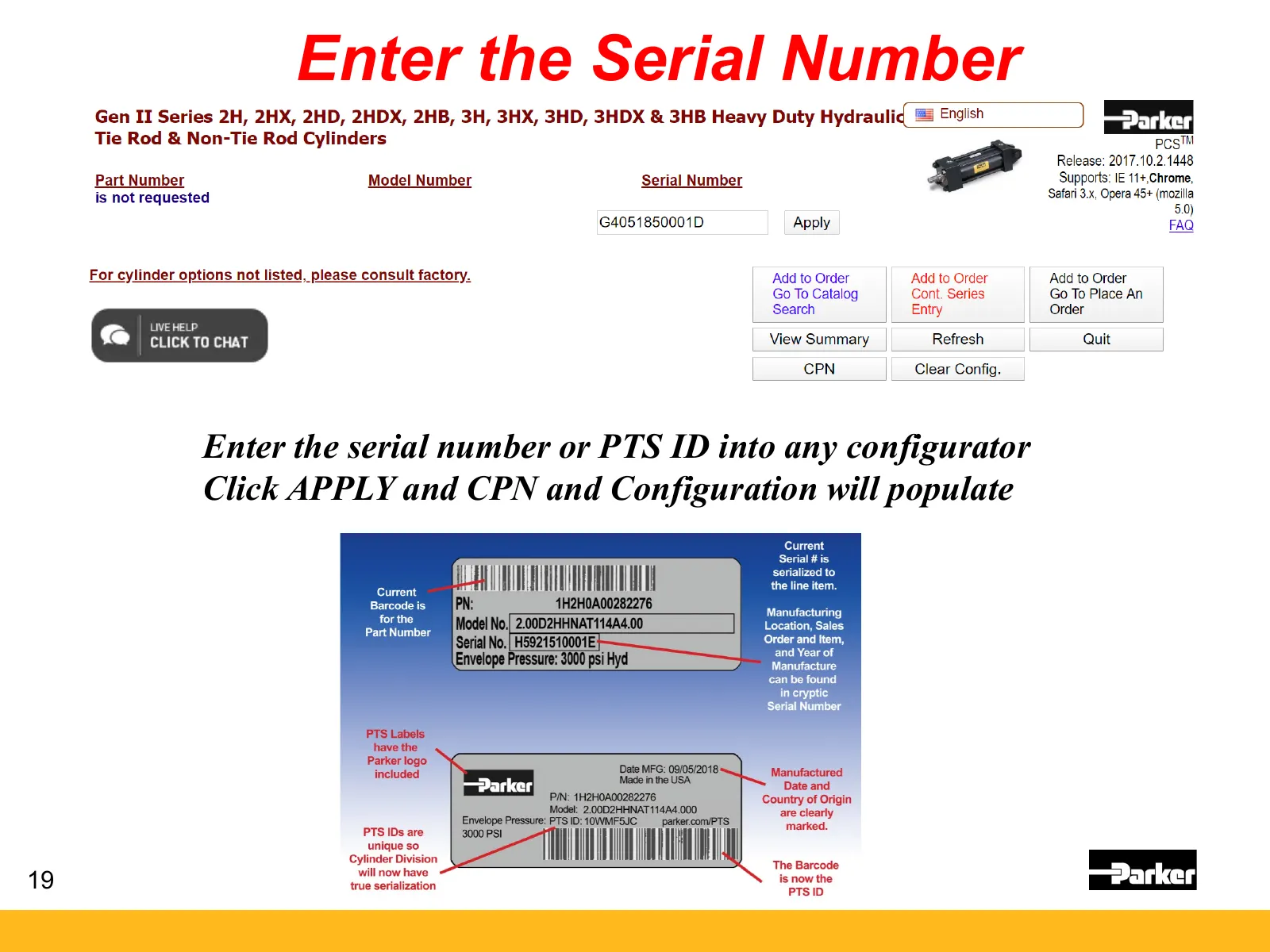
Slide 13: Enter the Serial Number
Enter the Serial Number Enter the serial number or PTS ID into any configurator Click APPLY and CPN and Configuration will populate 19
Slide 14: Let's walk through Example of Configuring cylinders
Let's walk through Example of Configuring cylinders 21
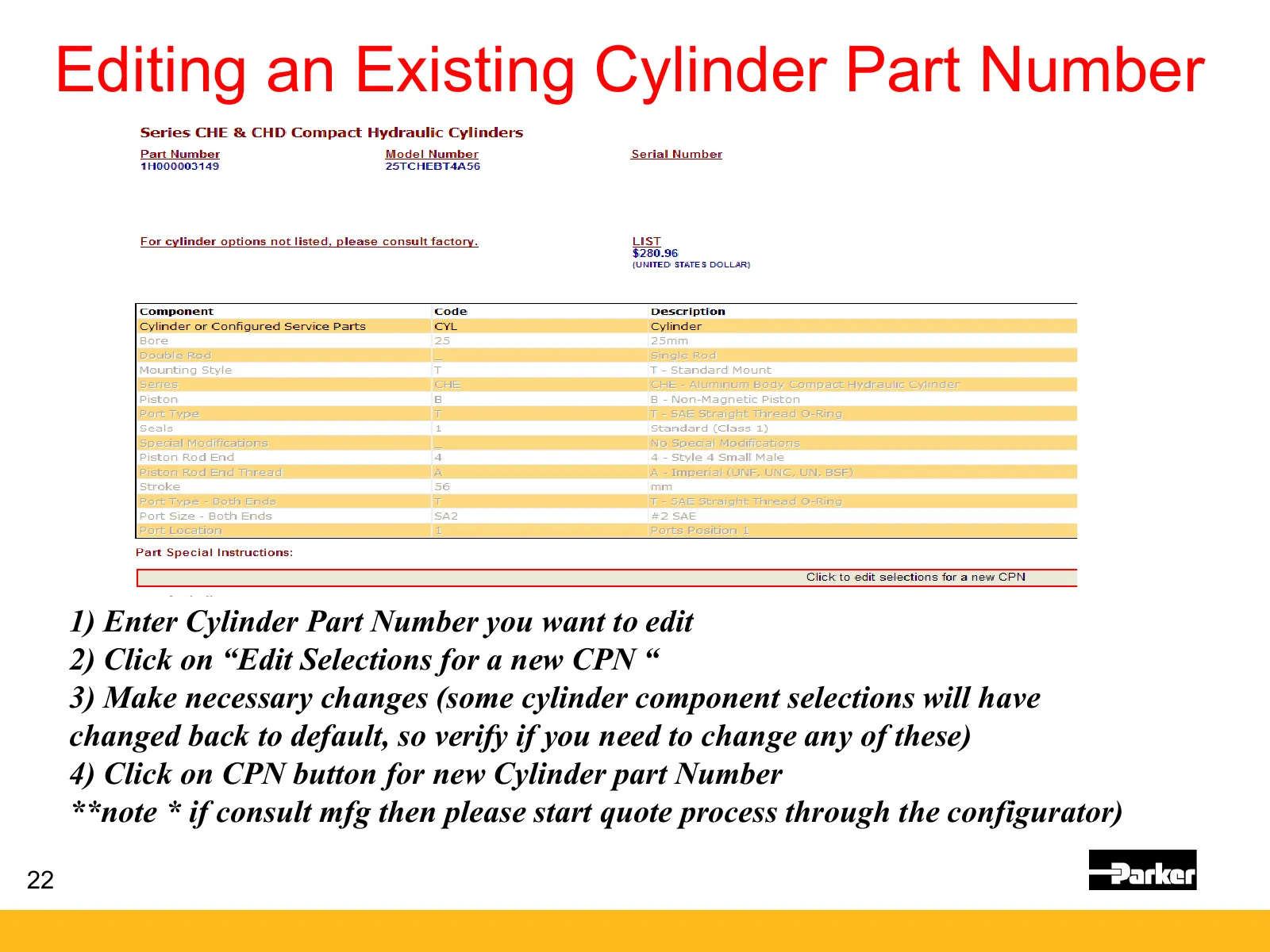
Slide 15: Editing an Existing Cylinder Part Number
Editing an Existing Cylinder Part Number 1) Enter Cylinder Part Number you want to edit 2) Click on “Edit Selections for a new CPN “ 3) Make necessary changes (some cylinder component selections will have changed back to default, so verify if you need to change any of these) 4) Click on CPN button f
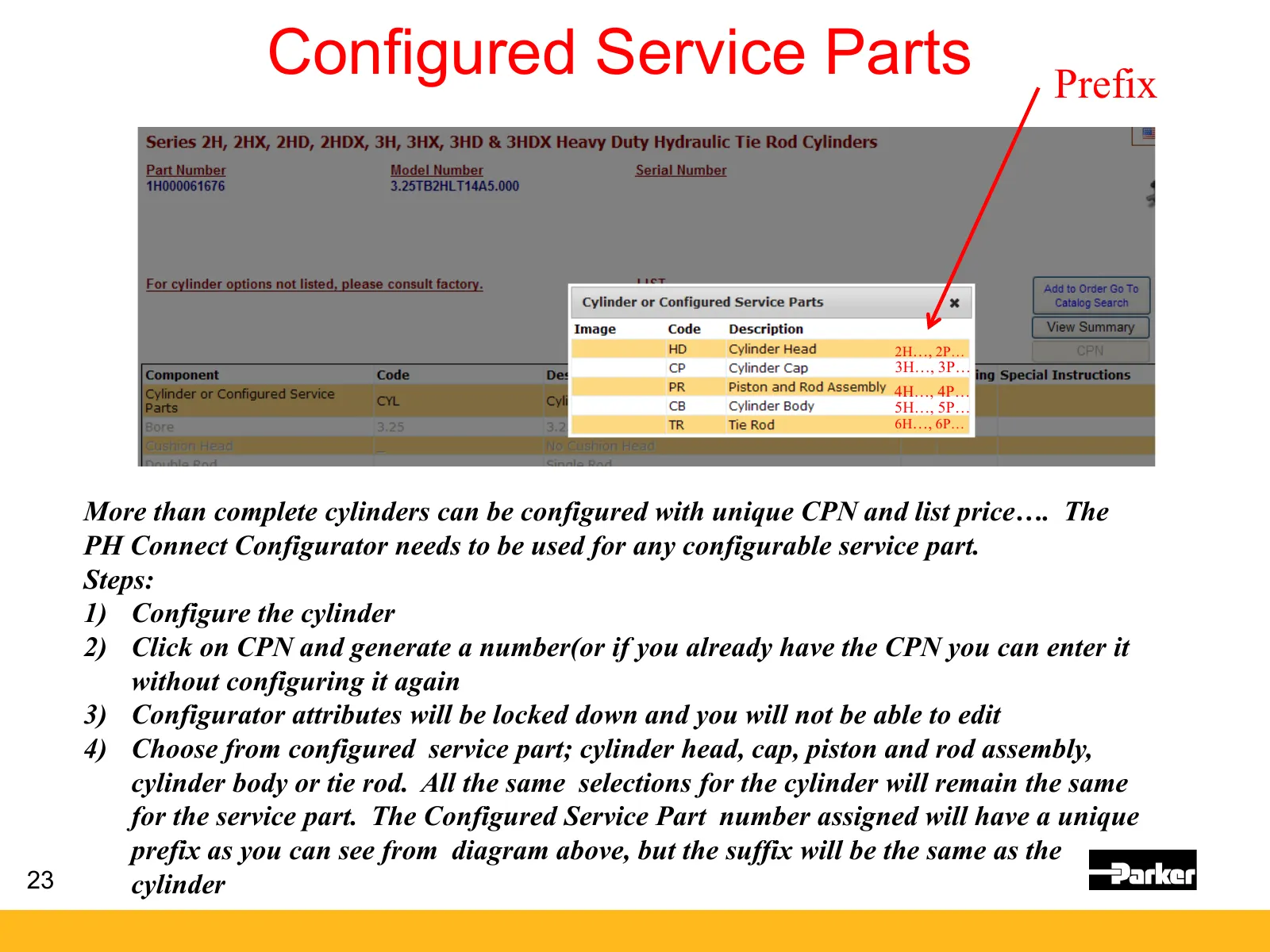
Slide 16: Configured Service Parts
Configured Service Parts Prefix 2H…, 2P… 3H…, 3P… 4H…, 4P… 5H…, 5P… 6H…, 6P… More than complete cylinders can be configured with unique CPN and list price…. The PH Connect Configurator needs to be used for any configurable service part. Steps: 1) Configure the cylinder 2) Click on CPN and generate a
Slide 17: Configurator as Quote Portal
Configurator as Quote Portal 24
Slide 18: Consult Manufacturer
Consult Manufacturer • The configurator is the required quote portal for all configured cylinders and configured service parts. • Use the following email box for quoting custom kits, custom cylinders, accessories, obsolete products, etc – [email protected] No longer use the Regional Plant mailbo
Slide 19: Configure cylinder and Consult Manufacturer is displayed
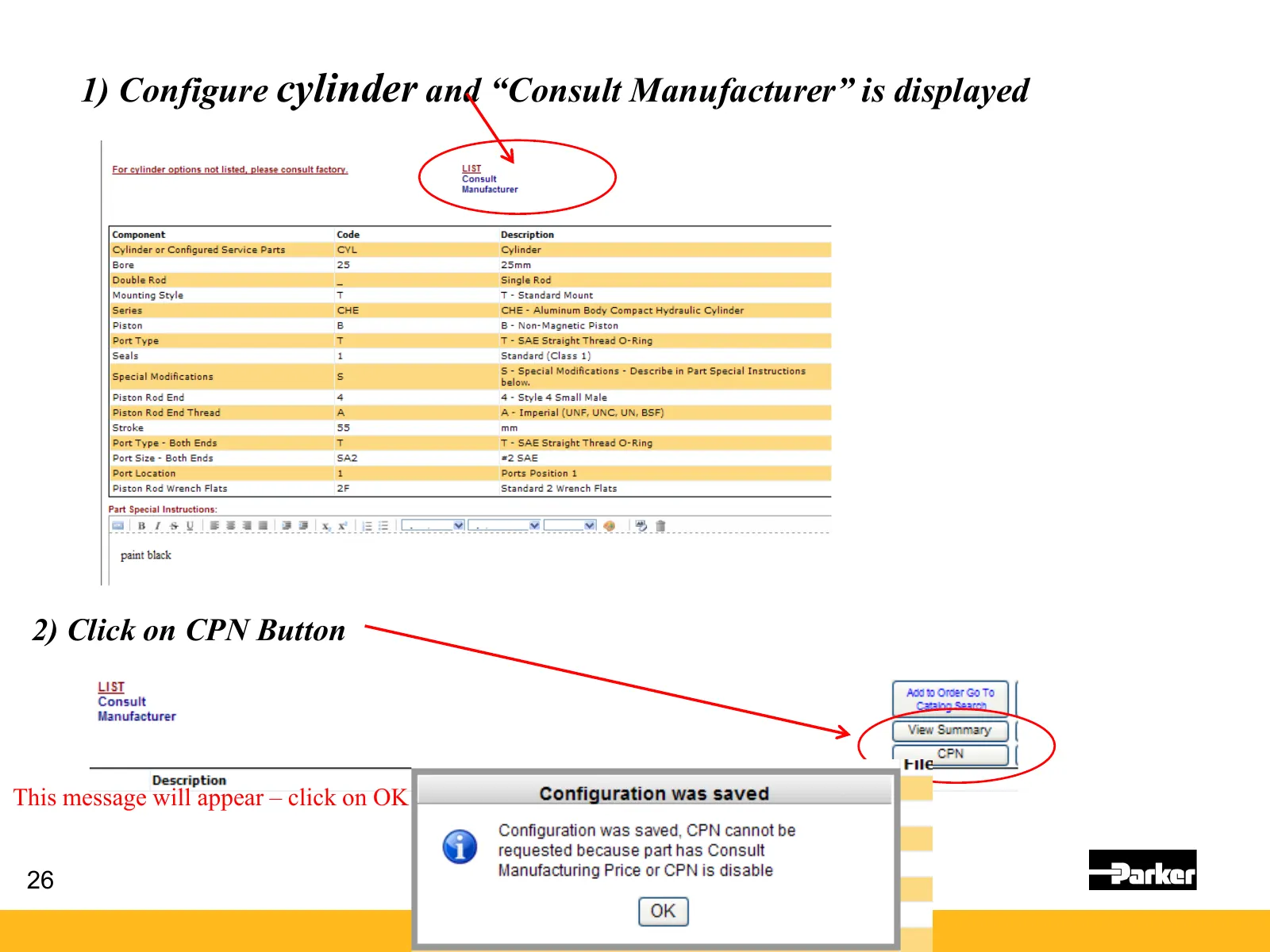
1) Configure cylinder and “Consult Manufacturer” is displayed 2) Click on CPN Button This message will appear – click on OK 26
Slide 20: To start the quote process, click Consult Manufacturer
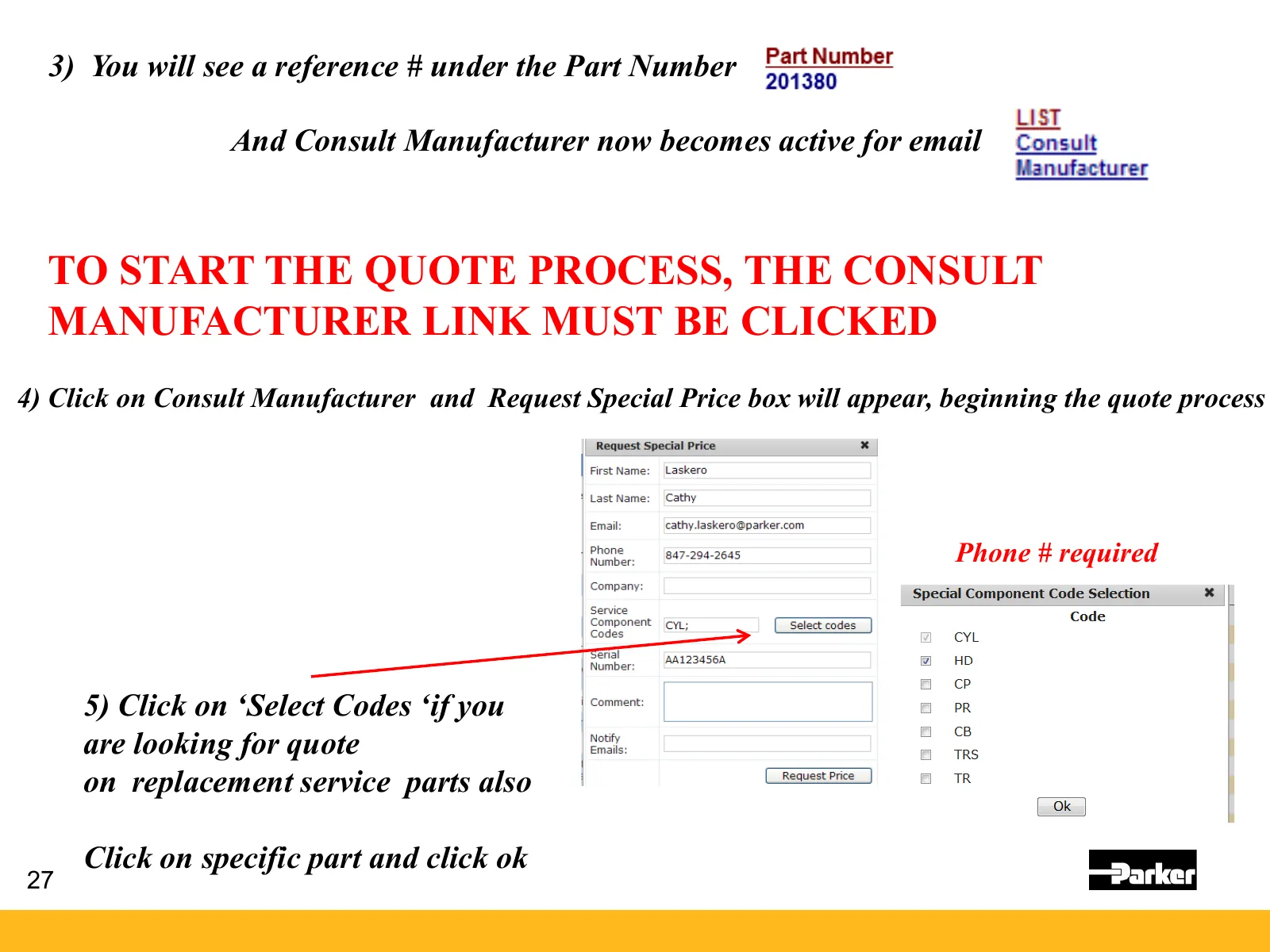
3) You will see a reference # under the Part Number And Consult Manufacturer now becomes active for email TO START THE QUOTE PROCESS, THE CONSULT MANUFACTURER LINK MUST BE CLICKED 4) Click on Consult Manufacturer and Request Special Price box will appear, beginning the quote process Phone # required
Slide 21: Serial number, service kits, quantity and request price
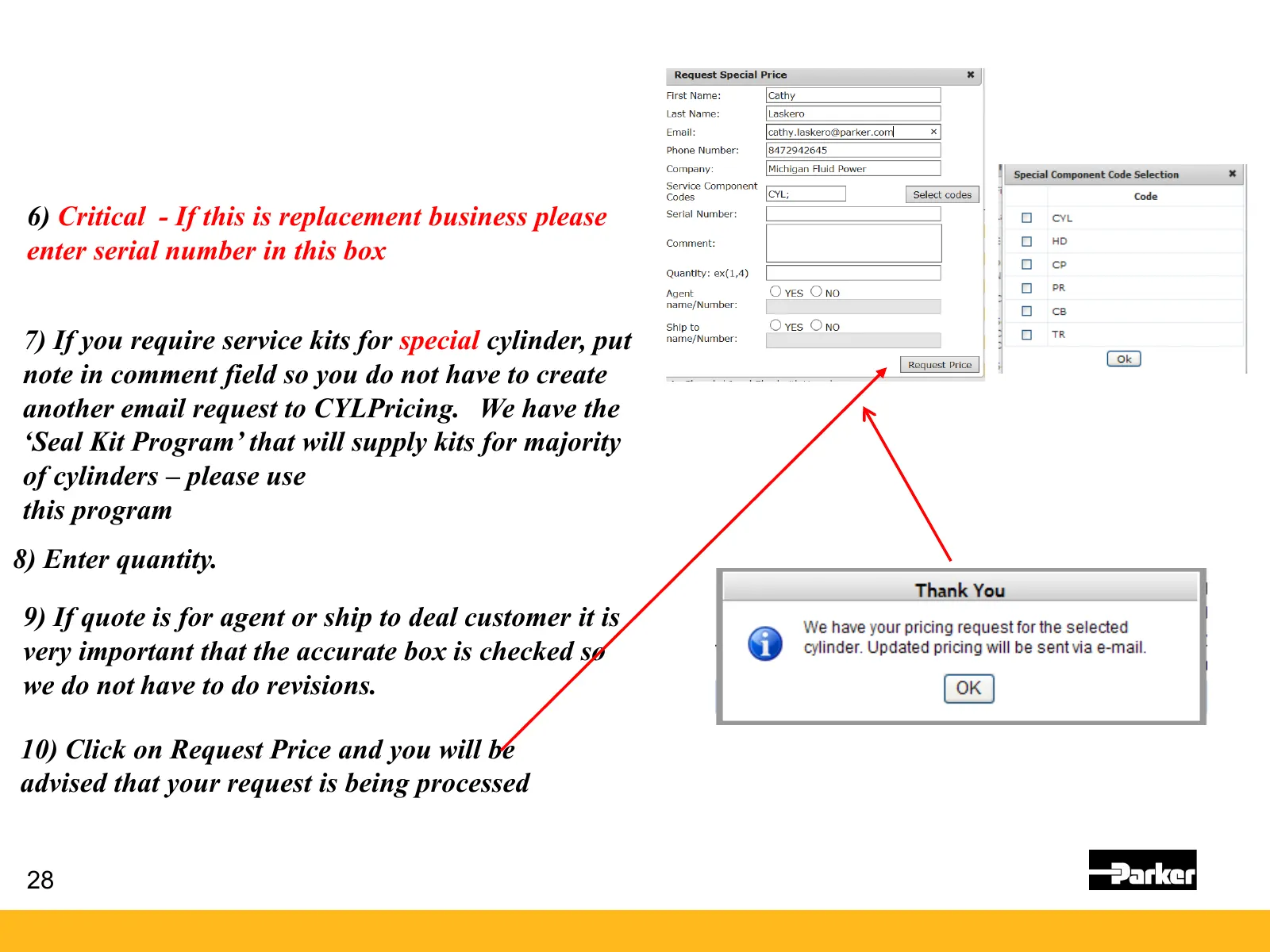
6) Critical - If this is replacement business please enter serial number in this box 7) If you require service kits for special cylinder, put note in comment field so you do not have to create another email request to CYLPricing. We have the ‘Seal Kit Program’ that will supply kits for majority of c
Slide 22: Email with reference number and list price
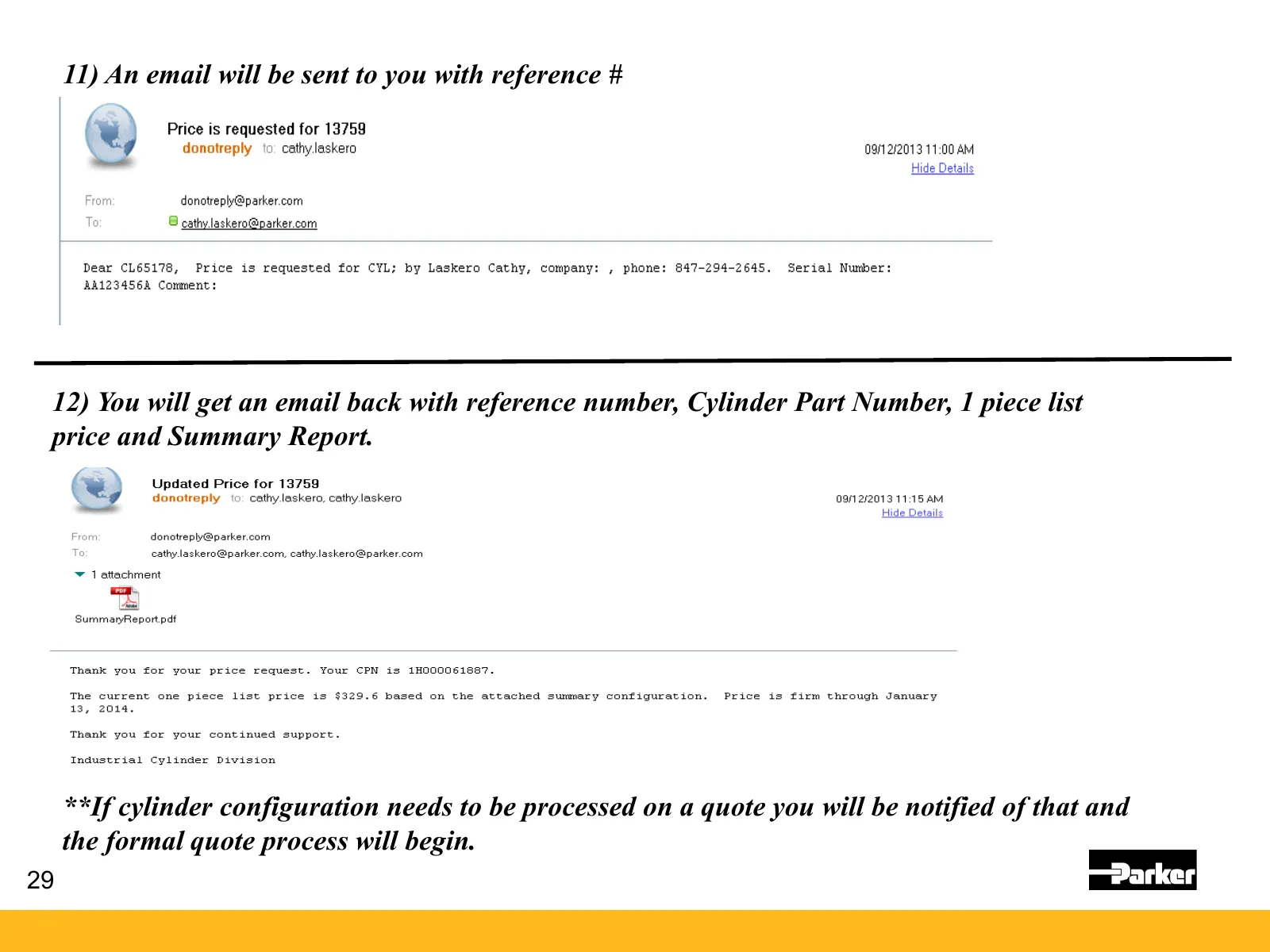
11) An email will be sent to you with reference # 12) You will get an email back with reference number, Cylinder Part Number, 1 piece list price and Summary Report. **If cylinder configuration needs to be processed on a quote you will be notified of that and the formal quote process will begin. 29
Slide 23: Cylinder Quote per Drawing
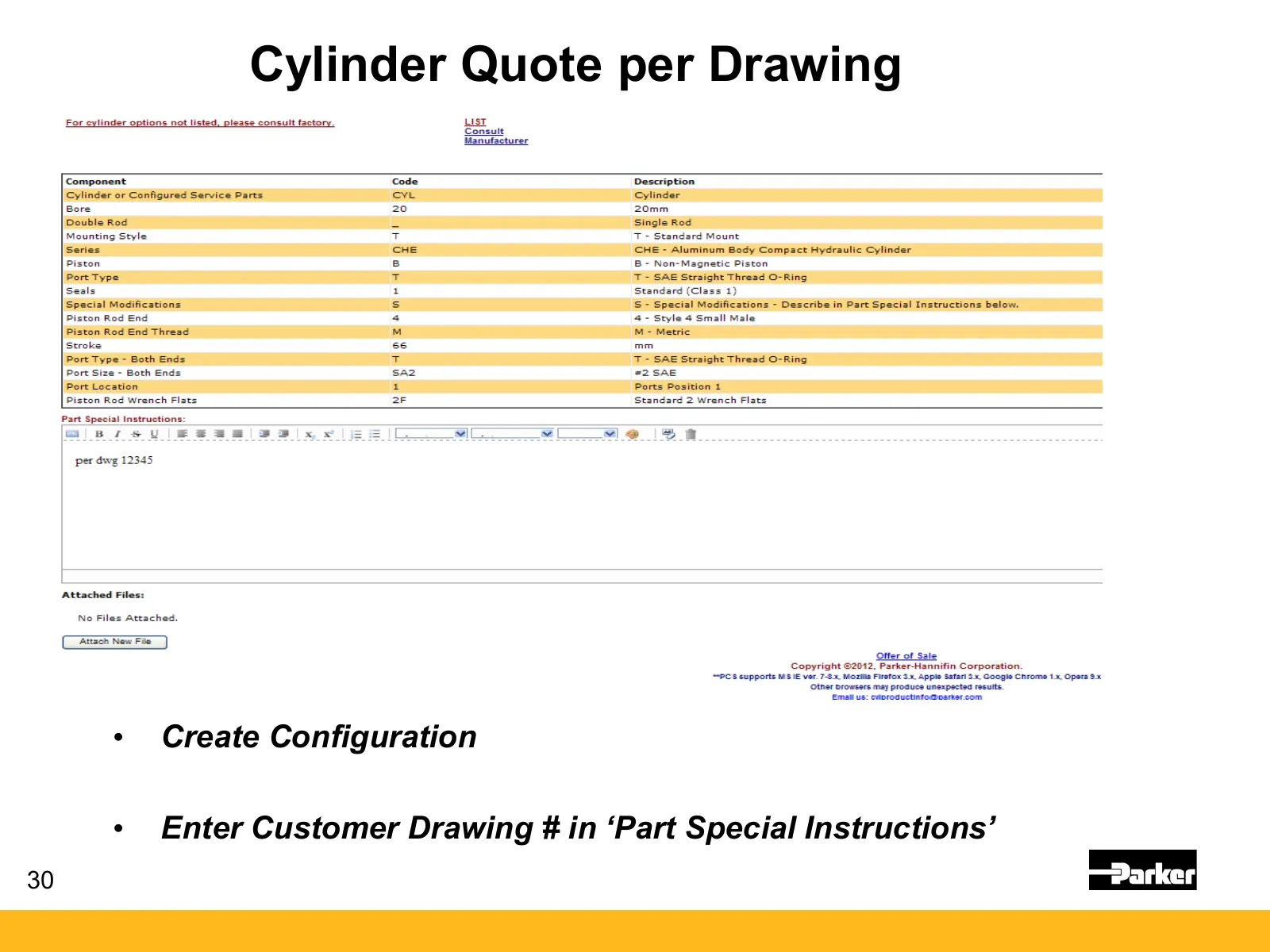
Cylinder Quote per Drawing • Create Configuration • Enter Customer Drawing # in ‘Part Special Instructions’ 30
Slide 24: Cylinder Quote per Drawing: upload file
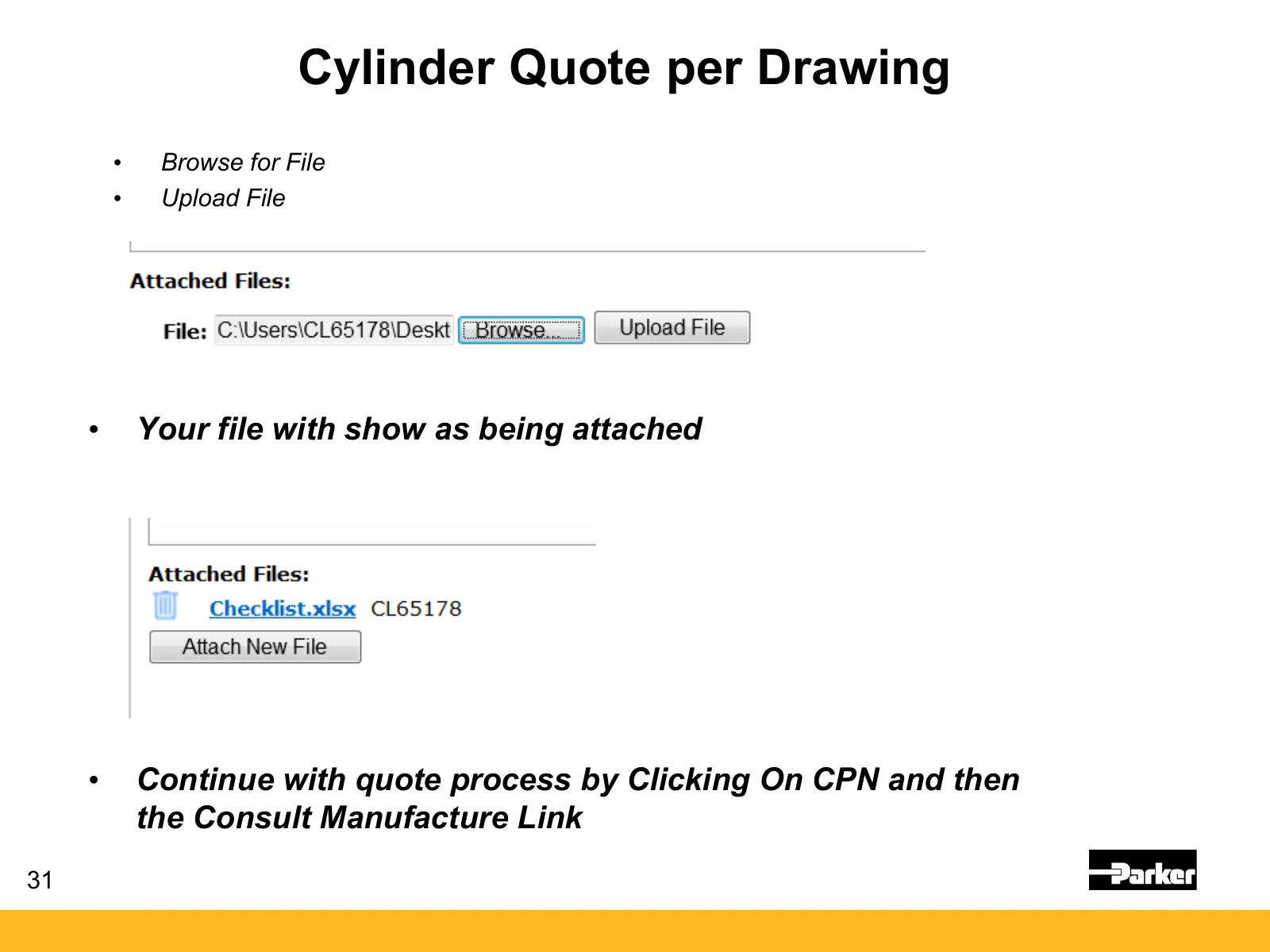
Cylinder Quote per Drawing • Browse for File • Upload File • Your file with show as being attached • Continue with quote process by Clicking On CPN and then the Consult Manufacture Link 31
Slide 25: Order Entry
Order Entry 32
Slide 26: Entering Orders
Entering Orders • PH Connect will be the preferred electronic form of order entry. • Cylinder Part Number will be required to enter orders for cylinders and configured service parts • Orders entered via quotes, for an agent customer or for a special SPA for ship to customer, will flow through our ma
Slide 27: Option 1: Customer Resources/Place Order
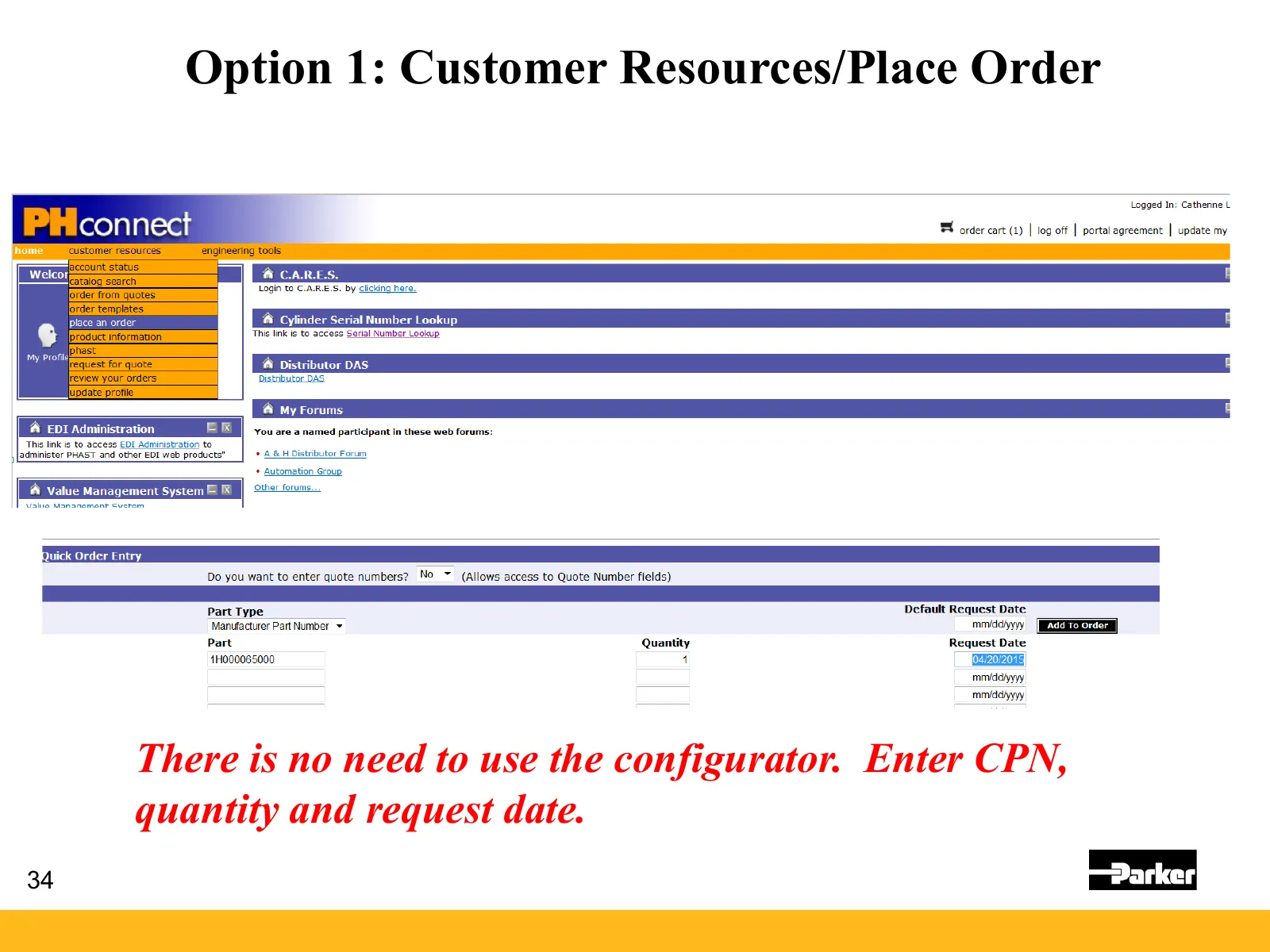
Option 1: Customer Resources/Place Order There is no need to use the configurator. Enter CPN, quantity and request date. 34
Slide 28: Option 2: Customer Resources/Catalog Search
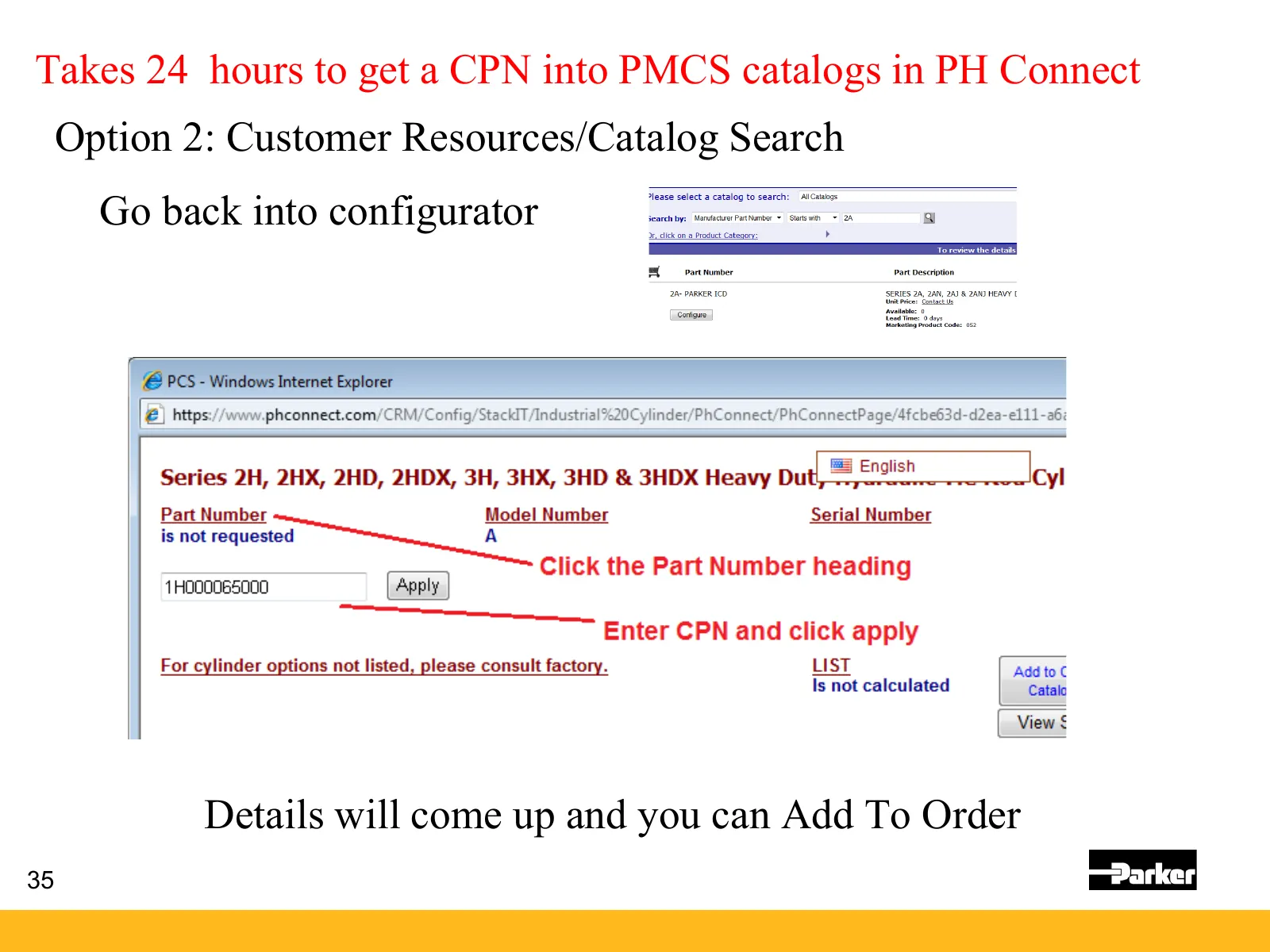
Takes 24 hours to get a CPN into PMCS catalogs in PH Connect Option 2: Customer Resources/Catalog Search Go back into configurator Details will come up and you can Add To Order 35
Slide 29: Shopping cart and request date
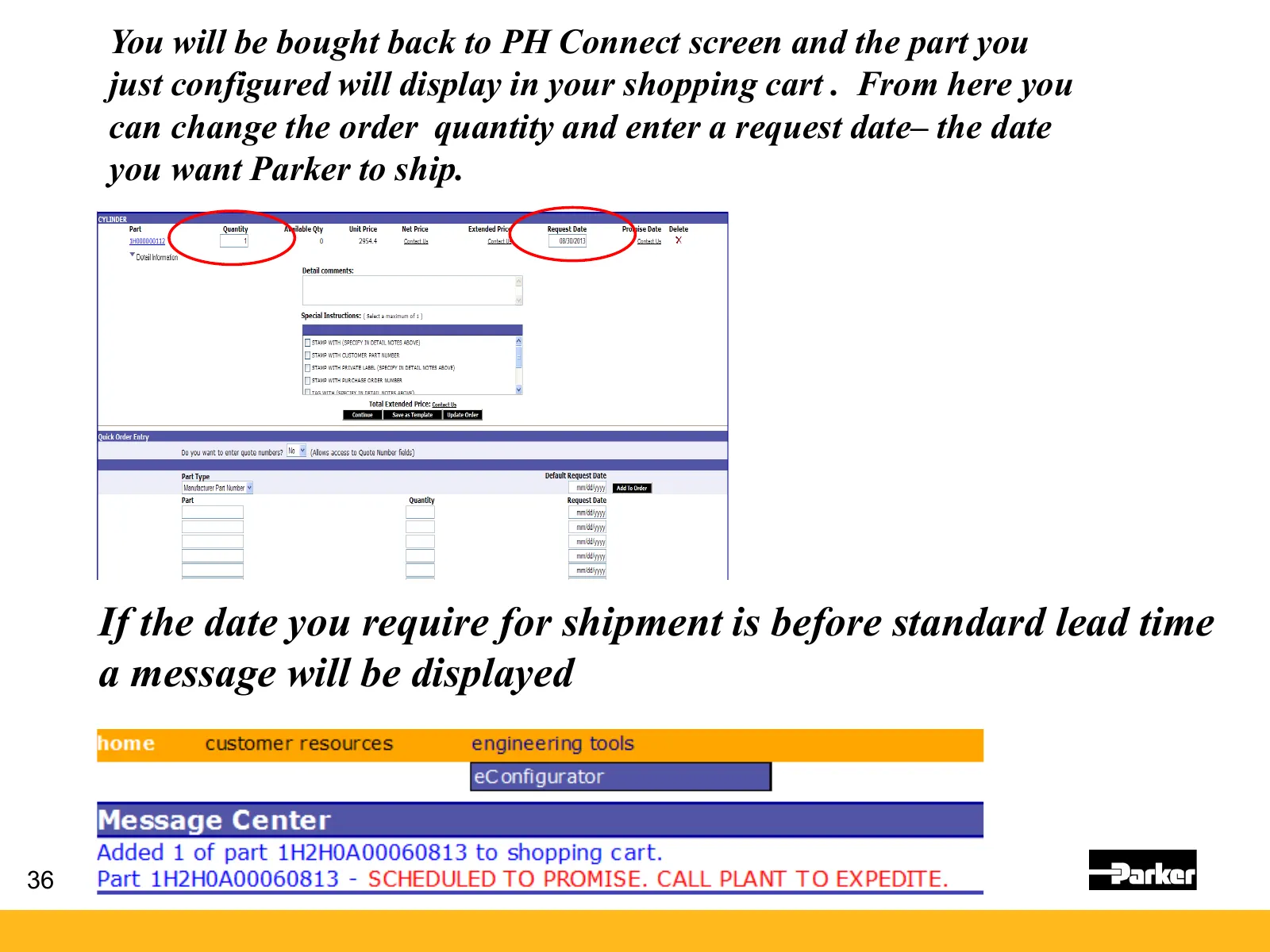
You will be bought back to PH Connect screen and the part you just configured will display in your shopping cart . From here you can change the order quantity and enter a request date– the date you want Parker to ship. If the date you require for shipment is before standard lead time a message will
Slide 30: Detail comment box
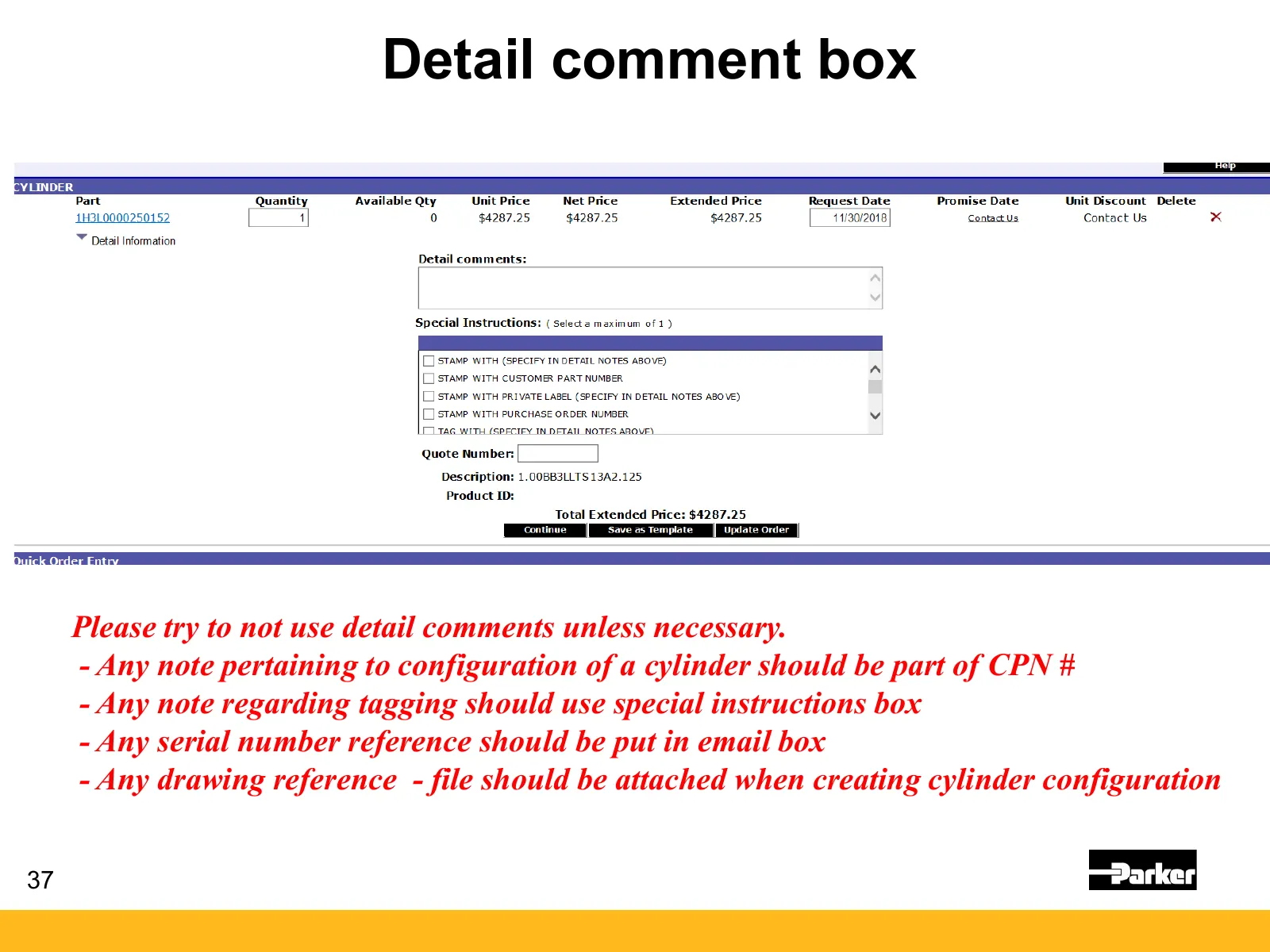
Detail comment box Please try to not use detail comments unless necessary. - Any note pertaining to configuration of a cylinder should be part of CPN # - Any note regarding tagging should use special instructions box - Any serial number reference should be put in email box - Any drawing reference -
Slide 31: Final order display and discounting
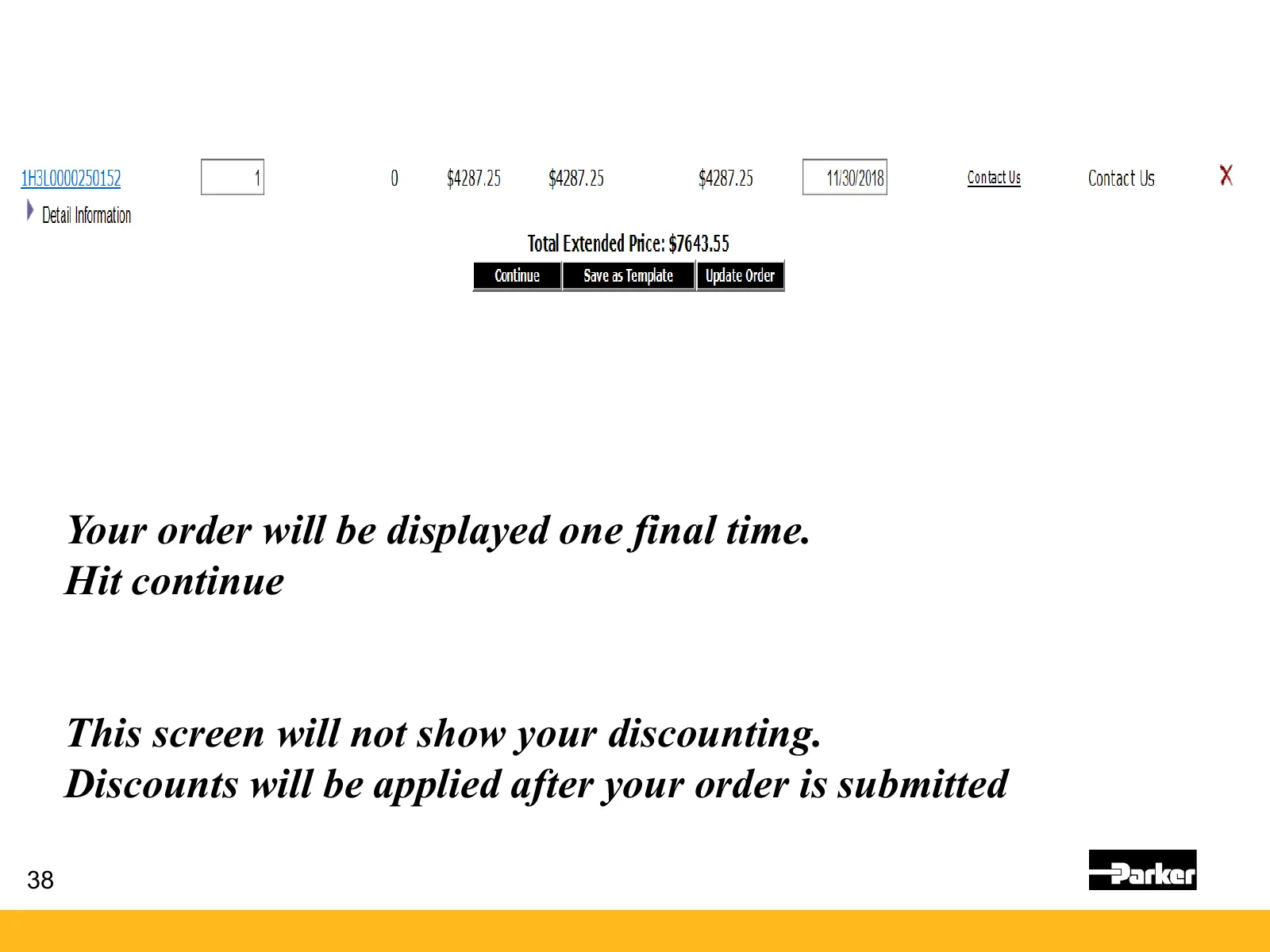
Your order will be displayed one final time. Hit continue This screen will not show your discounting. Discounts will be applied after your order is submitted 38

Slide 32: Entering orders for Special Pricing
Entering orders for Special Pricing 39

Slide 33: Exception Pricing Quotes, OEM Agency Deals, SPA Deals
*Exception Pricing Quotes* *OEM Agency Deals * **SPA (Ship to deals)** There are many pricing programs that are offered to distribution to allow a competitive advantage. Please take note on how to enter orders with special quotes, agency deals or SPA deals. We want to make sure that you get the corr
Slide 34: Exception Pricing: Special Net or Quantity Pricing
Exception Pricing Special Net or Quantity Pricing 41
Slide 35: Quote issued by Des Plaines quote cell
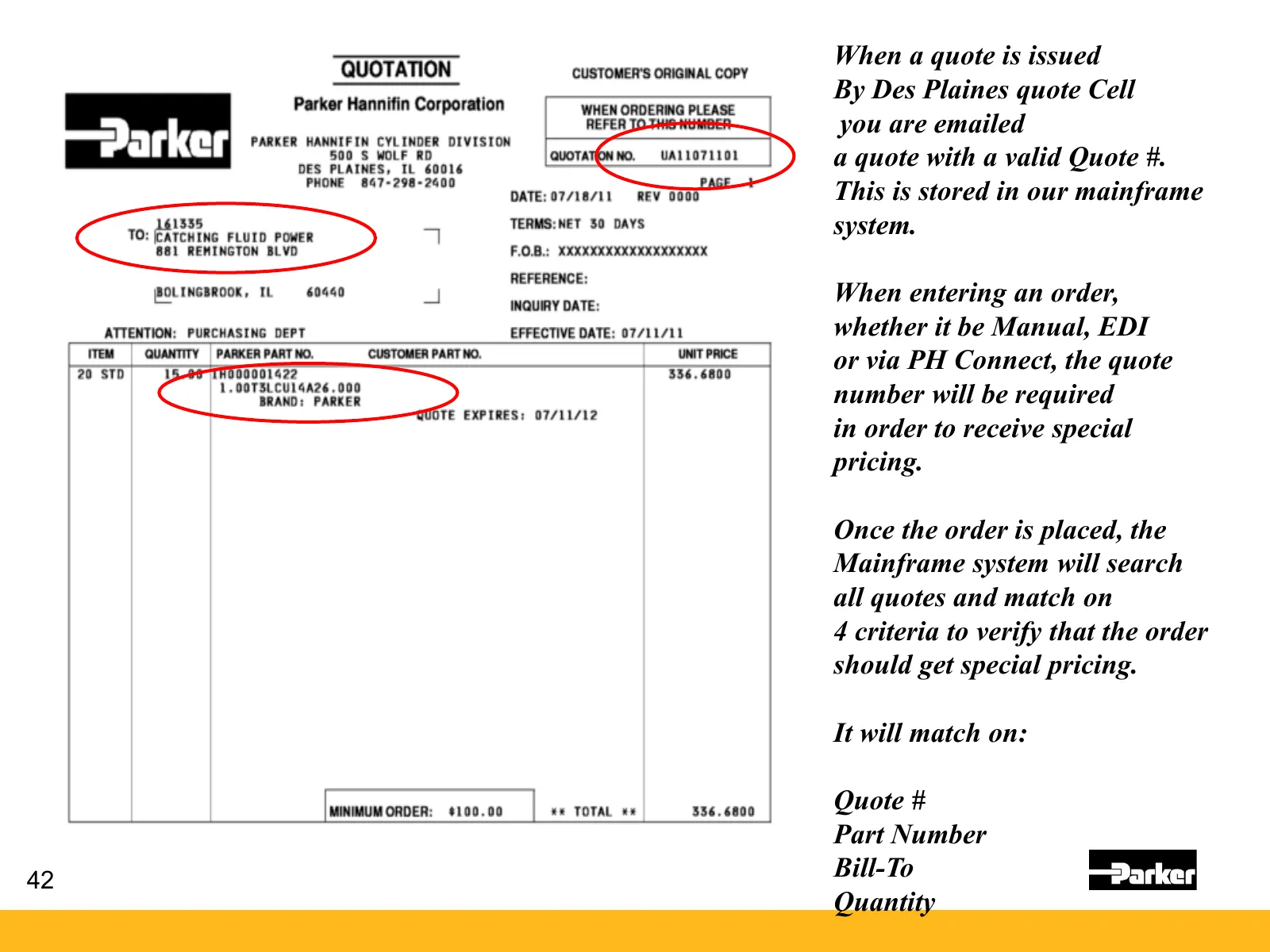
When a quote is issued By Des Plaines quote Cell you are emailed a quote with a valid Quote #. This is stored in our mainframe system. When entering an order, whether it be Manual, EDI or via PH Connect, the quote number will be required in order to receive special pricing. Once the order is placed,
Slide 36: Placing an order via PH Connect with quote numbers
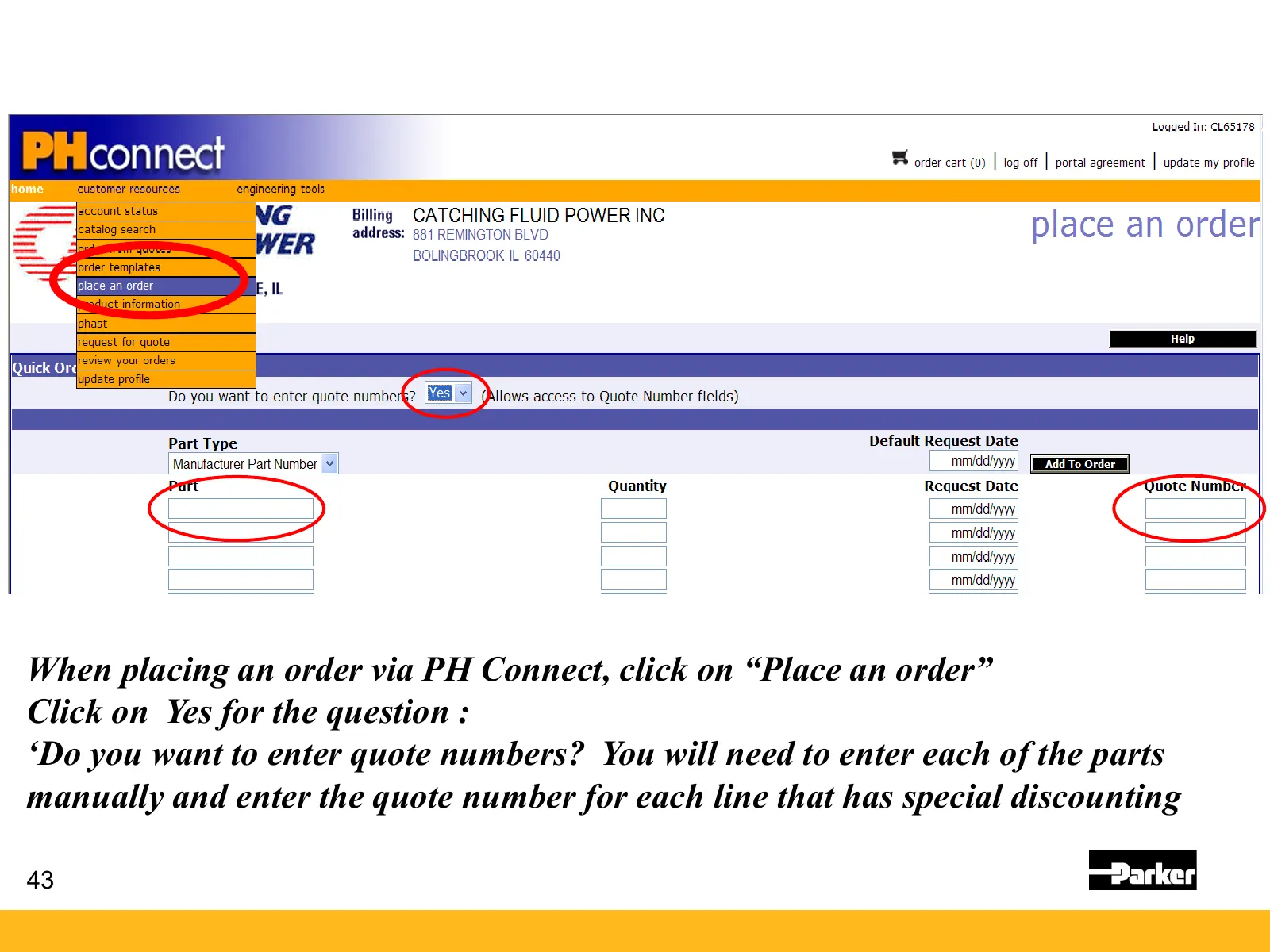
When placing an order via PH Connect, click on “Place an order” Click on Yes for the question : ‘Do you want to enter quote numbers? You will need to enter each of the parts manually and enter the quote number for each line that has special discounting 43
Slide 37: Invalid or expired quote
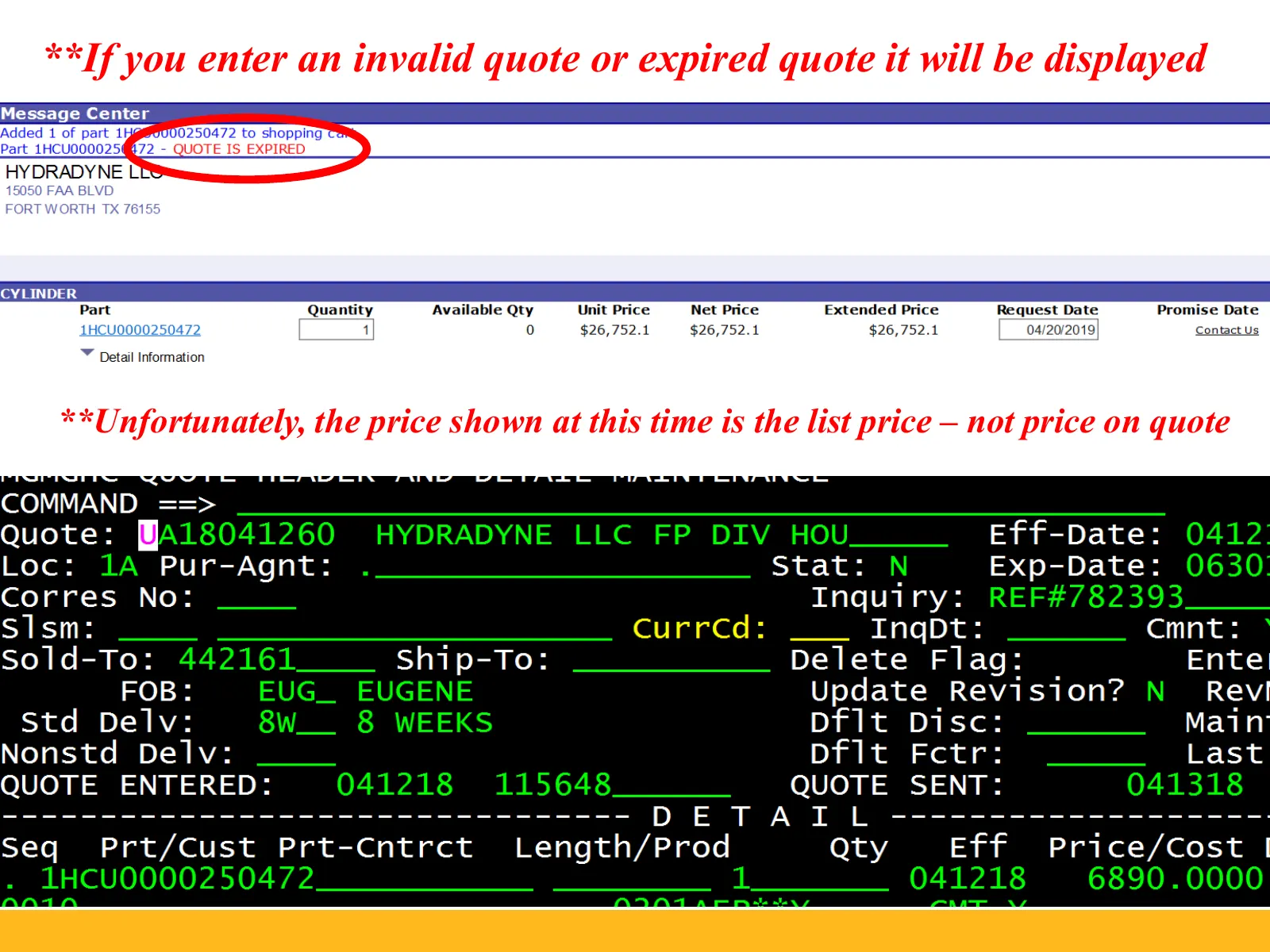
**If you enter an invalid quote or expired quote it will be displayed **Unfortunately, the price shown at this time is the list price – not price on quote 44
Slide 38: Change the shipping address
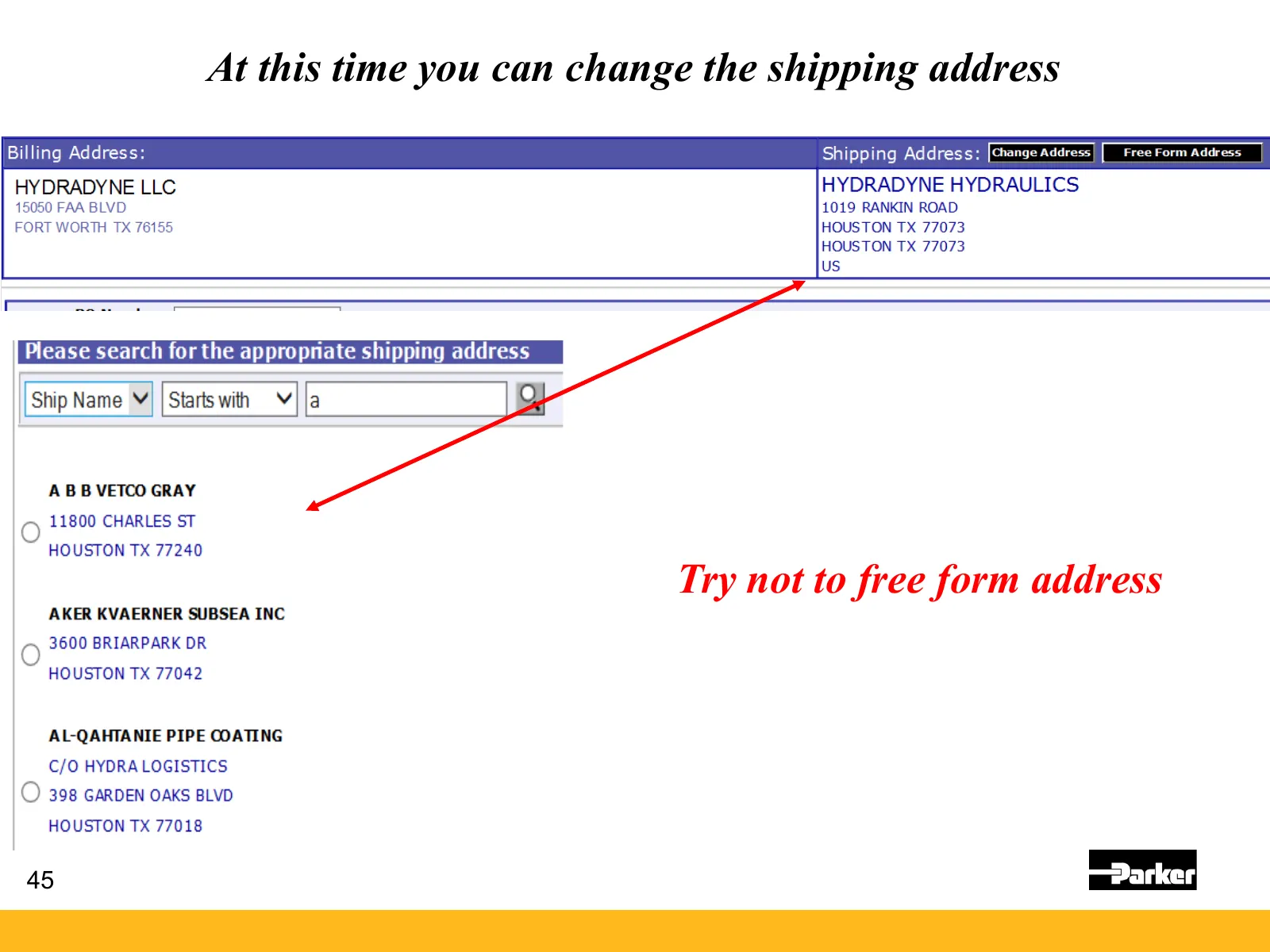
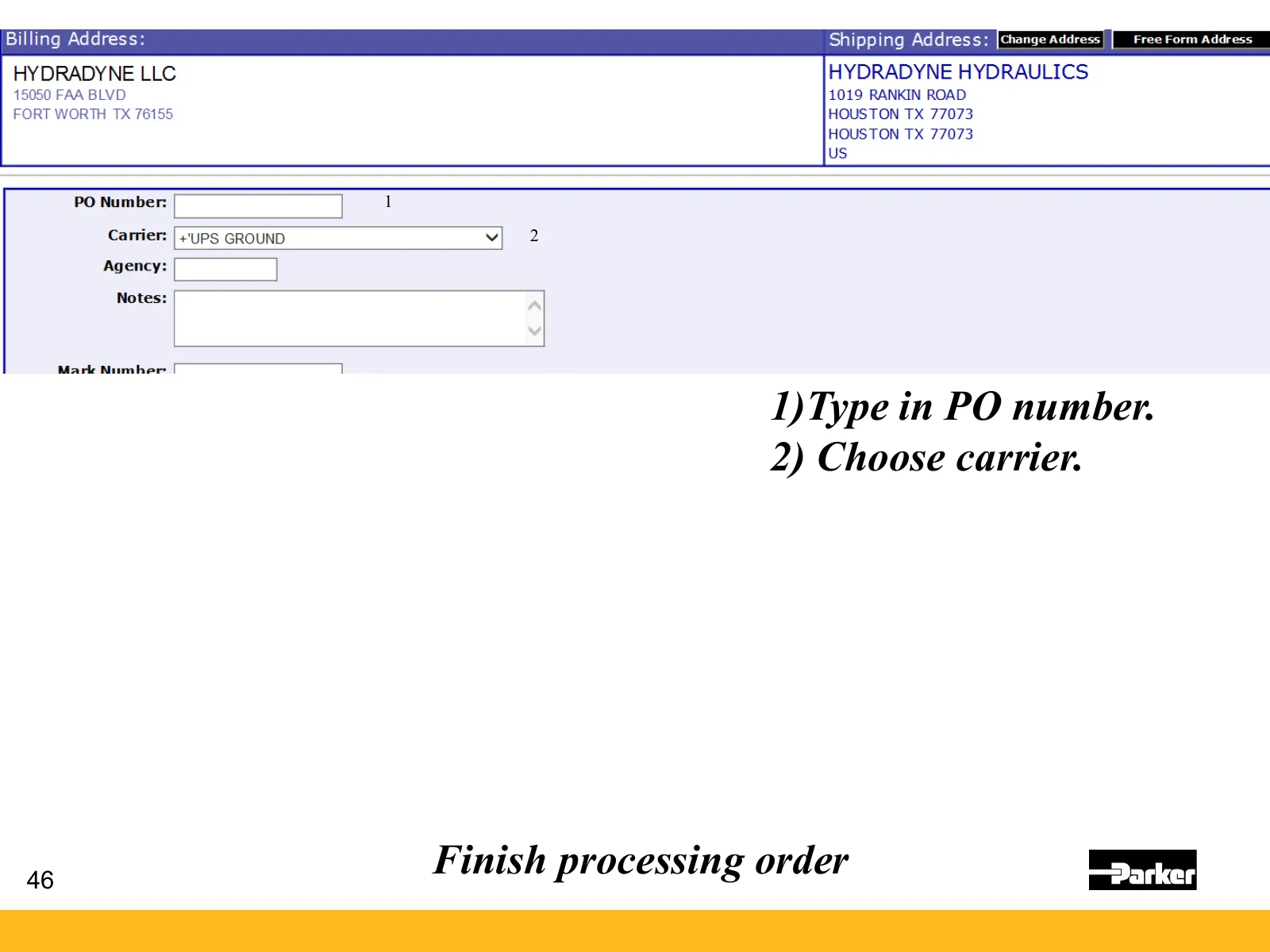
At this time you can change the shipping address Try not to free form address 45
Slide 39: Type in PO number and choose carrier
1 2 1)Type in PO number. 2) Choose carrier. 46 Finish processing order
Slide 40: Agency Orders
AGENCY ORDERS 47

Slide 41: Agency deals: Parker billing on behalf of a distributor
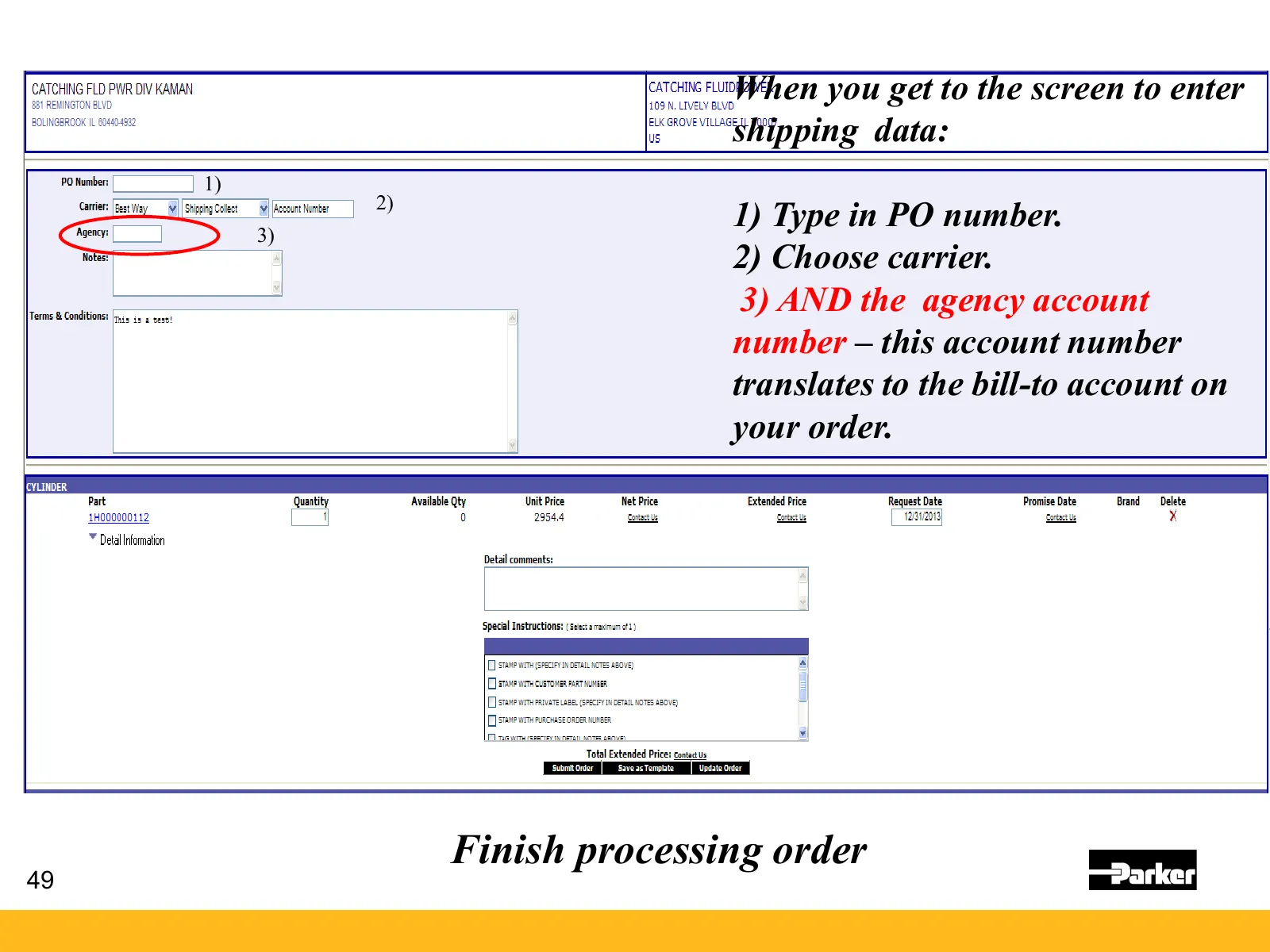
Agency deals are those in which Parker is billing an account on behalf of a distributor •The correct pricing will be validated on the following information Bill-to Product code 48
Slide 42: Finish processing order with agency account number
When you get to the screen to enter shipping data: 1) 2) 3) 1) Type in PO number. 2) Choose carrier. 3) AND the agency account number – this account number translates to the bill-to account on your order. Finish processing order 49
Slide 43: SPA Deals
SPA Deals SPA deals are those in which you must ship to a specific ship to customer Cannot free form an address •The correct pricing will be validated on the following information Ship to Product code 50
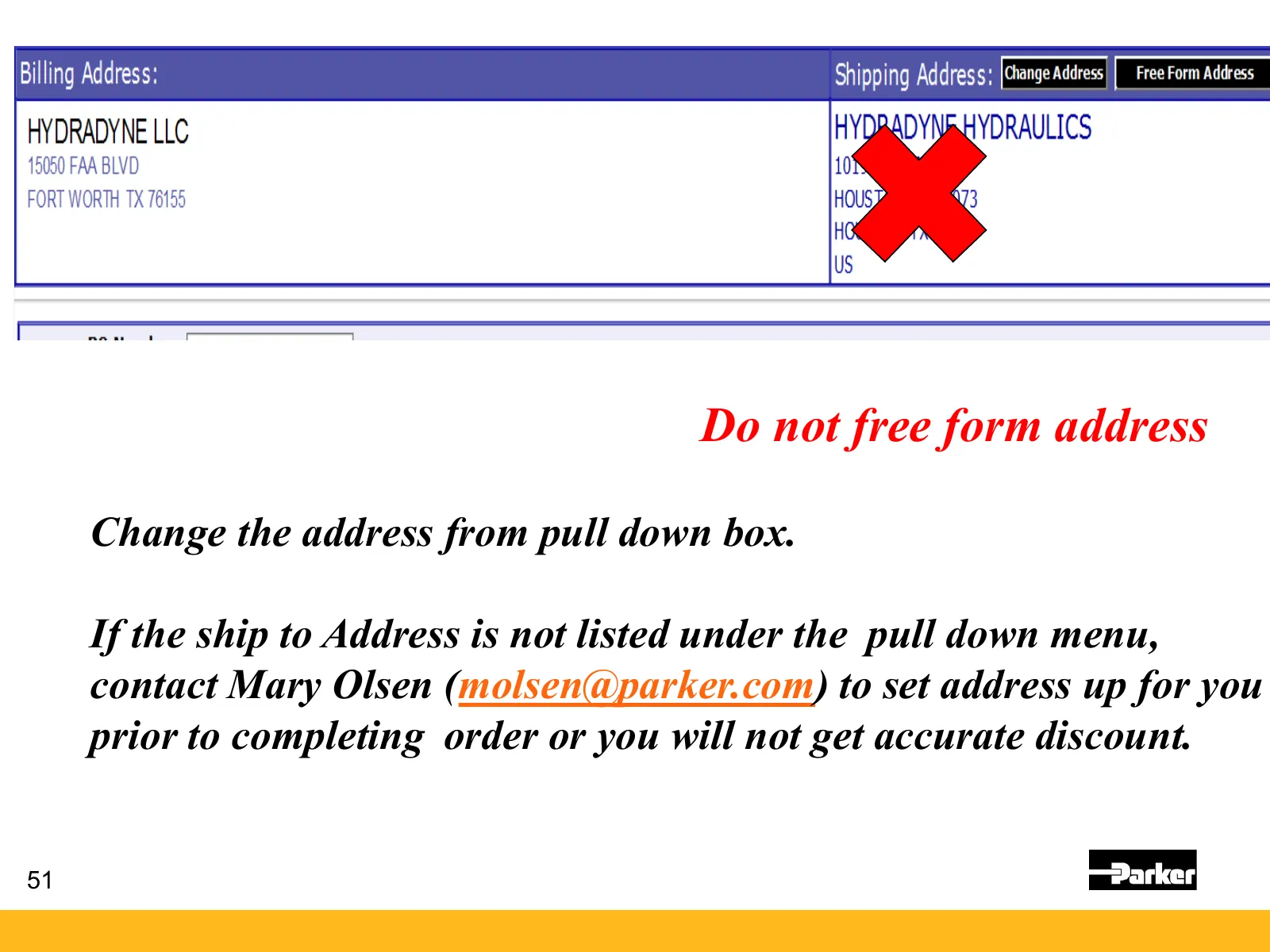
Slide 44: Do not free form address
Do not free form address Change the address from pull down box. If the ship to Address is not listed under the pull down menu, contact Mary Olsen ([email protected]) to set address up for you prior to completing order or you will not get accurate discount. 51
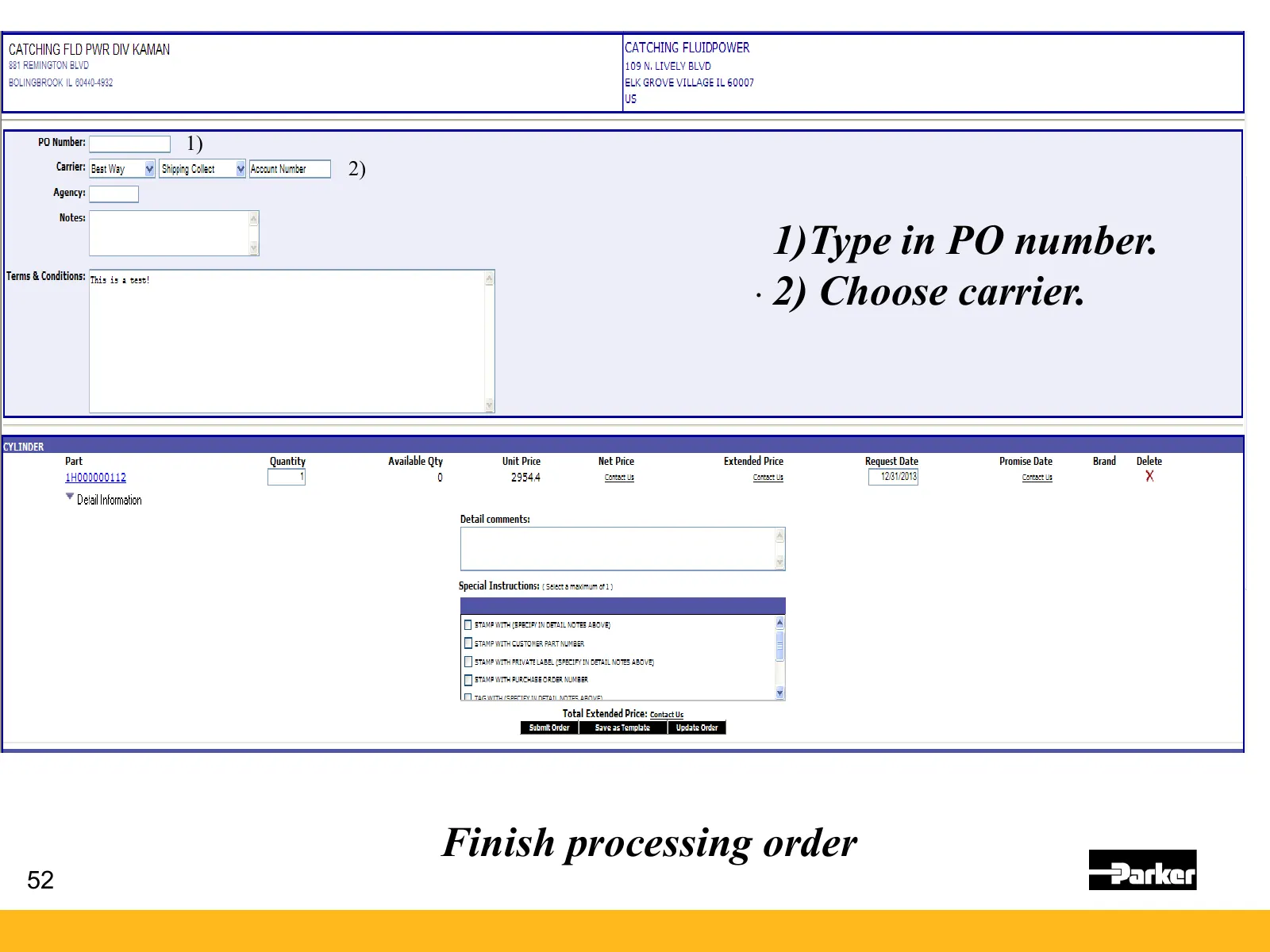
Slide 45: Type in PO number and choose carrier
1) 2) 1)Type in PO number. . 2) Choose carrier. Finish processing order 52
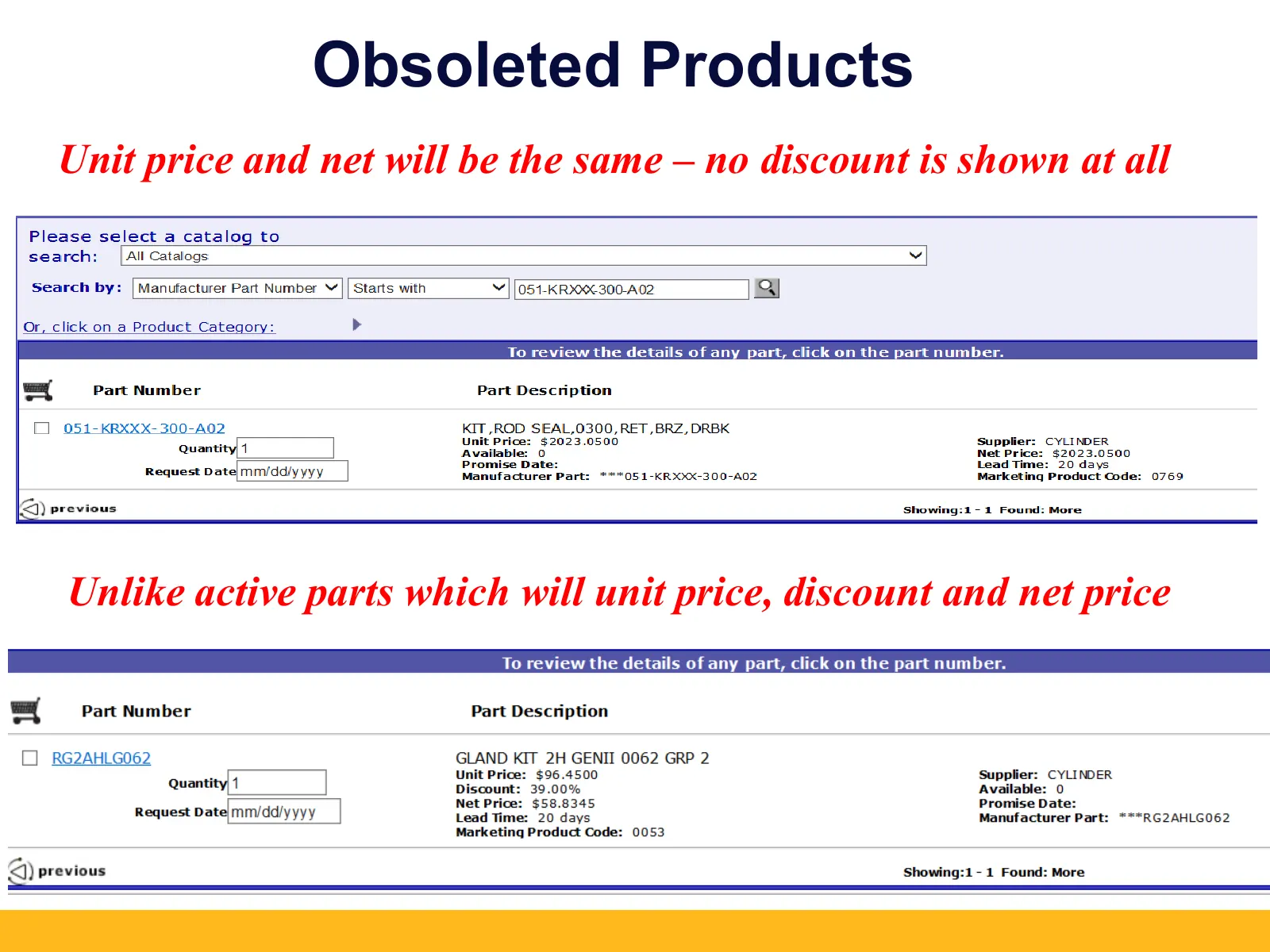
Slide 46: Obsoleted Products
Obsoleted Products Unit price and net will be the same – no discount is shown at all Unlike active parts which will unit price, discount and net price
Slide 47: Contact information
Contact information: Cathy Laskero Division Quote/Tech Manager Email: [email protected] Phone: 847-294-2645 Kevin Osmon Division Customer Service Manager Email:[email protected] Phone:419-778-3637 Ken Schoo Value Stream Leader – (configurator quote cell) Email: [email protected] Phone:847-294

Slide 48: Questions?
Questions?
Source: company website
More decks from Parker-Hannifin Corporation
 Q1 2027 Earnings Presentation32 slides · Nov 5, 2026
 Q4 2026 Earnings Presentation32 slides · Aug 6, 2026
 Q3 2026 Earnings Presentation28 slides · Apr 30, 2026
 Bank of America Global Industrials Conference 202612 slides · Mar 18, 2026
 Q2 2026 Earnings Presentation30 slides · Jan 29, 2026
 Barclays Industrial Select Conference 202611 slides · 2026