Agilent Technologies, Inc. · NYSE:A
Agilent Technologies — Technical Presentation (July 2023)
73 slides from Agilent Technologies's technical presentation, July 2023
Slide 1: Qualitative Analysis Workflows
Qualitative Analysis Workflows MassHunter Qualitative Analysis Webinar Series Howard Sanford Stephen Harnos With Tom Barrett & Matt Leyden & Kevin Costalunga 1 Qualitative Analysis Workflows
Slide 2: Navigator and Workflows
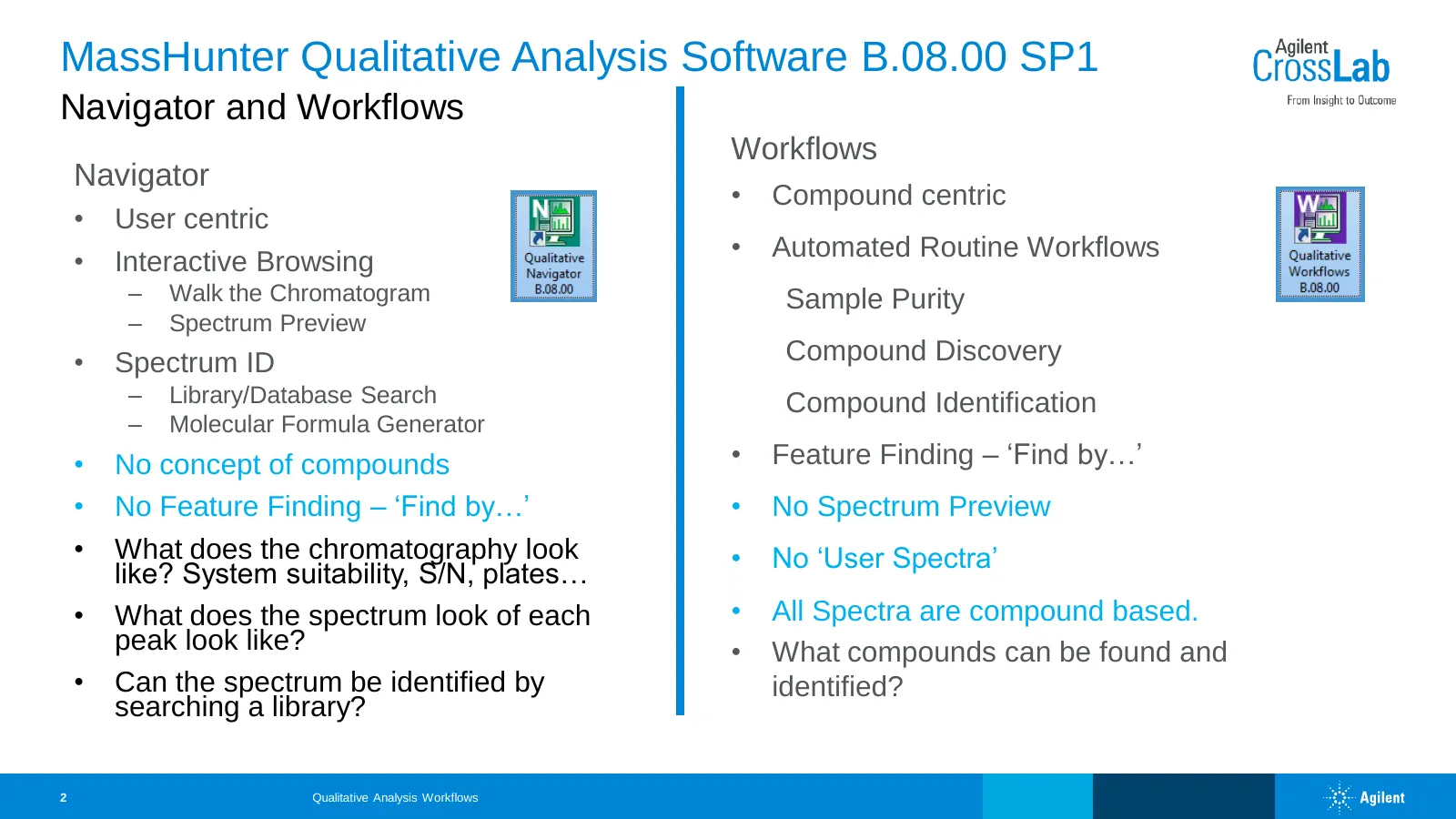
MassHunter Qualitative Analysis Software B.08.00 SP1 Navigator and Workflows Workflows Navigator • Compound centric • User centric • Interactive Browsing • Automated Routine Workflows – Walk the Chromatogram Sample Purity – Spectrum Preview • Spectrum ID Compound Discovery – Library/Database Search
Slide 3: Navigator and Workflows
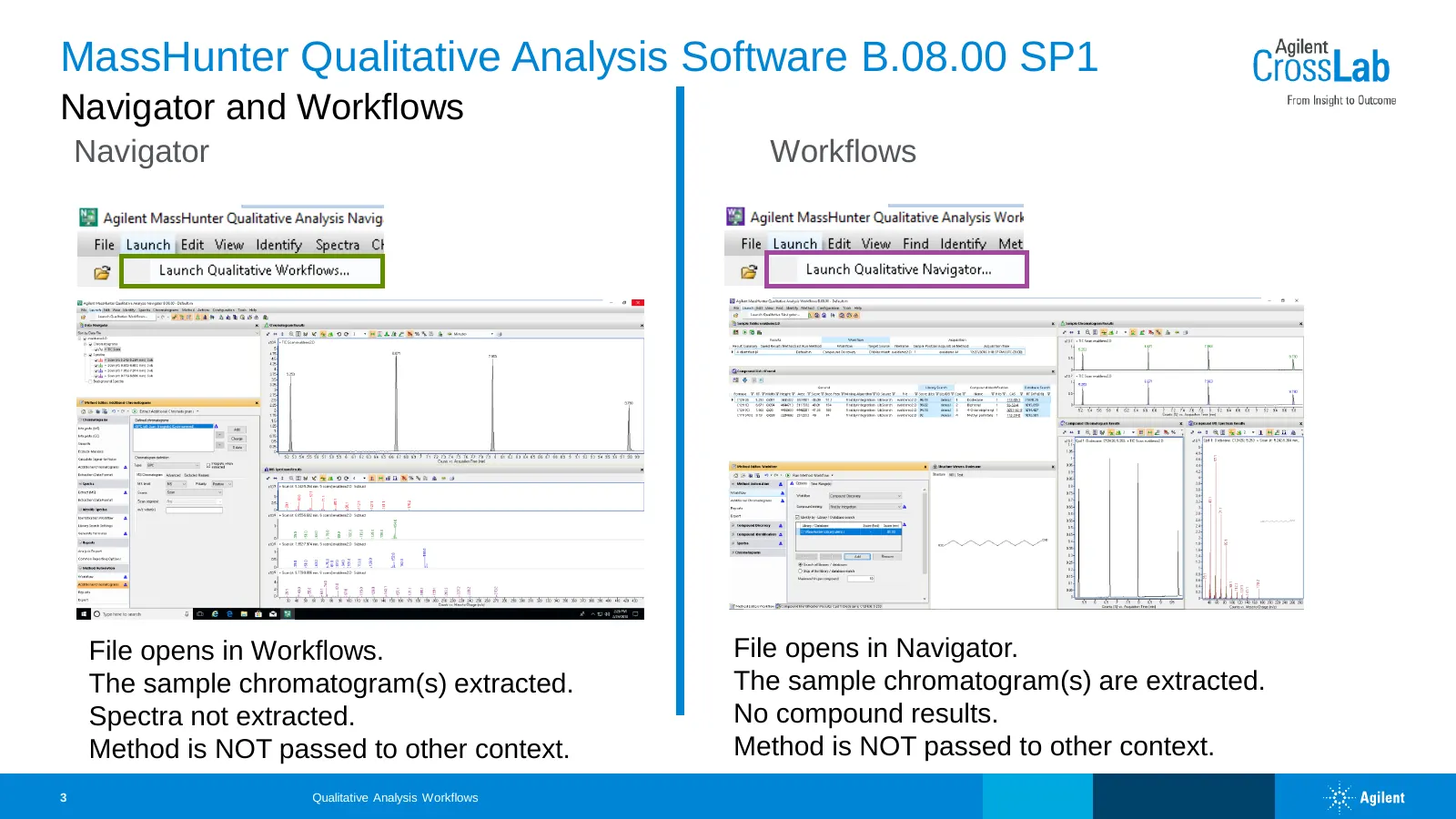
MassHunter Qualitative Analysis Software B.08.00 SP1 Navigator and Workflows Navigator Workflows File opens in Workflows. File opens in Navigator. The sample chromatogram(s) extracted. The sample chromatogram(s) are extracted. Spectra not extracted. No compound results. Method is NOT passed to other
Slide 4: Topics
MassHunter Qualitative Analysis Software B.08.00 SP1 Topics Qualitative Analysis Workflows Workflow Definitions • Target/Suspect Screening • Compound Discovery • Sample Purity • Custom Compound Mining Algorithms • Find by Integration • Find by Chromatogram Deconvolution • Molecular Feature Extractio
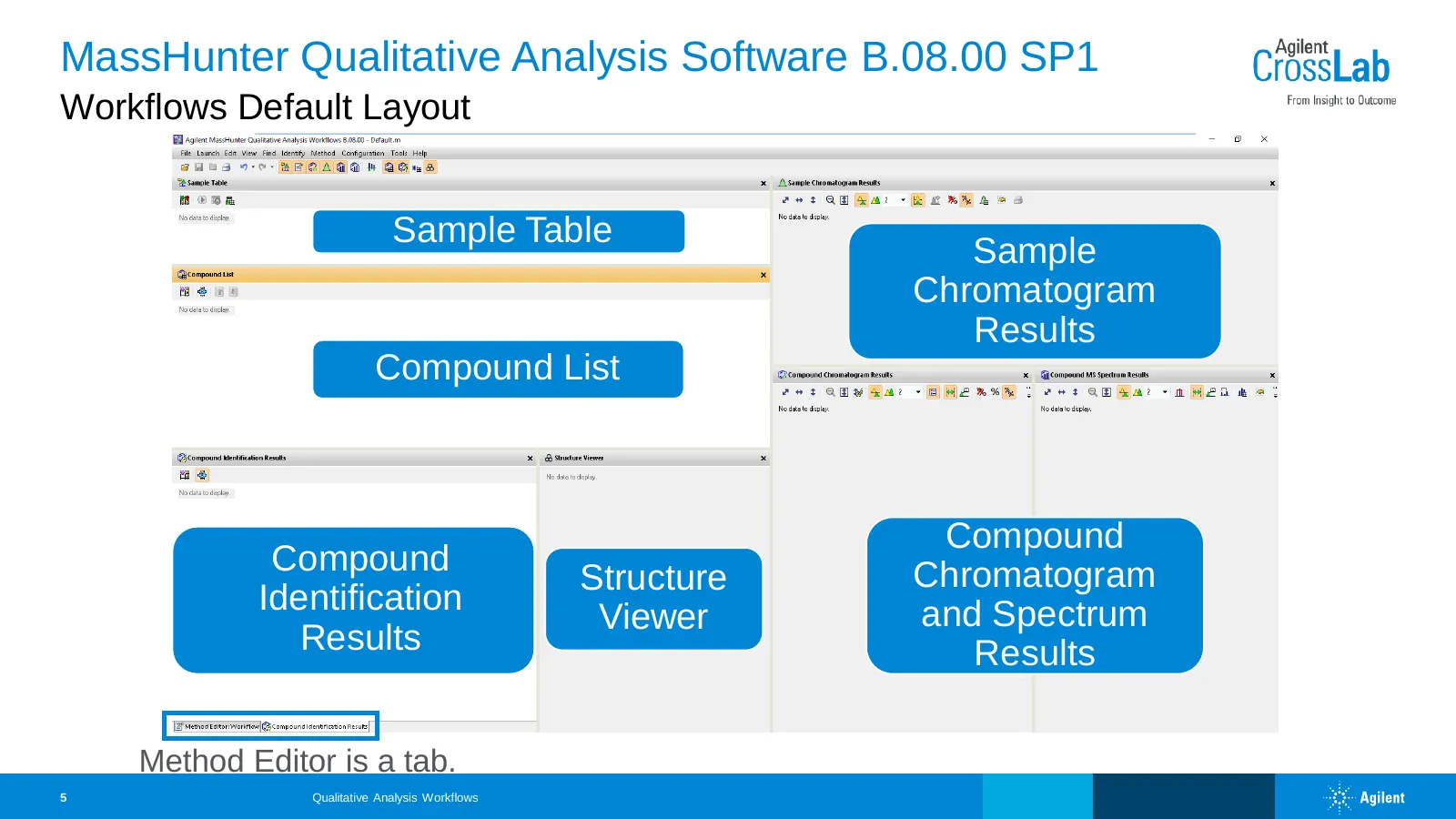
Slide 5: Workflows Default Layout
MassHunter Qualitative Analysis Software B.08.00 SP1 Workflows Default Layout Sample Table Sample Chromatogram Results Compound List Compound Compound Chromatogram Structure Identification and Spectrum Viewer Results Results Method Editor is a tab. 5 Qualitative Analysis Workflows
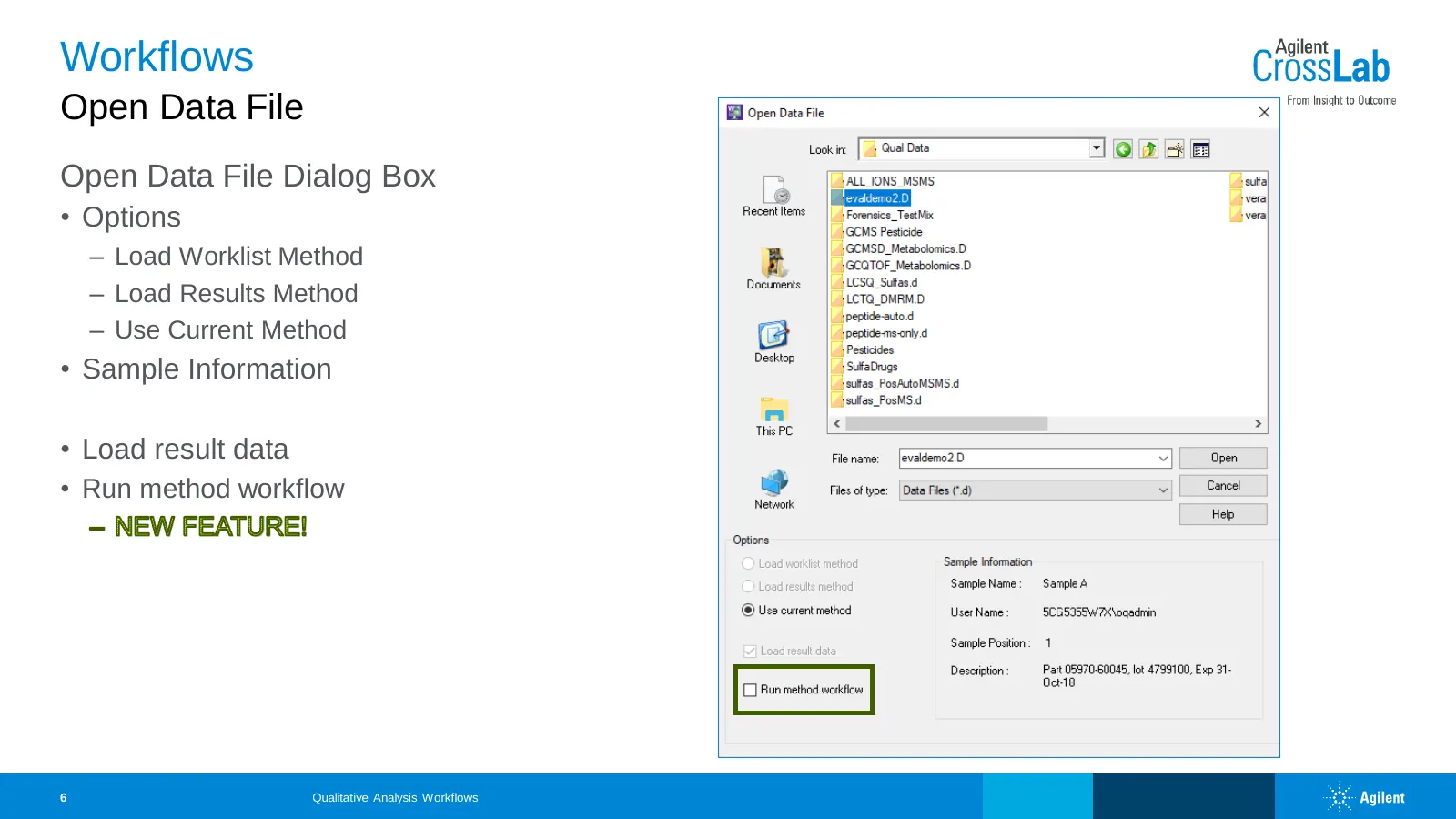
Slide 6: Workflows: Open Data File
Workflows Open Data File Open Data File Dialog Box • Options – Load Worklist Method – Load Results Method – Use Current Method • Sample Information • Load result data • Run method workflow 6 Qualitative Analysis Workflows
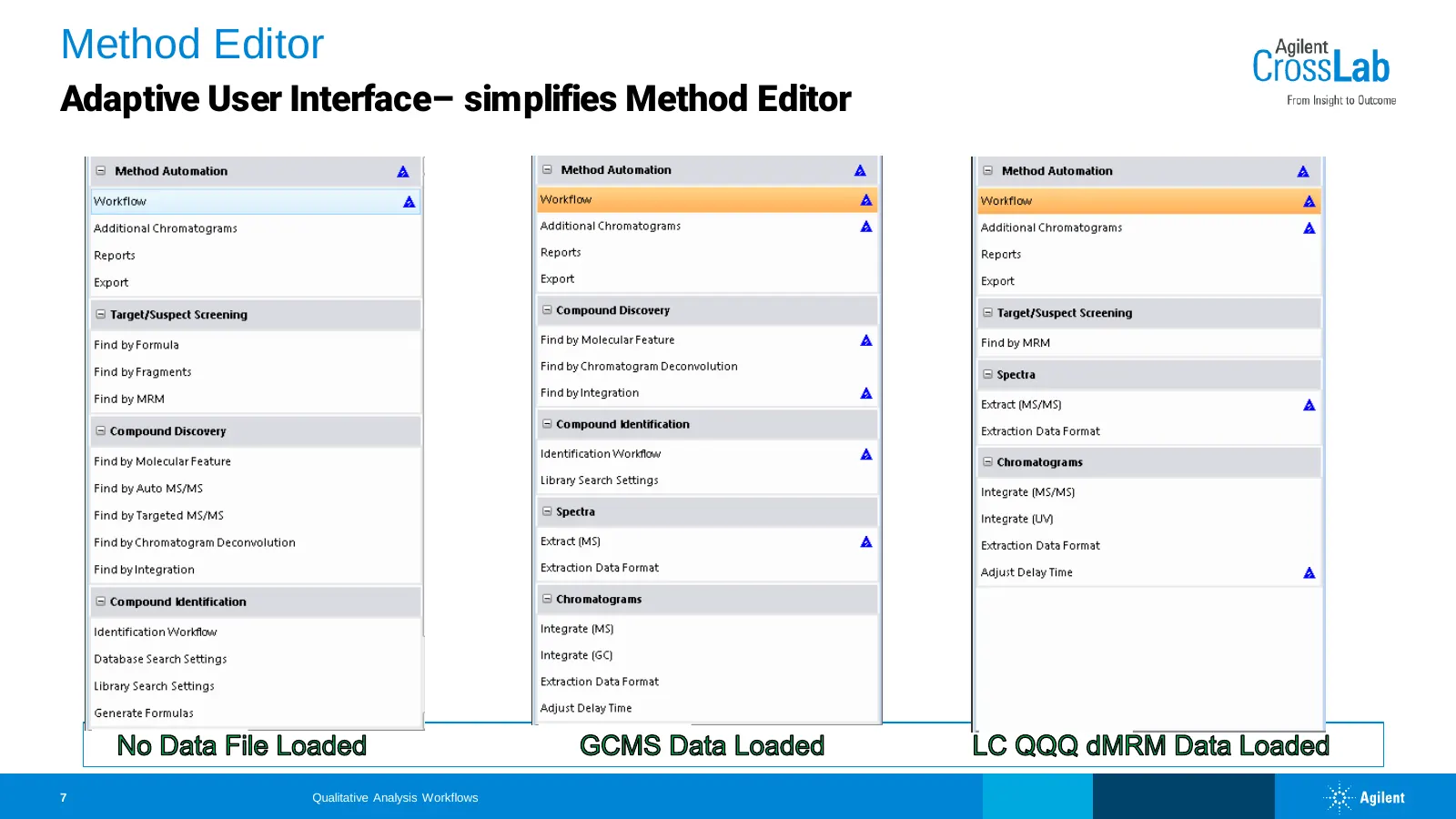
Slide 7: Method Editor
Method Editor Adaptive User Interface– simplifies Method Editor 7 Qualitative Analysis Workflows
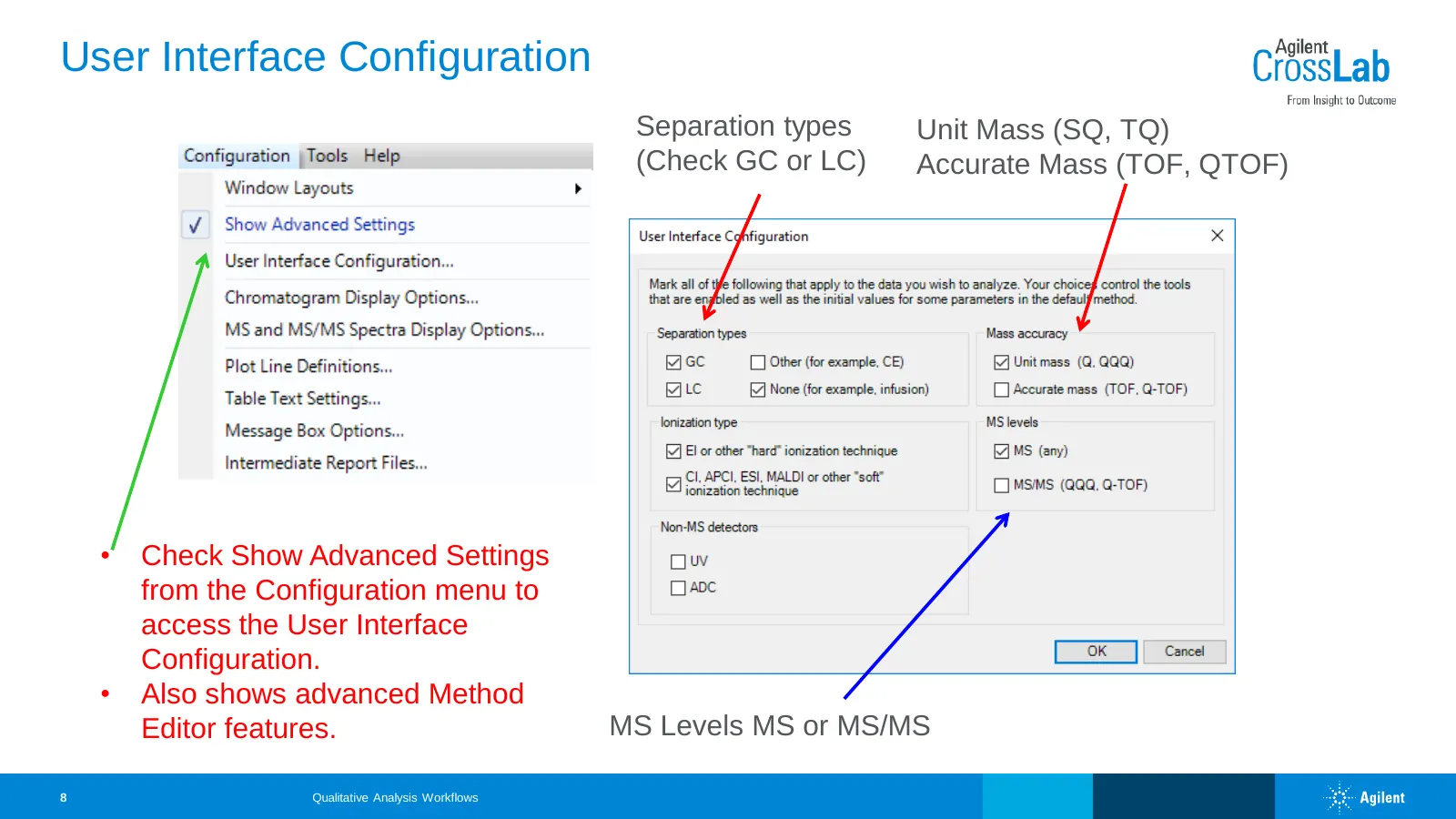
Slide 8: User Interface Configuration
User Interface Configuration Separation types Unit Mass (SQ, TQ) (Check GC or LC) Accurate Mass (TOF, QTOF) • Check Show Advanced Settings from the Configuration menu to access the User Interface Configuration. • Also shows advanced Method Editor features. MS Levels MS or MS/MS 8 Qualitative Analysi
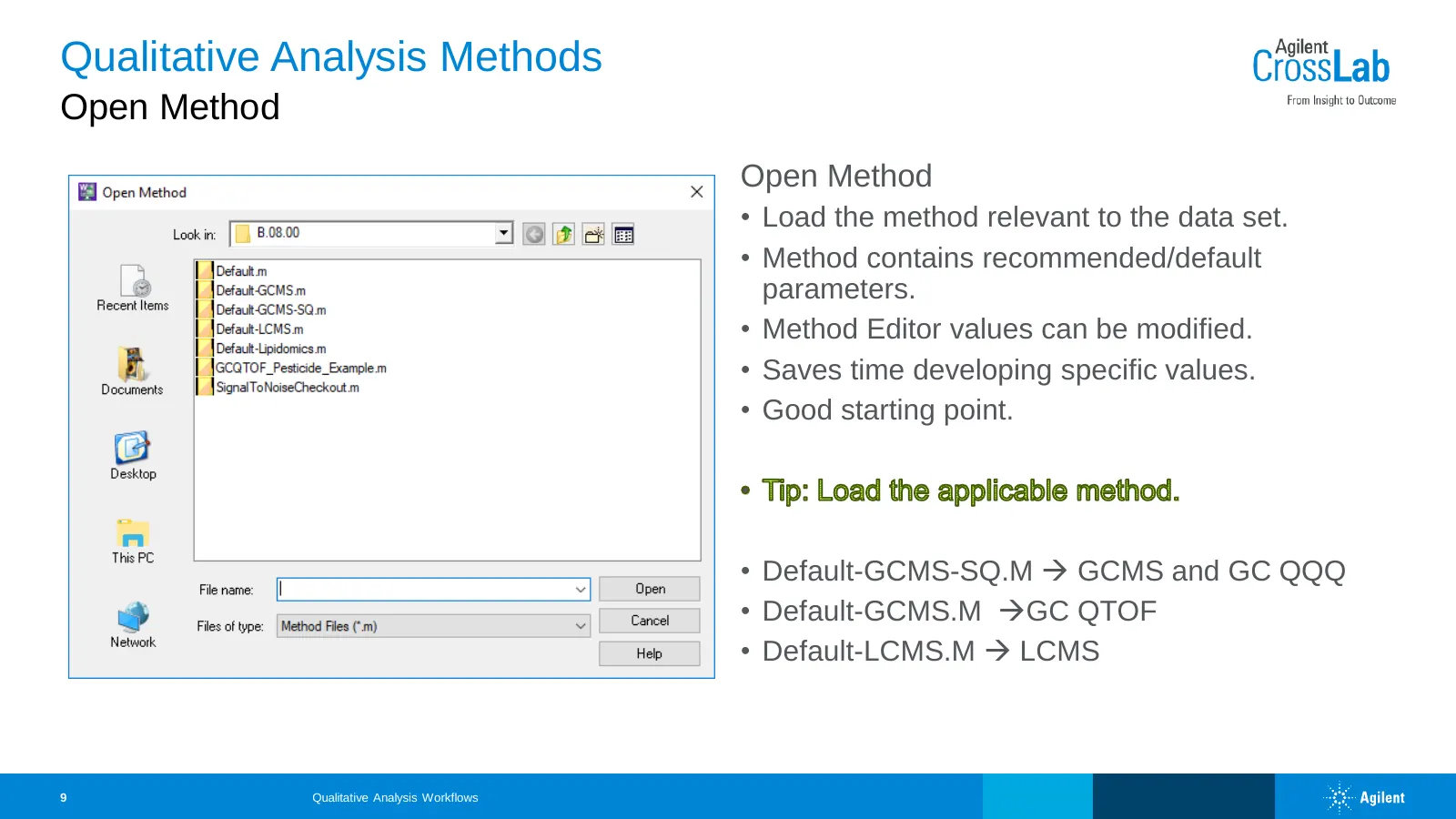
Slide 9: Qualitative Analysis Methods
Qualitative Analysis Methods Open Method Open Method • Load the method relevant to the data set. • Method contains recommended/default parameters. • Method Editor values can be modified. • Saves time developing specific values. • Good starting point. • Default-GCMS-SQ.M → GCMS and GC QQQ • Default-G
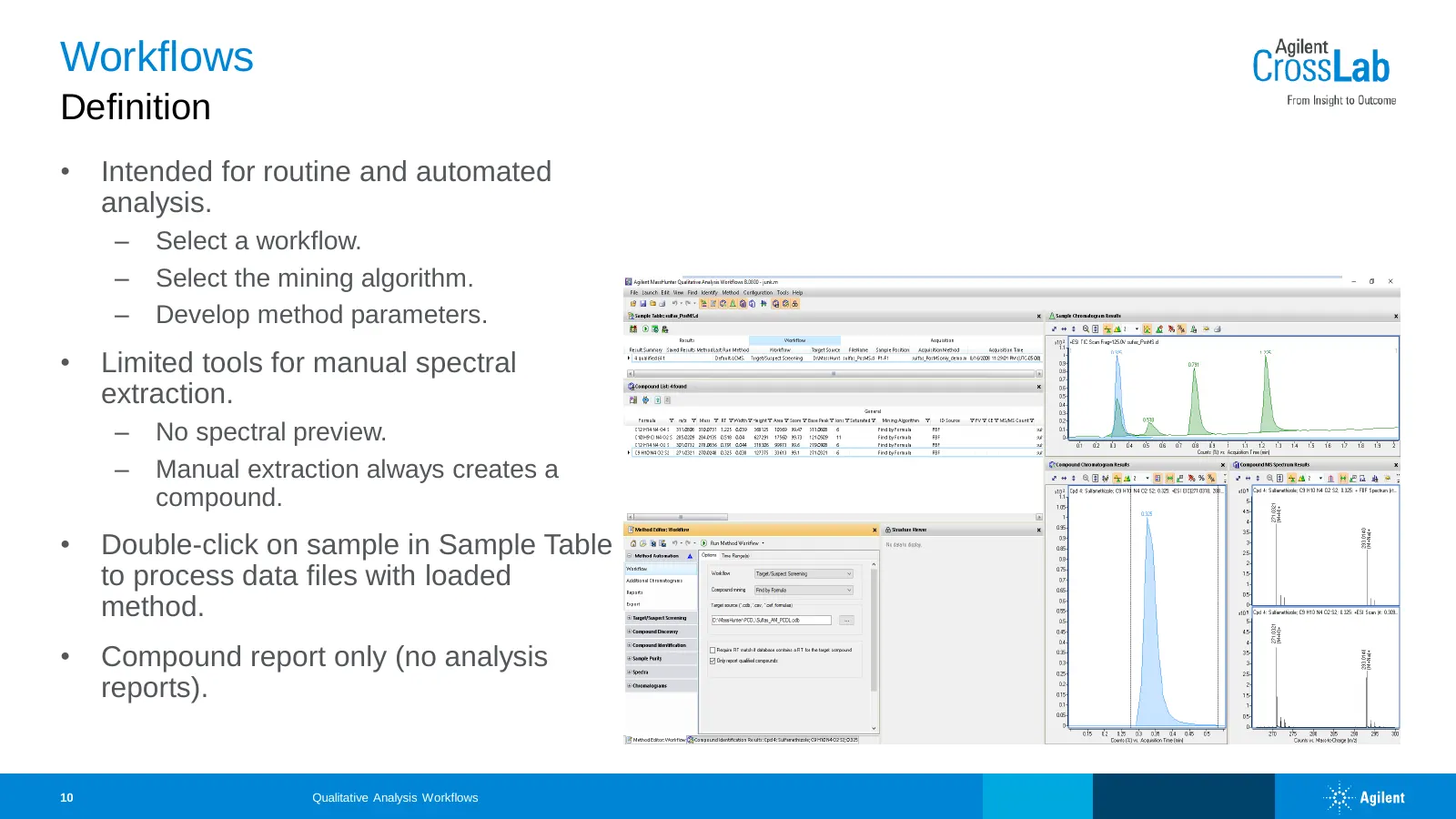
Slide 10: Workflows
Workflows Definition • Intended for routine and automated analysis. – Select a workflow. – Select the mining algorithm. – Develop method parameters. • Limited tools for manual spectral extraction. – No spectral preview. – Manual extraction always creates a compound. • Double-click on sample in Sampl
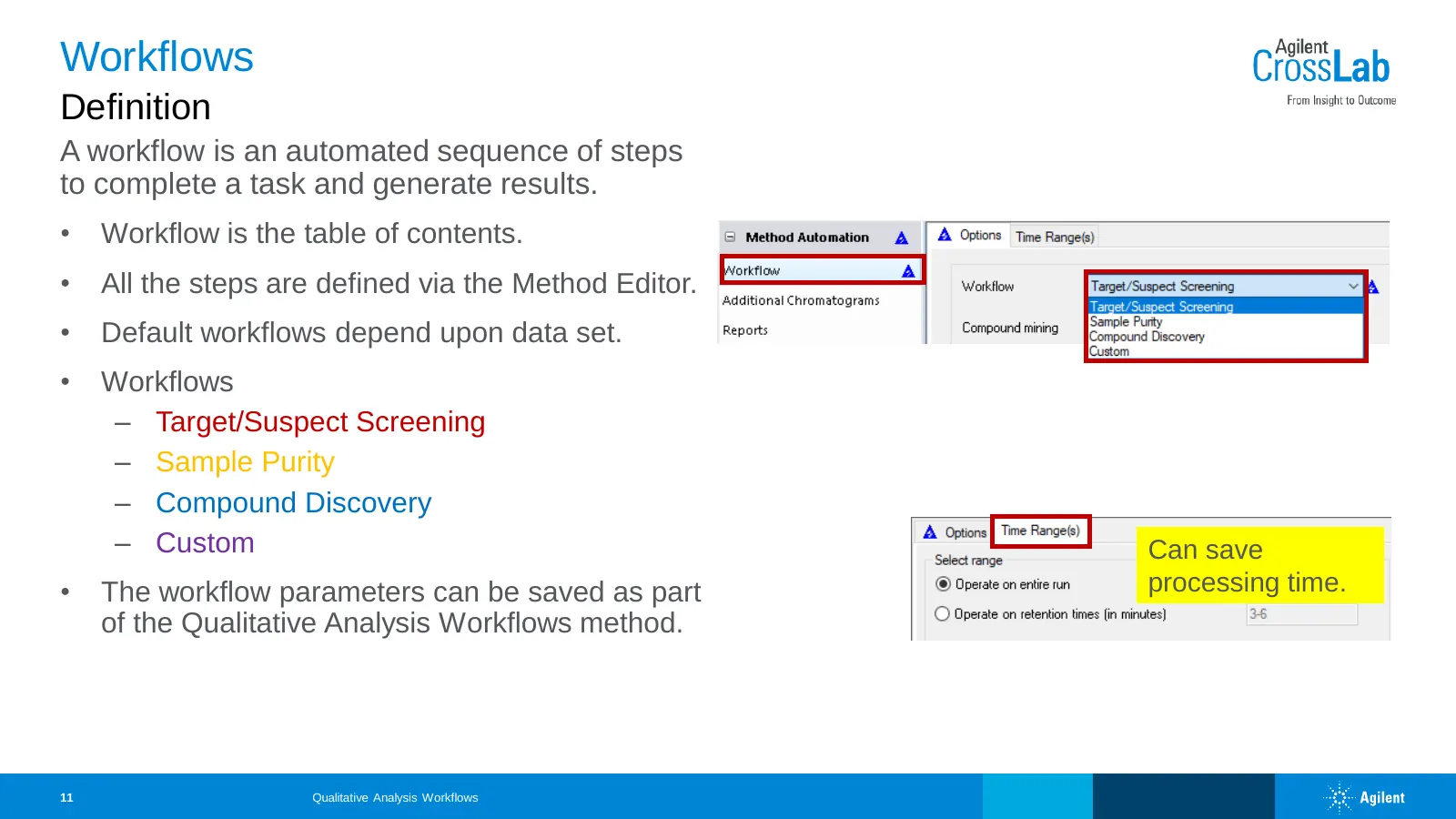
Slide 11: Workflows Definition
Workflows Definition A workflow is an automated sequence of steps to complete a task and generate results. • Workflow is the table of contents. • All the steps are defined via the Method Editor. • Default workflows depend upon data set. • Workflows – Target/Suspect Screening – Sample Purity – Compou
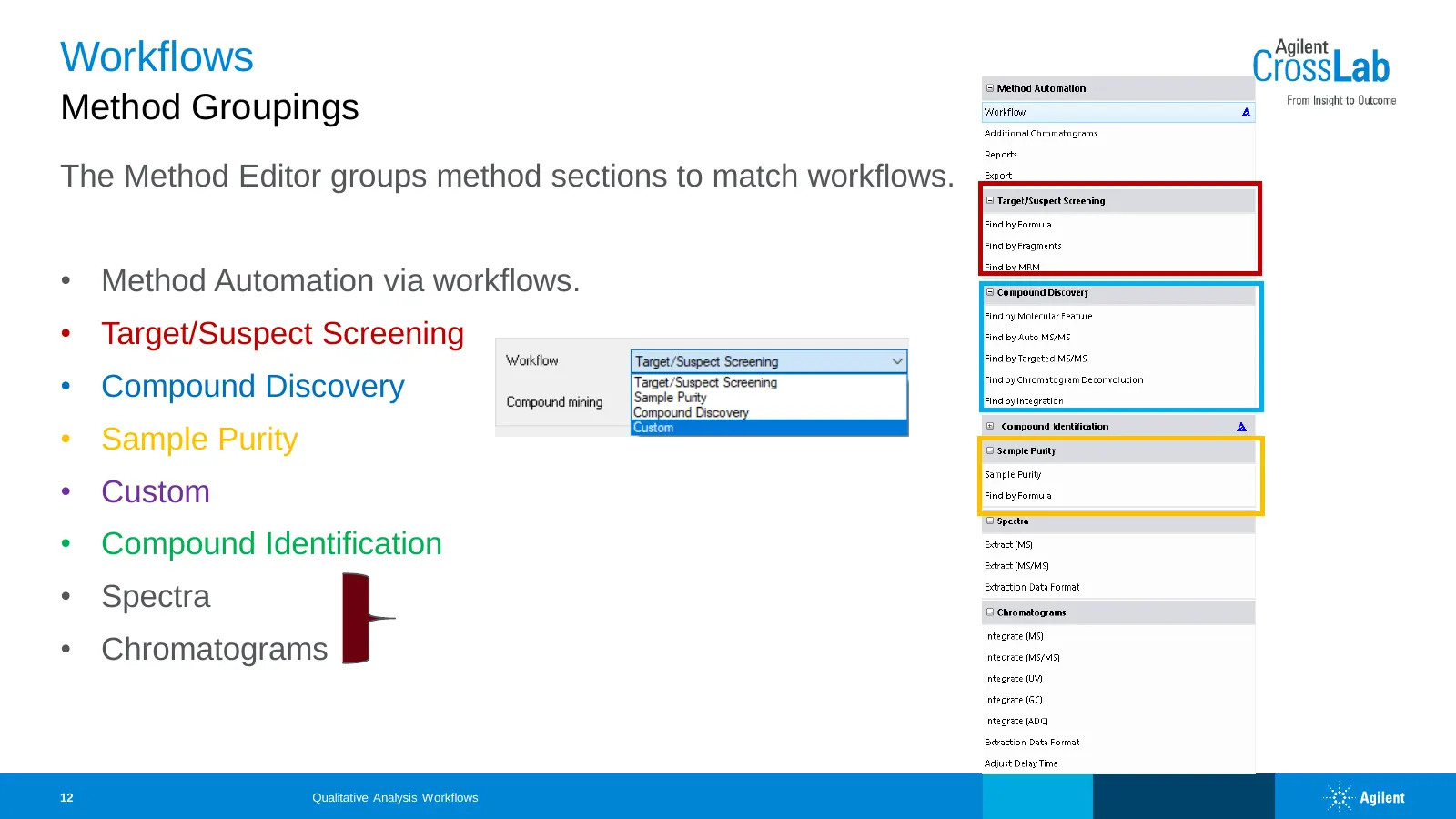
Slide 12: Workflows: Method Groupings
Workflows Method Groupings The Method Editor groups method sections to match workflows. • Method Automation via workflows. • Target/Suspect Screening • Compound Discovery • Sample Purity • Custom • Compound Identification • Spectra • Chromatograms 12 Qualitative Analysis Workflows
Slide 13: Compound Mining
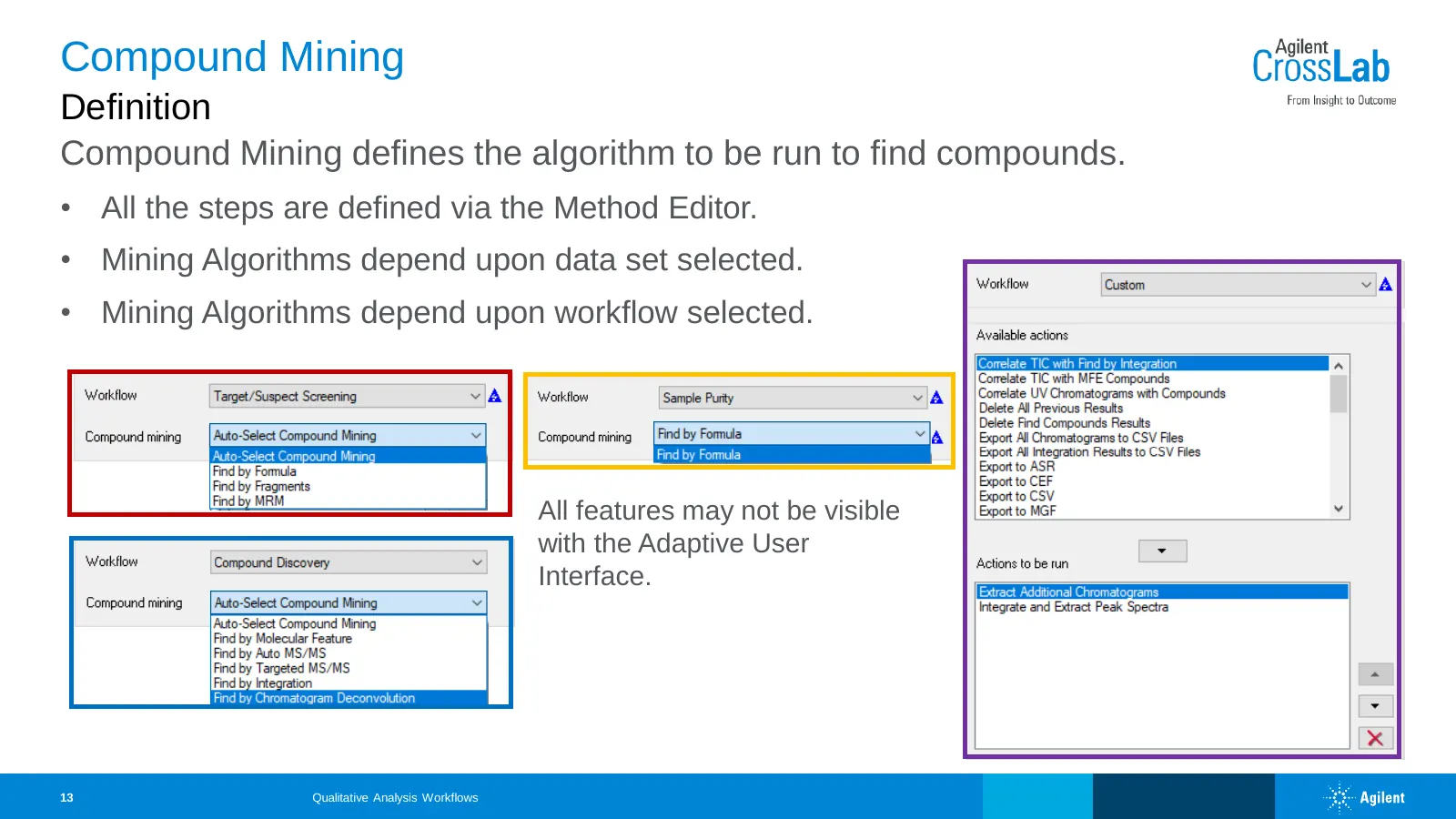
Compound Mining Definition Compound Mining defines the algorithm to be run to find compounds. • All the steps are defined via the Method Editor. • Mining Algorithms depend upon data set selected. • Mining Algorithms depend upon workflow selected. All features may not be visible with the Adaptive Use
Slide 14: Auto-Select Compound Mining
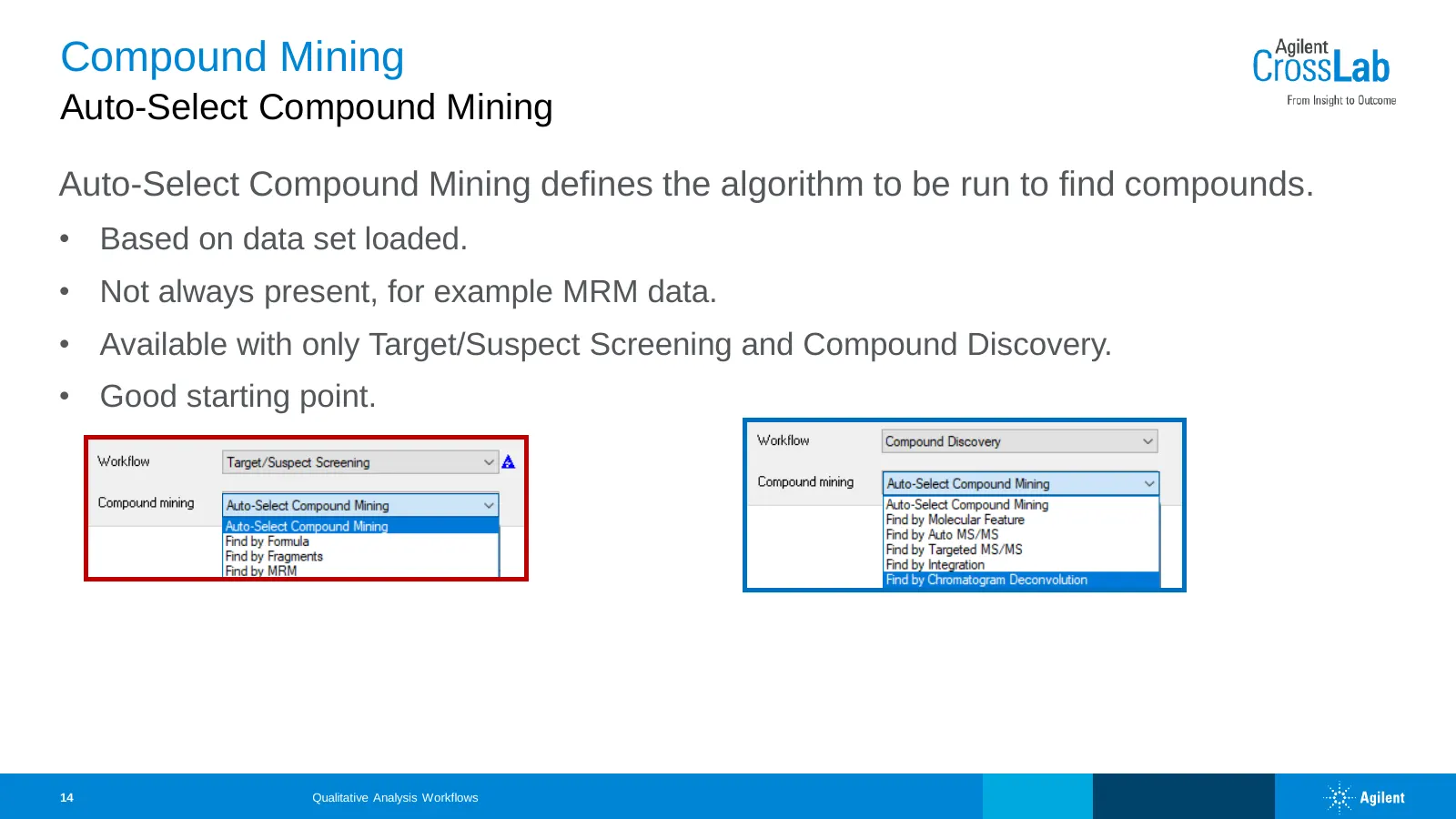
Compound Mining Auto-Select Compound Mining Auto-Select Compound Mining defines the algorithm to be run to find compounds. • Based on data set loaded. • Not always present, for example MRM data. • Available with only Target/Suspect Screening and Compound Discovery. • Good starting point. 14 Qualitat
Slide 15: Target/Suspect Screening
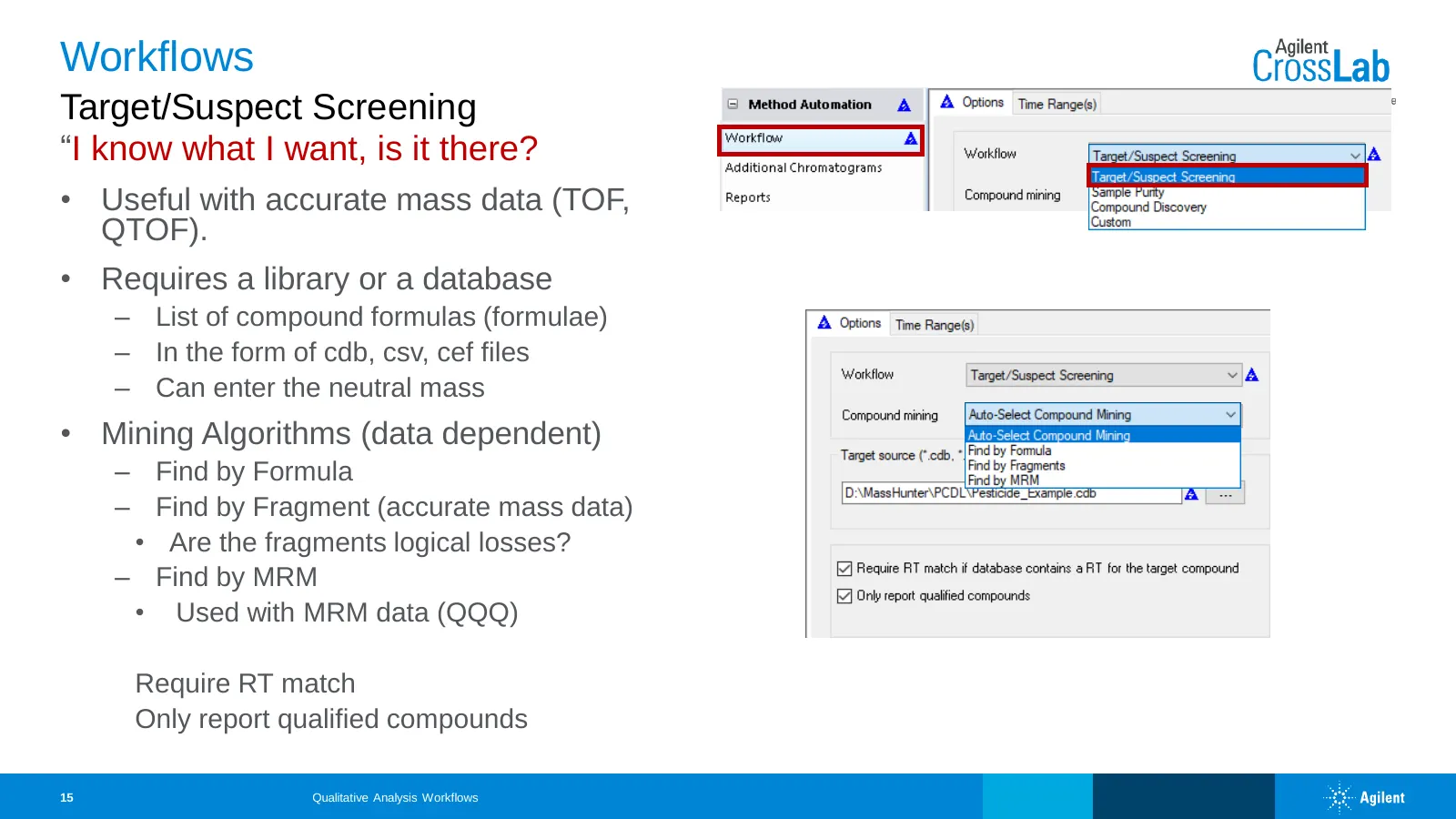
Workflows Target/Suspect Screening “I know what I want, is it there? • Useful with accurate mass data (TOF, QTOF). • Requires a library or a database – List of compound formulas (formulae) – In the form of cdb, csv, cef files – Can enter the neutral mass • Mining Algorithms (data dependent) – Find b
Slide 16: Sample Purity
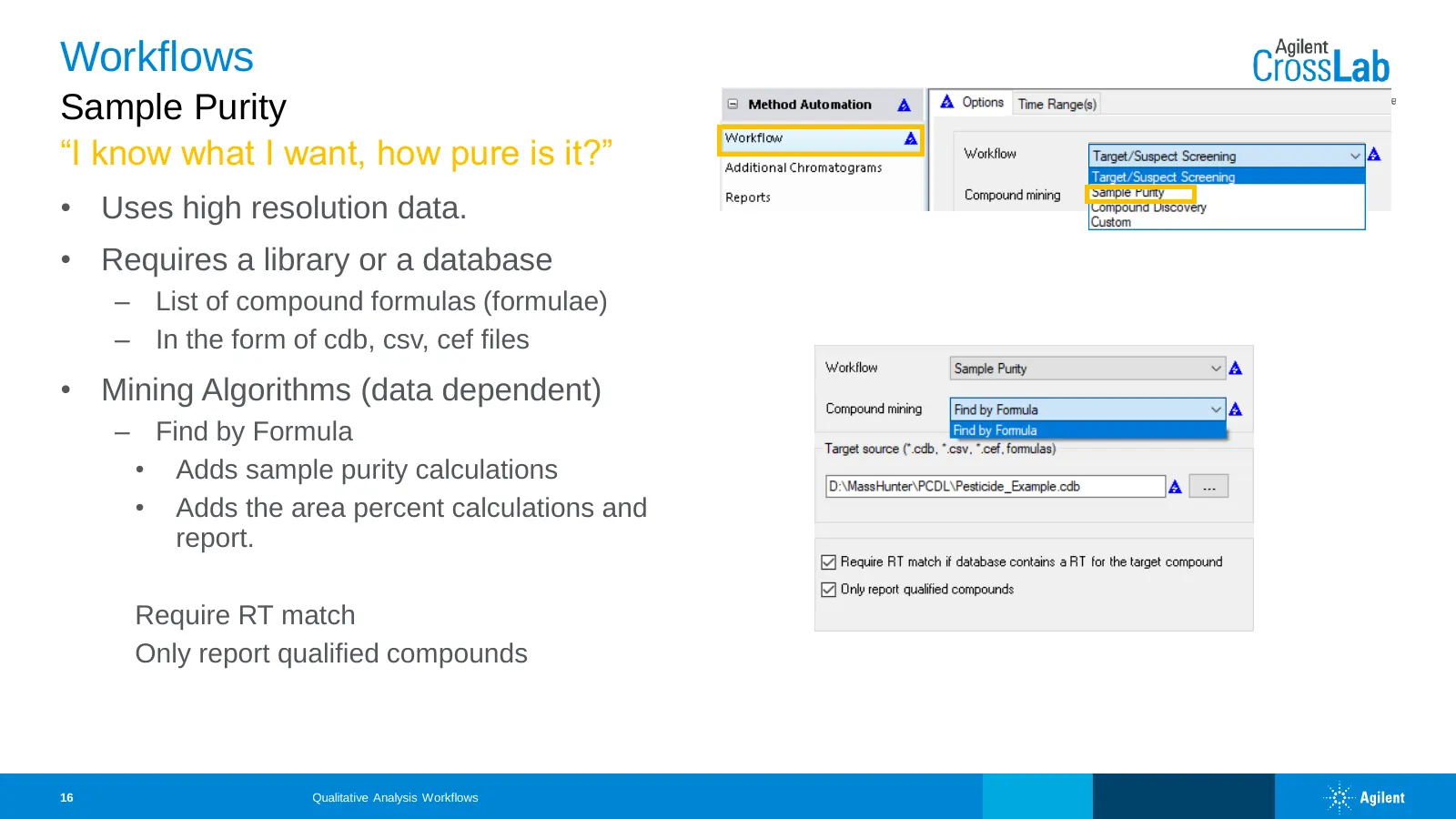
Workflows Sample Purity “I know what I want, how pure is it?” • Uses high resolution data. • Requires a library or a database – List of compound formulas (formulae) – In the form of cdb, csv, cef files • Mining Algorithms (data dependent) – Find by Formula • Adds sample purity calculations • Adds th
Slide 17: Compound Discovery
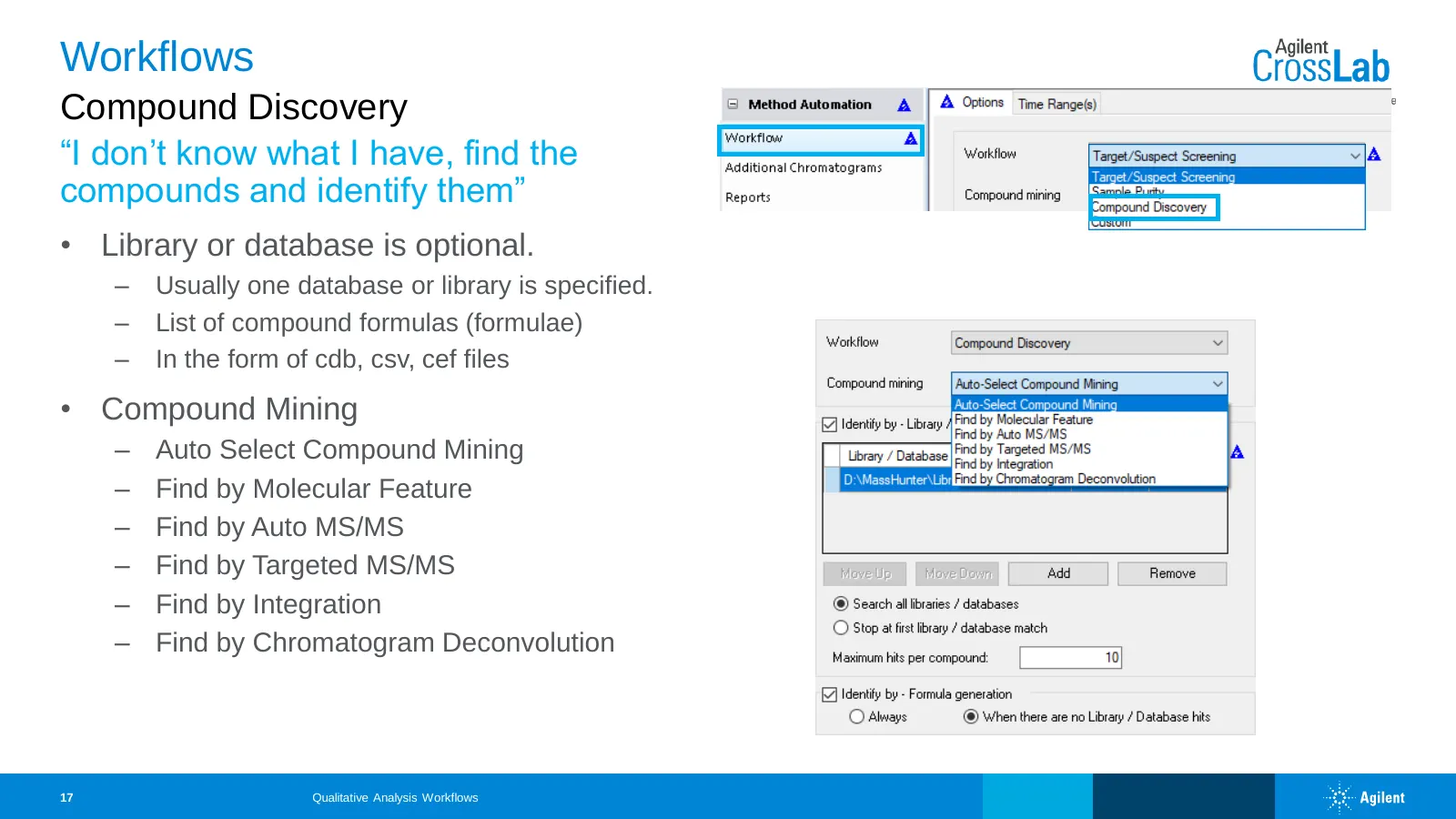
Workflows Compound Discovery “I don’t know what I have, find the compounds and identify them” • Library or database is optional. – Usually one database or library is specified. – List of compound formulas (formulae) – In the form of cdb, csv, cef files • Compound Mining – Auto Select Compound Mining
Slide 18: Custom Workflow
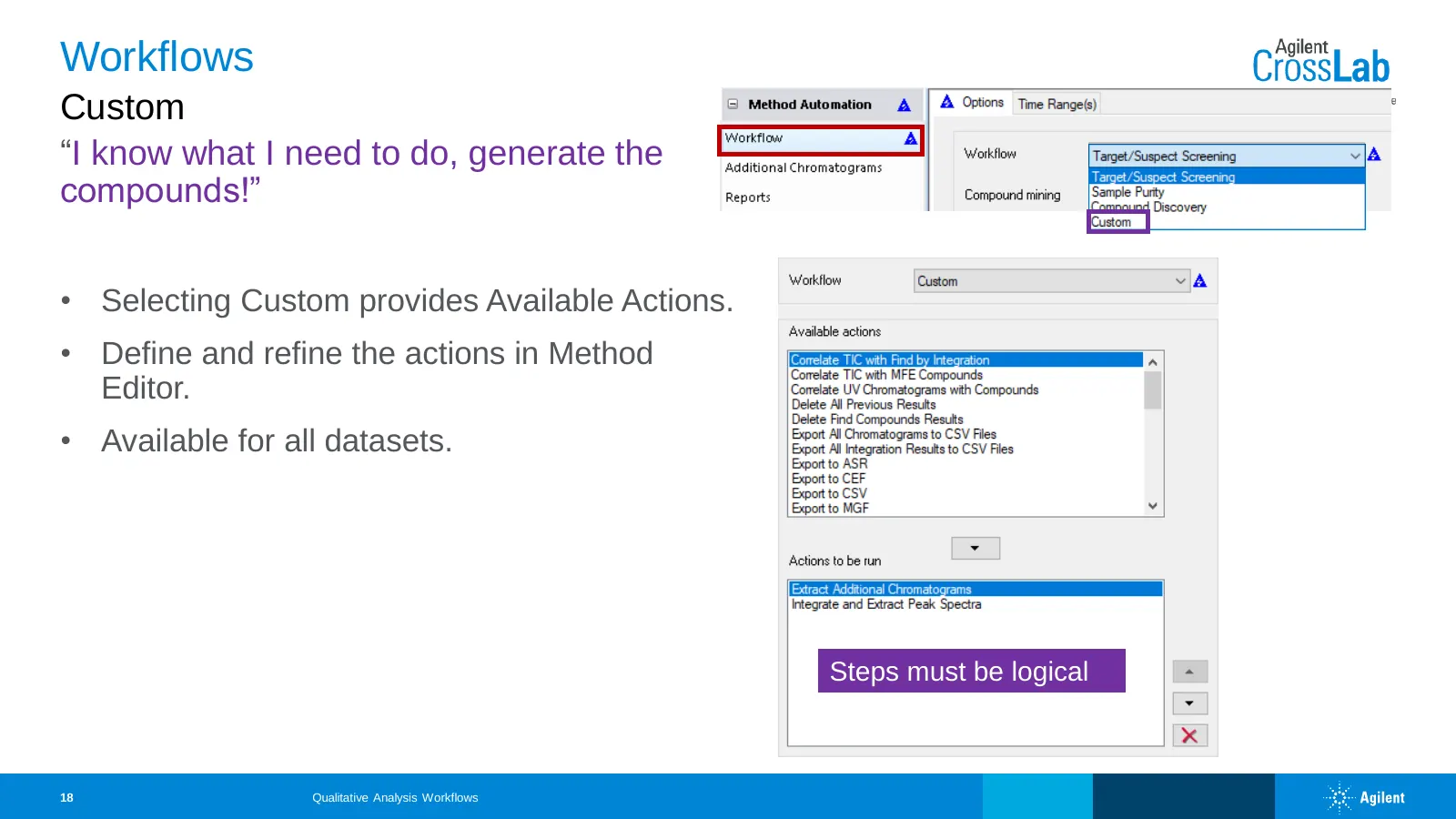
Workflows Custom “I know what I need to do, generate the compounds!” • Selecting Custom provides Available Actions. • Define and refine the actions in Method Editor. • Available for all datasets. Steps must be logical 18 Qualitative Analysis Workflows
Slide 19: Target/Suspect Screening Method Editor
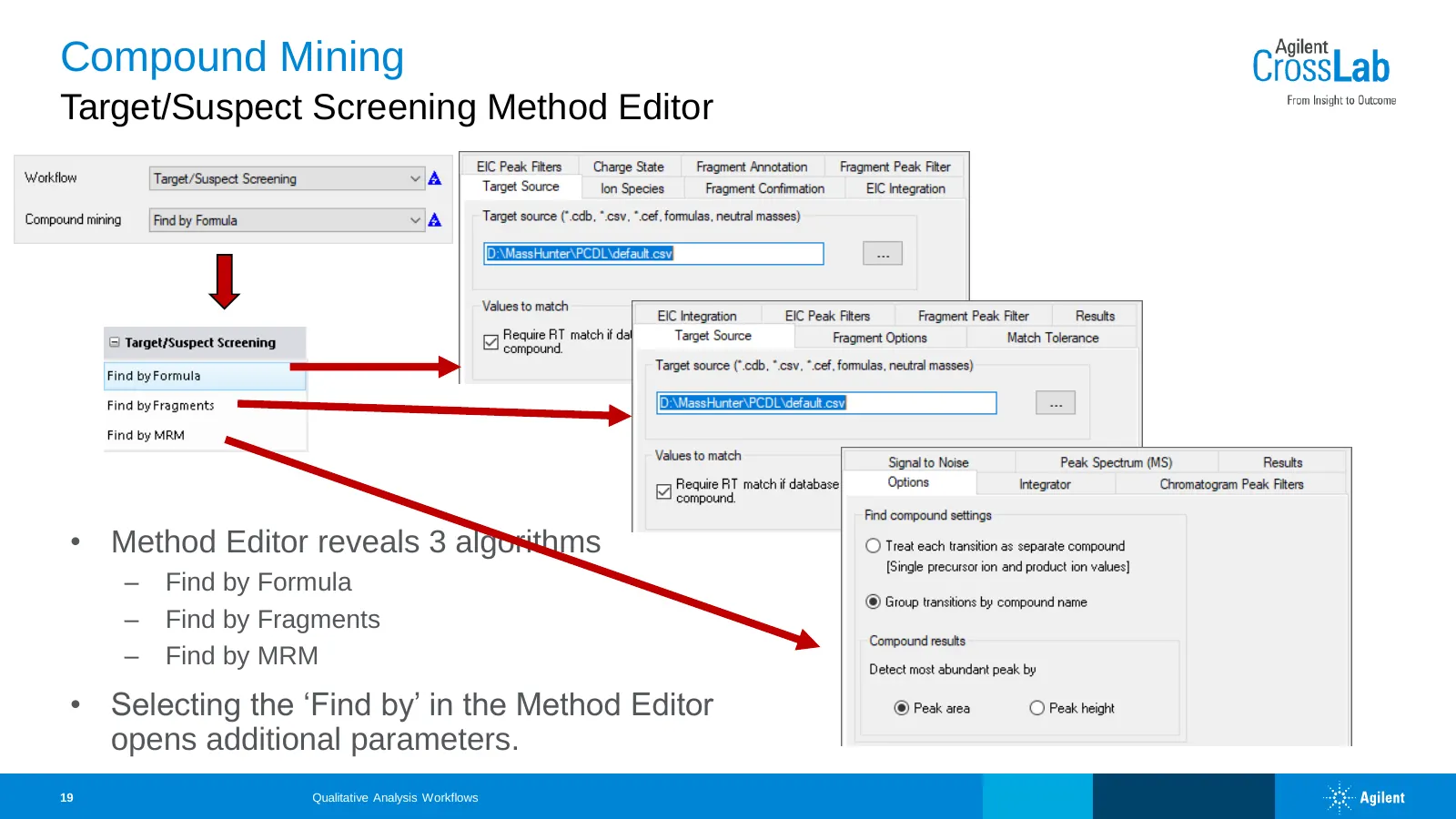
Compound Mining Target/Suspect Screening Method Editor • Method Editor reveals 3 algorithms – Find by Formula – Find by Fragments – Find by MRM • Selecting the ‘Find by’ in the Method Editor opens additional parameters. 19 Qualitative Analysis Workflows
Slide 20: Sample Purity Method Editor
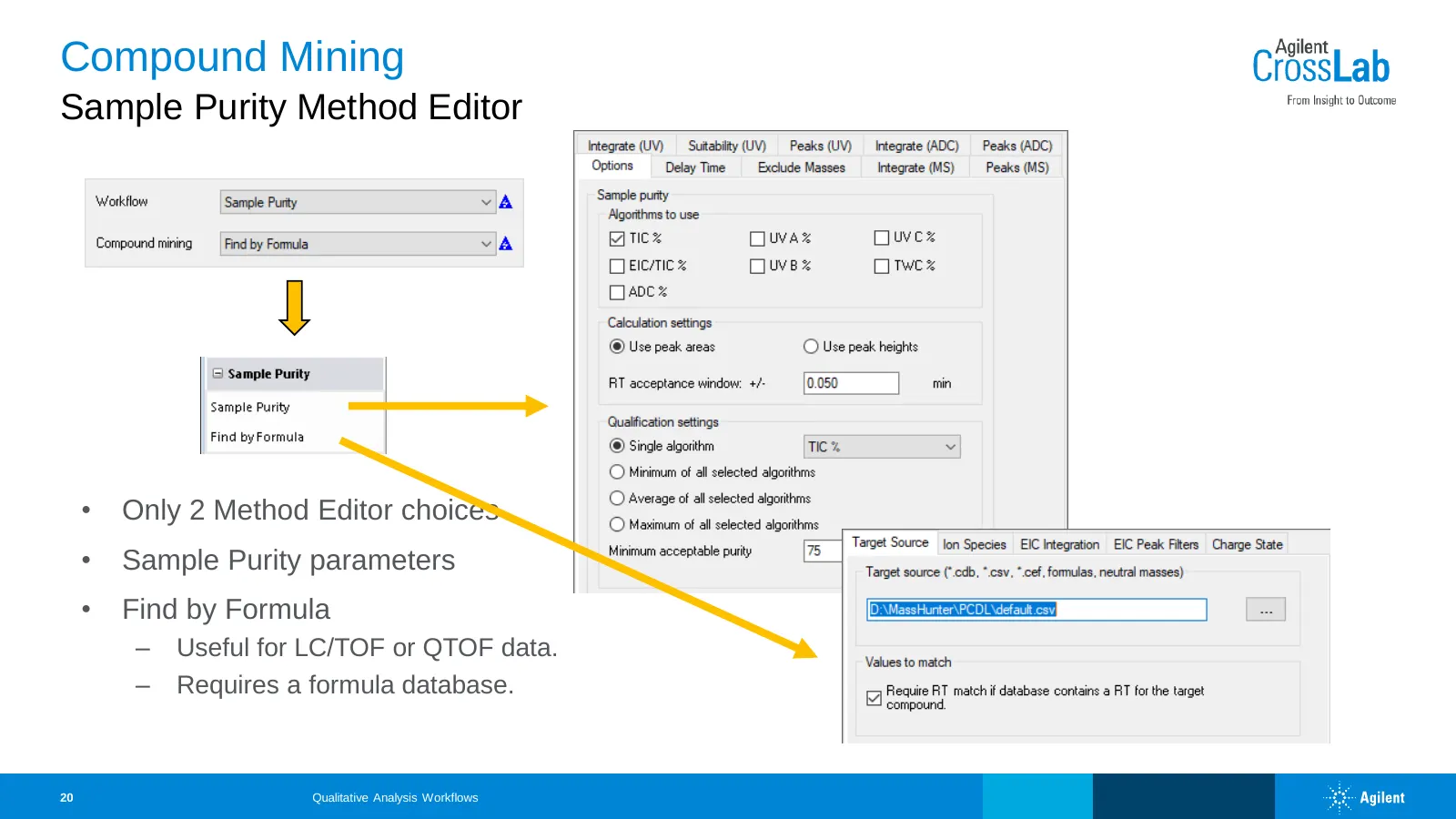
Compound Mining Sample Purity Method Editor • Only 2 Method Editor choices • Sample Purity parameters • Find by Formula – Useful for LC/TOF or QTOF data. – Requires a formula database. 20 Qualitative Analysis Workflows
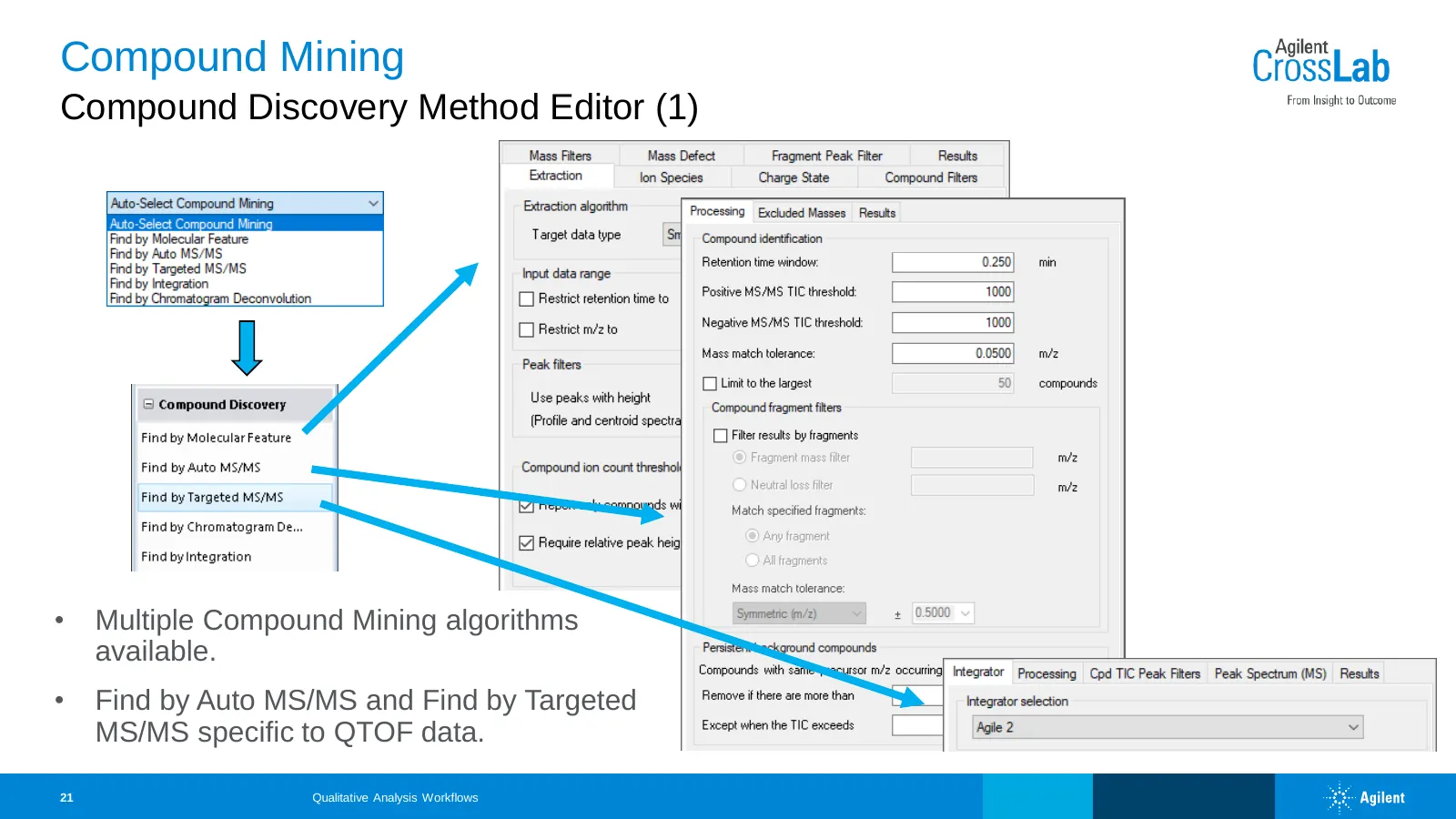
Slide 21: Compound Discovery Method Editor (1)
Compound Mining Compound Discovery Method Editor (1) • Multiple Compound Mining algorithms available. • Find by Auto MS/MS and Find by Targeted MS/MS specific to QTOF data. 21 Qualitative Analysis Workflows
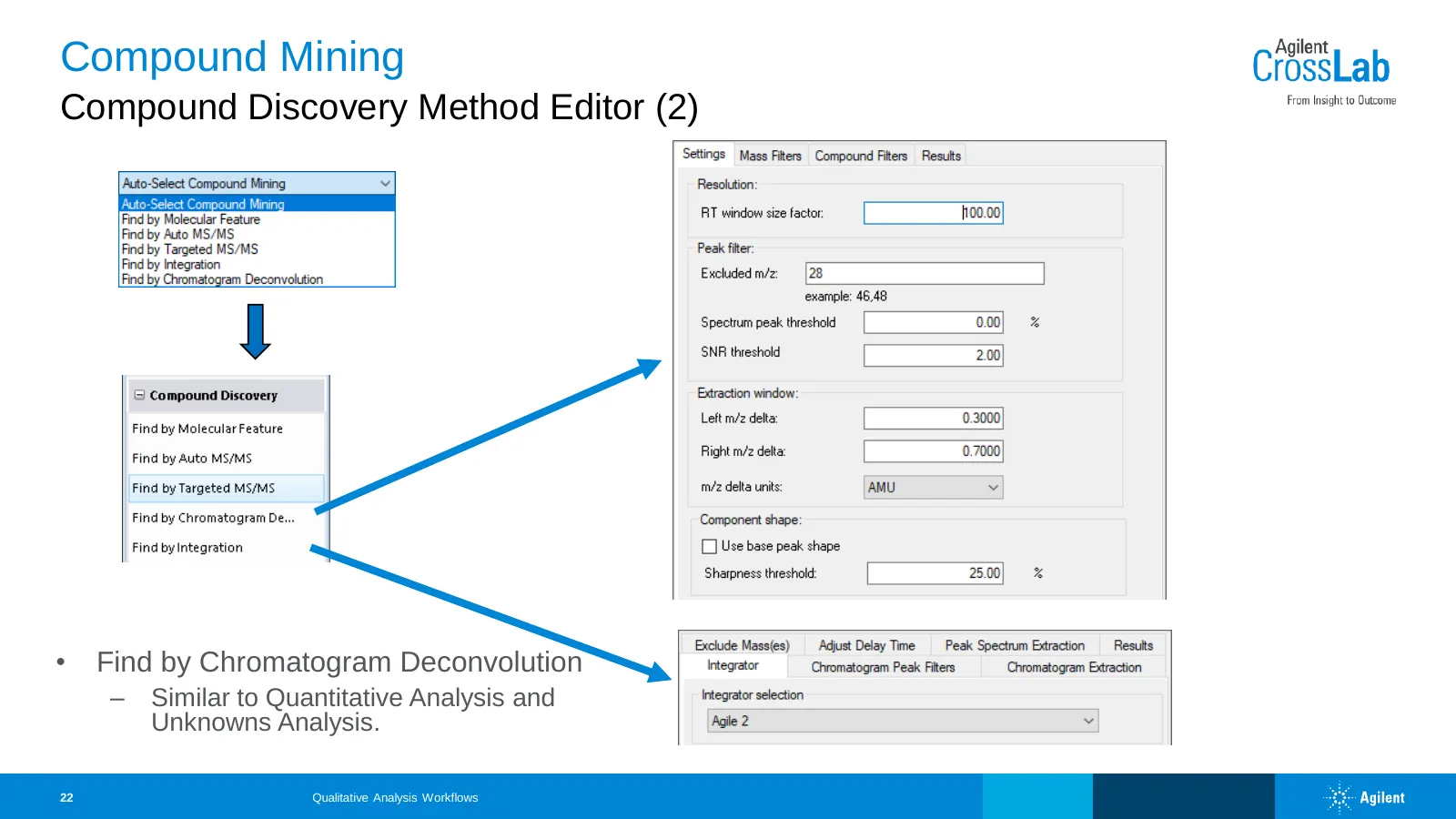
Slide 22: Compound Discovery Method Editor (2)
Compound Mining Compound Discovery Method Editor (2) • Find by Chromatogram Deconvolution – Similar to Quantitative Analysis and Unknowns Analysis. 22 Qualitative Analysis Workflows
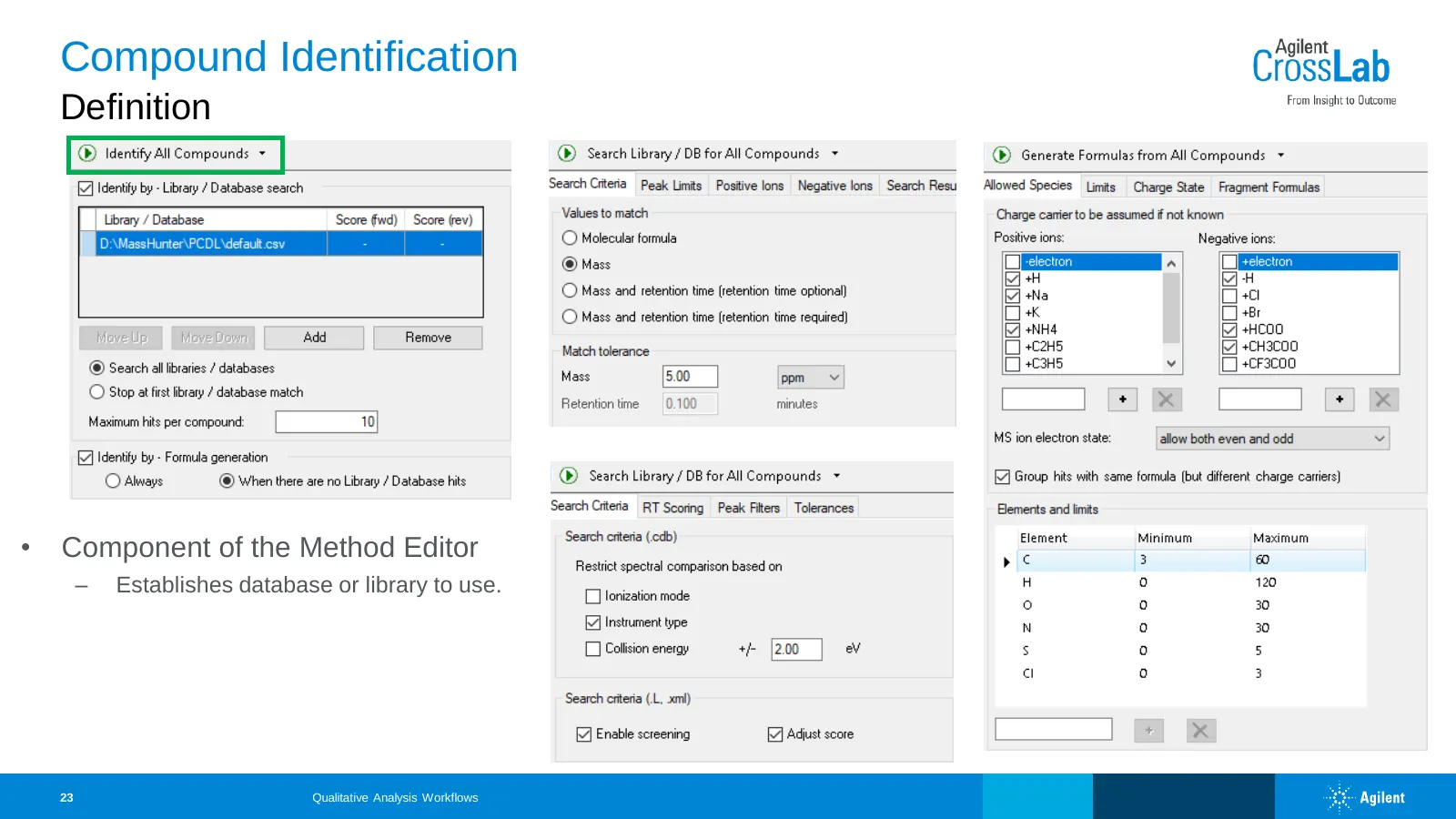
Slide 23: Compound Identification Definition
Compound Identification Definition • Component of the Method Editor – Establishes database or library to use. 23 Qualitative Analysis Workflows
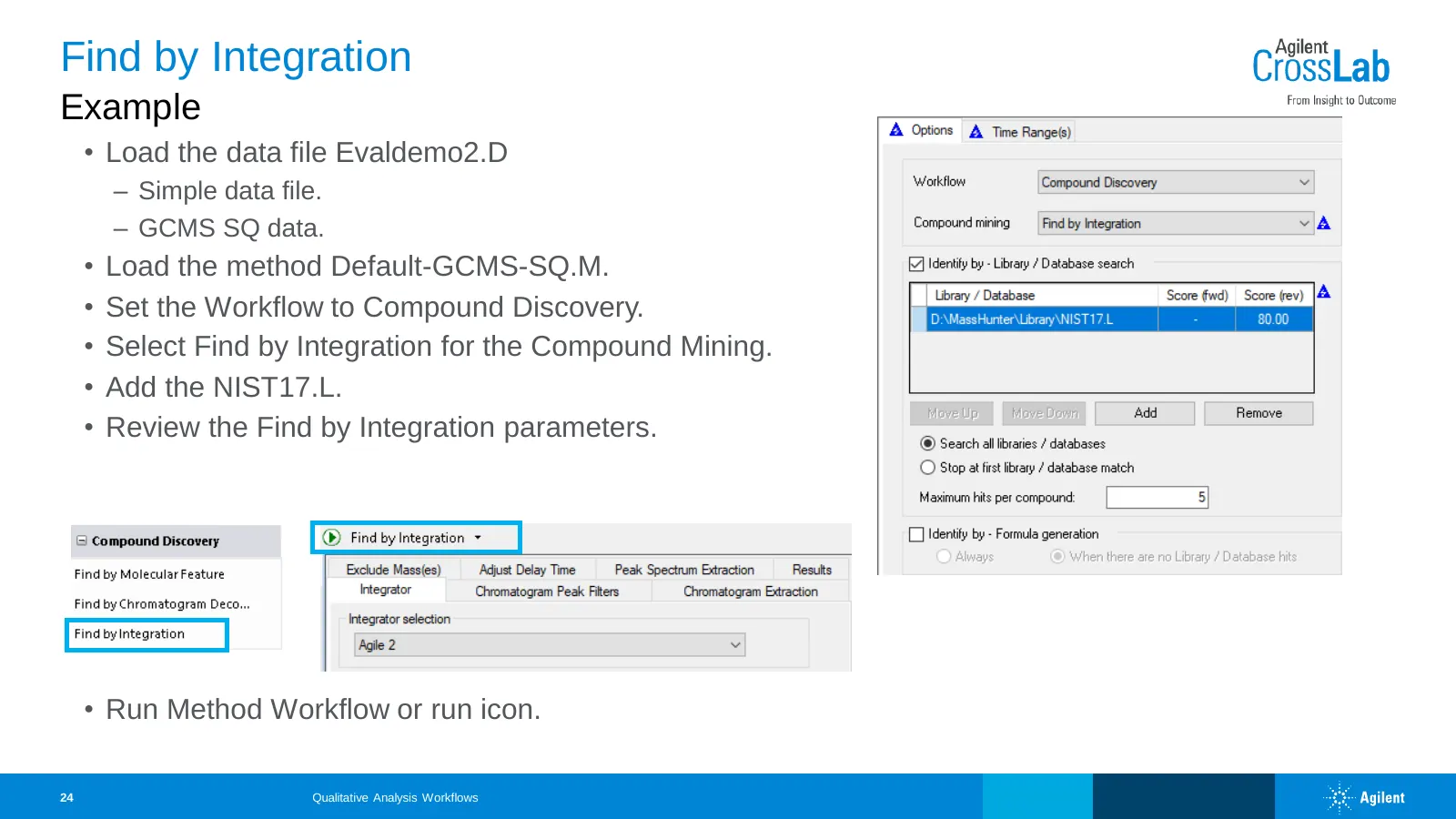
Slide 24: Find by Integration Example
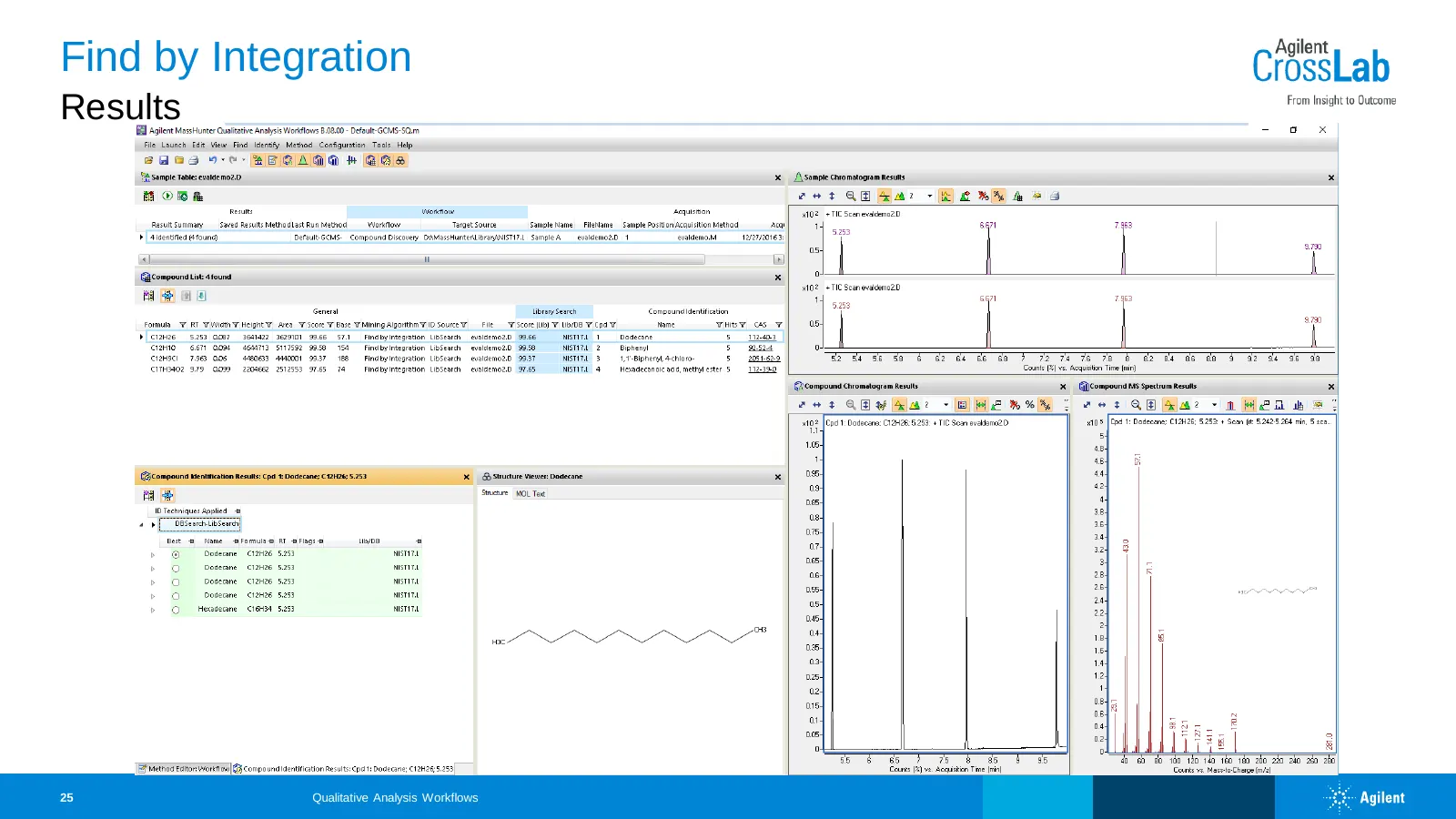
Find by Integration Example • Load the data file Evaldemo2.D – Simple data file. – GCMS SQ data. • Load the method Default-GCMS-SQ.M. • Set the Workflow to Compound Discovery. • Select Find by Integration for the Compound Mining. • Add the NIST17.L. • Review the Find by Integration parameters. • Run
Slide 25: Find by Integration Results
Find by Integration Results 25 Qualitative Analysis Workflows
Slide 26: Questions on Workflows and Compound Mining Algorithms
Let’s take a moment for questions on Workflows and Compound Mining Algorithms Up Next: Data Review 26 MassHunter Webinar Series
Slide 27: Data Review: Sample Table
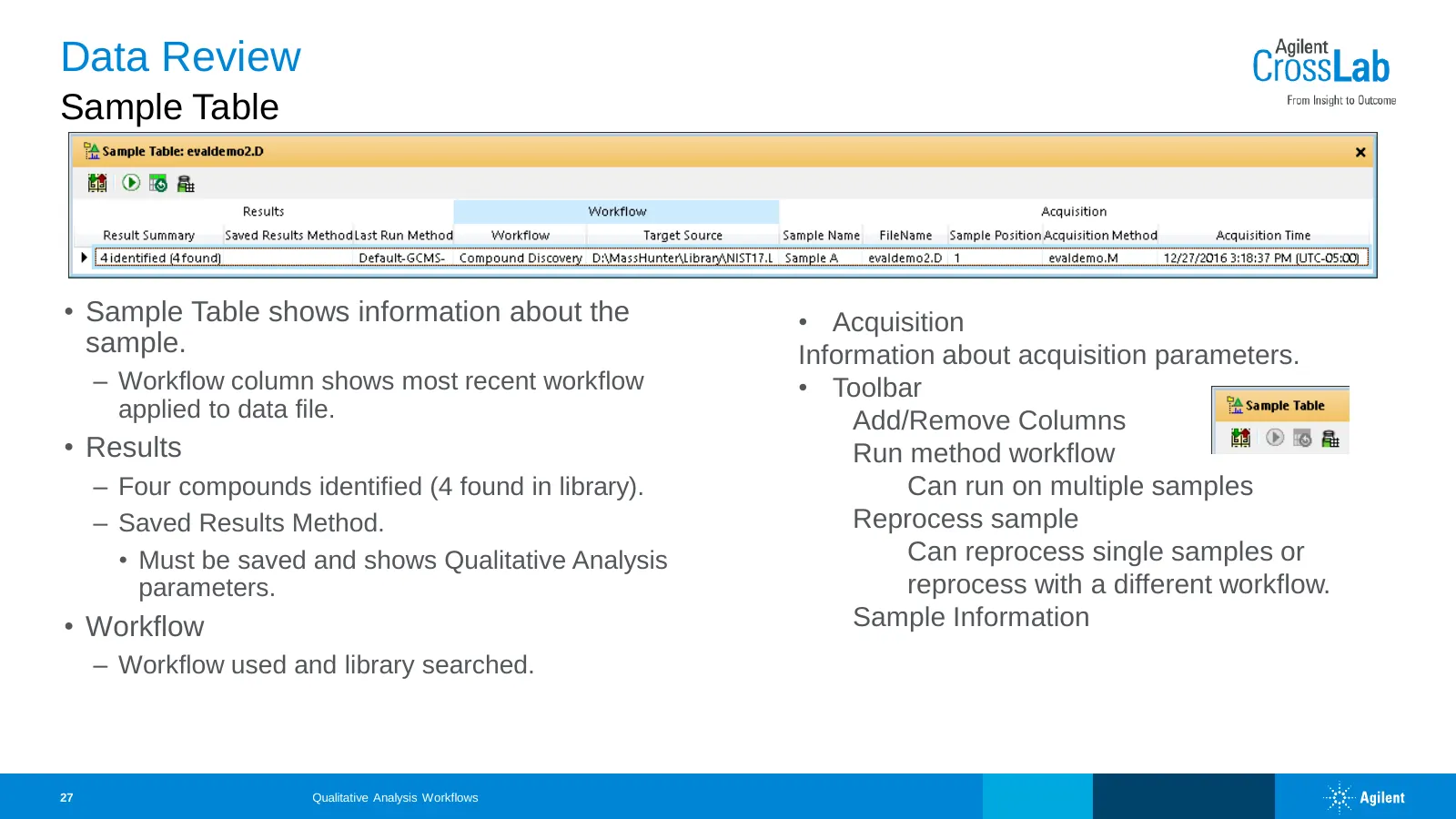
Data Review Sample Table • Sample Table shows information about the • Acquisition sample. Information about acquisition parameters. – Workflow column shows most recent workflow • Toolbar applied to data file. Add/Remove Columns • Results Run method workflow – Four compounds identified (4 found in li
Slide 28: Data Review: Compound List
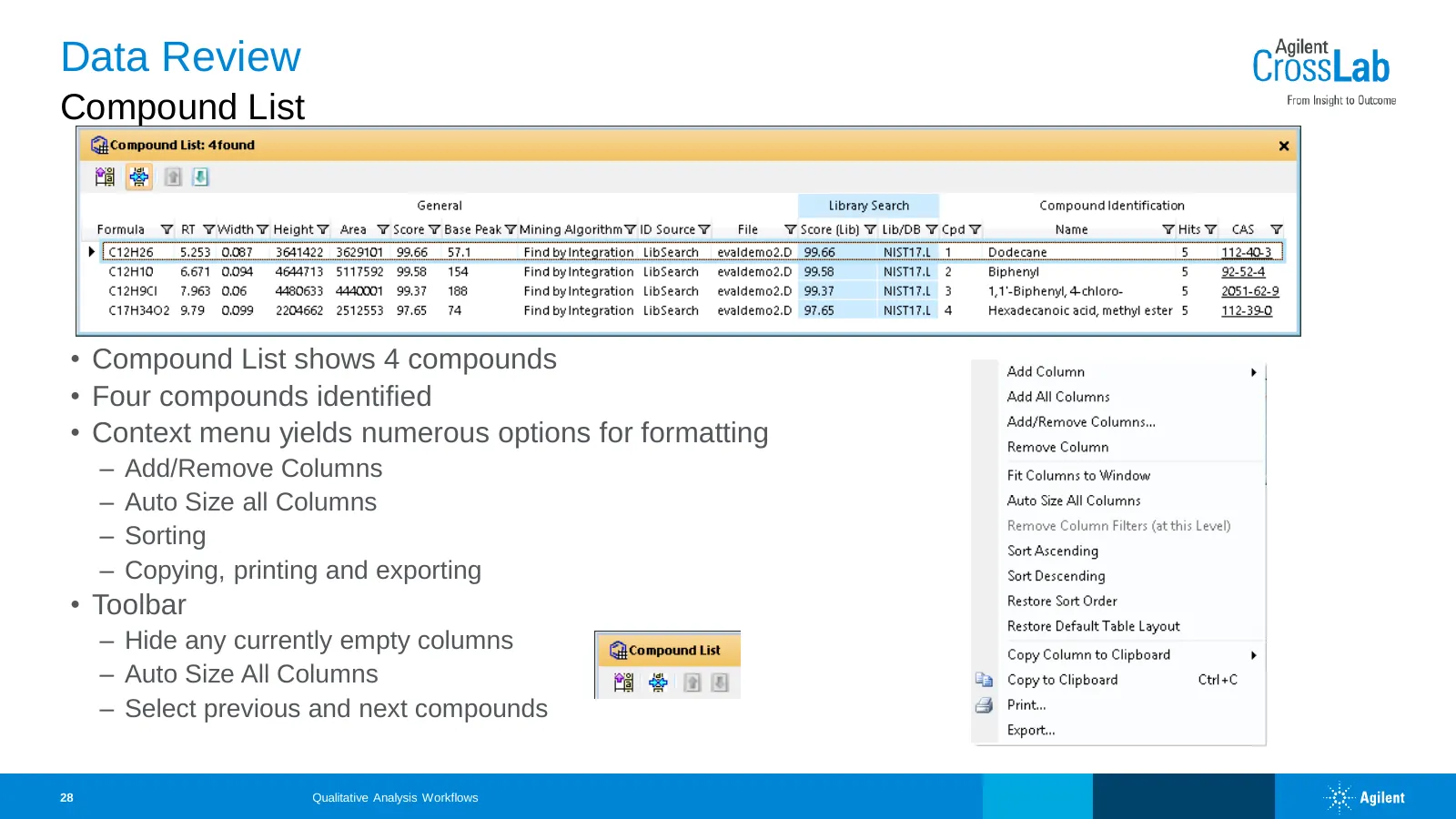
Data Review Compound List • Compound List shows 4 compounds • Four compounds identified • Context menu yields numerous options for formatting – Add/Remove Columns – Auto Size all Columns – Sorting – Copying, printing and exporting • Toolbar – Hide any currently empty columns – Auto Size All Columns
Slide 29: Data Review: Compound List
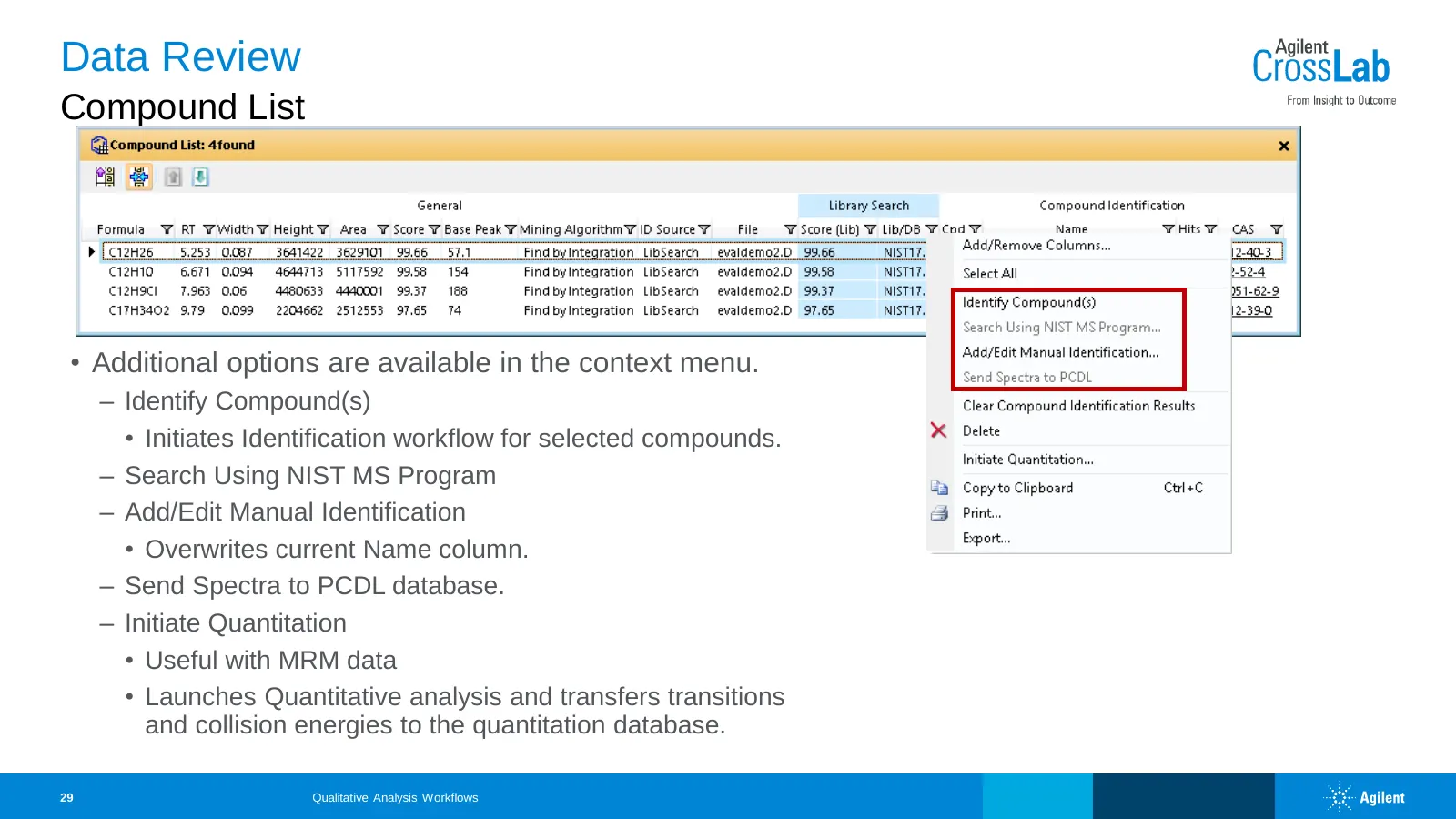
Data Review Compound List • Additional options are available in the context menu. – Identify Compound(s) • Initiates Identification workflow for selected compounds. – Search Using NIST MS Program – Add/Edit Manual Identification • Overwrites current Name column. – Send Spectra to PCDL database. – In
Slide 30: Compound List Super Header vs. Header
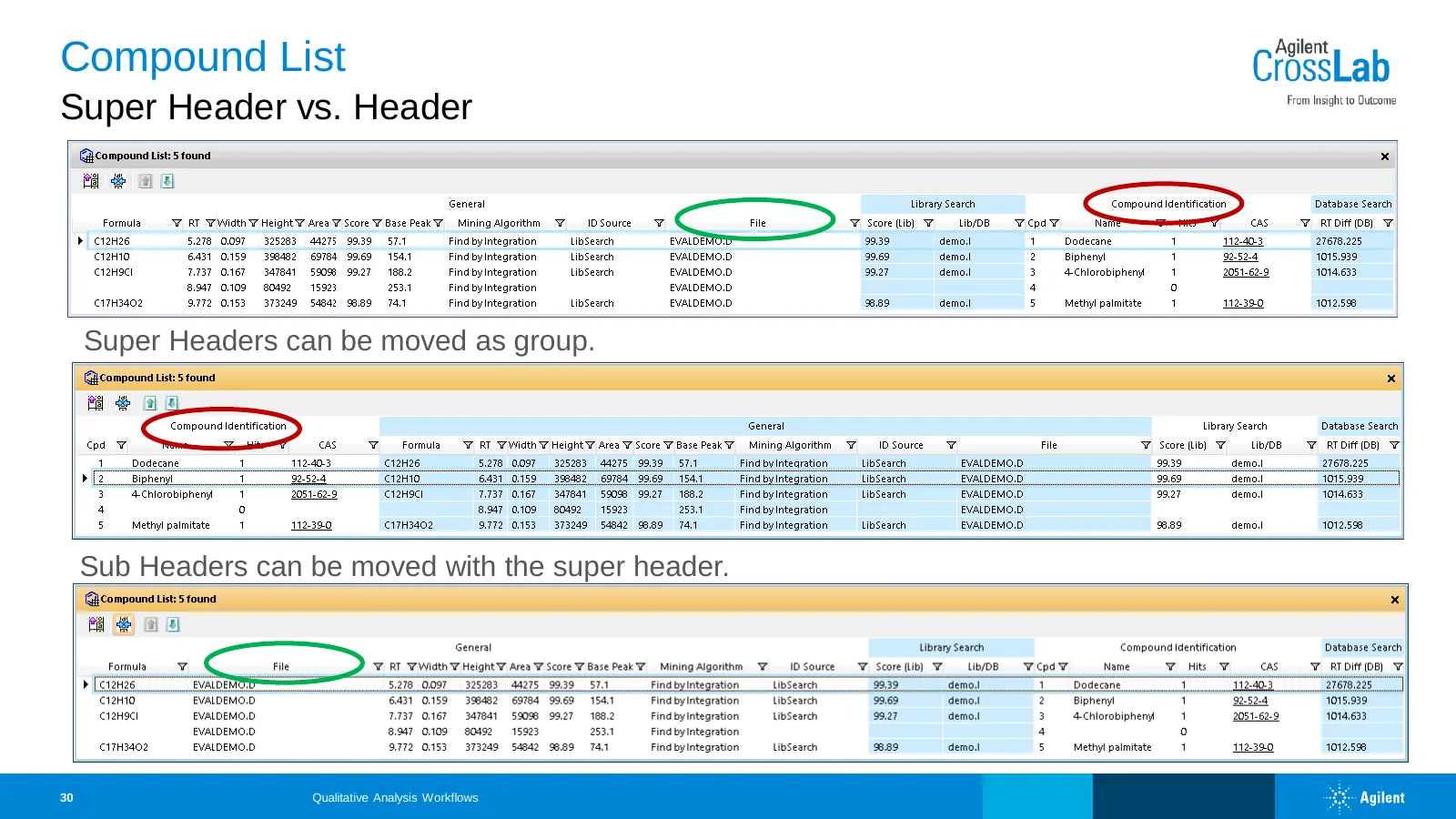
Compound List Super Header vs. Header Super Headers can be moved as group. Sub Headers can be moved with the super header. 30 Qualitative Analysis Workflows
Slide 31: Compound Identification Results
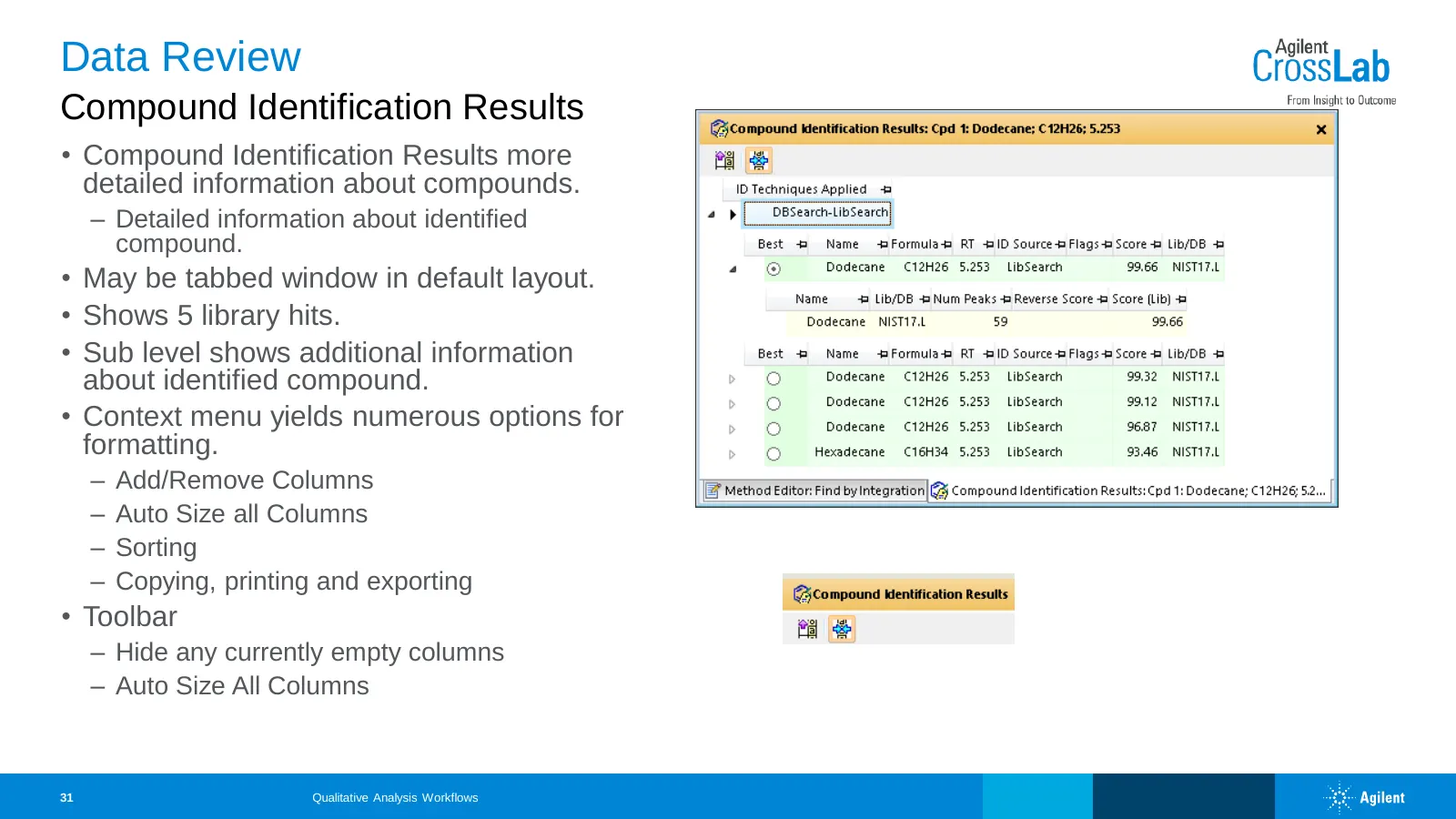
Data Review Compound Identification Results • Compound Identification Results more detailed information about compounds. – Detailed information about identified compound. • May be tabbed window in default layout. • Shows 5 library hits. • Sub level shows additional information about identified compo
Slide 32: Sample Chromatogram Results
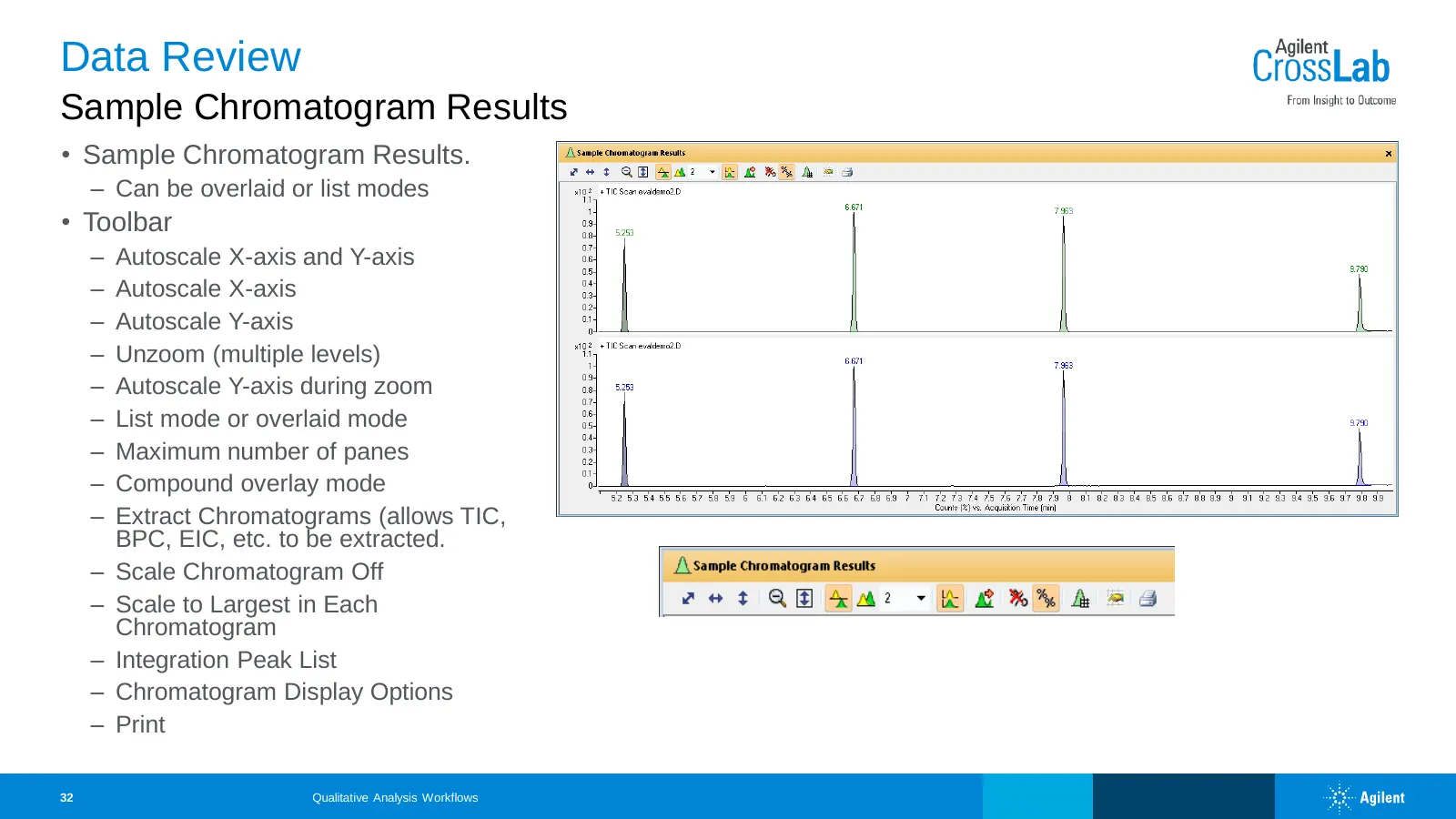
Data Review Sample Chromatogram Results • Sample Chromatogram Results. – Can be overlaid or list modes • Toolbar – Autoscale X-axis and Y-axis – Autoscale X-axis – Autoscale Y-axis – Unzoom (multiple levels) – Autoscale Y-axis during zoom – List mode or overlaid mode – Maximum number of panes – Comp
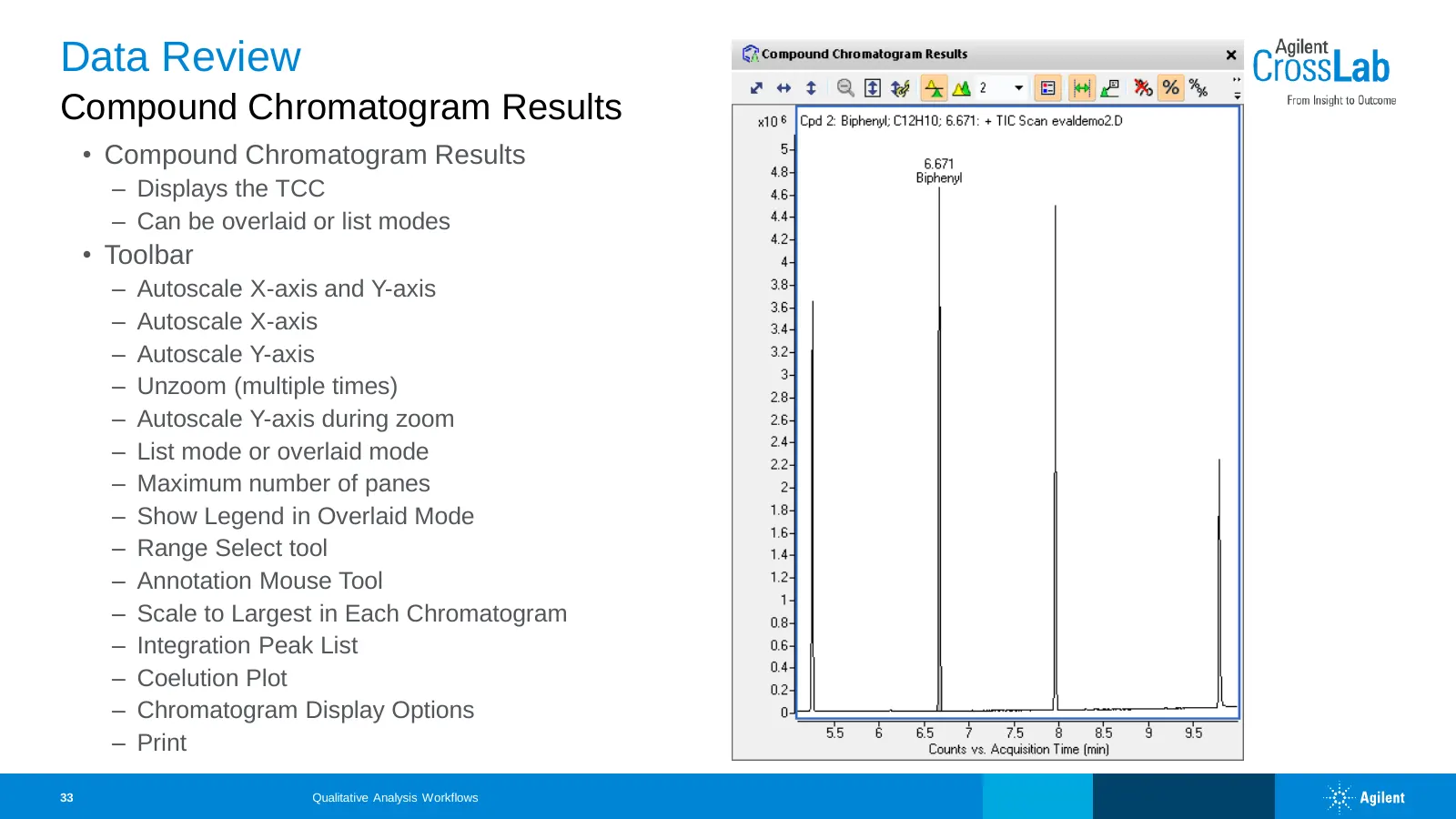
Slide 33: Compound Chromatogram Results
Data Review Compound Chromatogram Results • Compound Chromatogram Results – Displays the TCC – Can be overlaid or list modes • Toolbar – Autoscale X-axis and Y-axis – Autoscale X-axis – Autoscale Y-axis – Unzoom (multiple times) – Autoscale Y-axis during zoom – List mode or overlaid mode – Maximum n
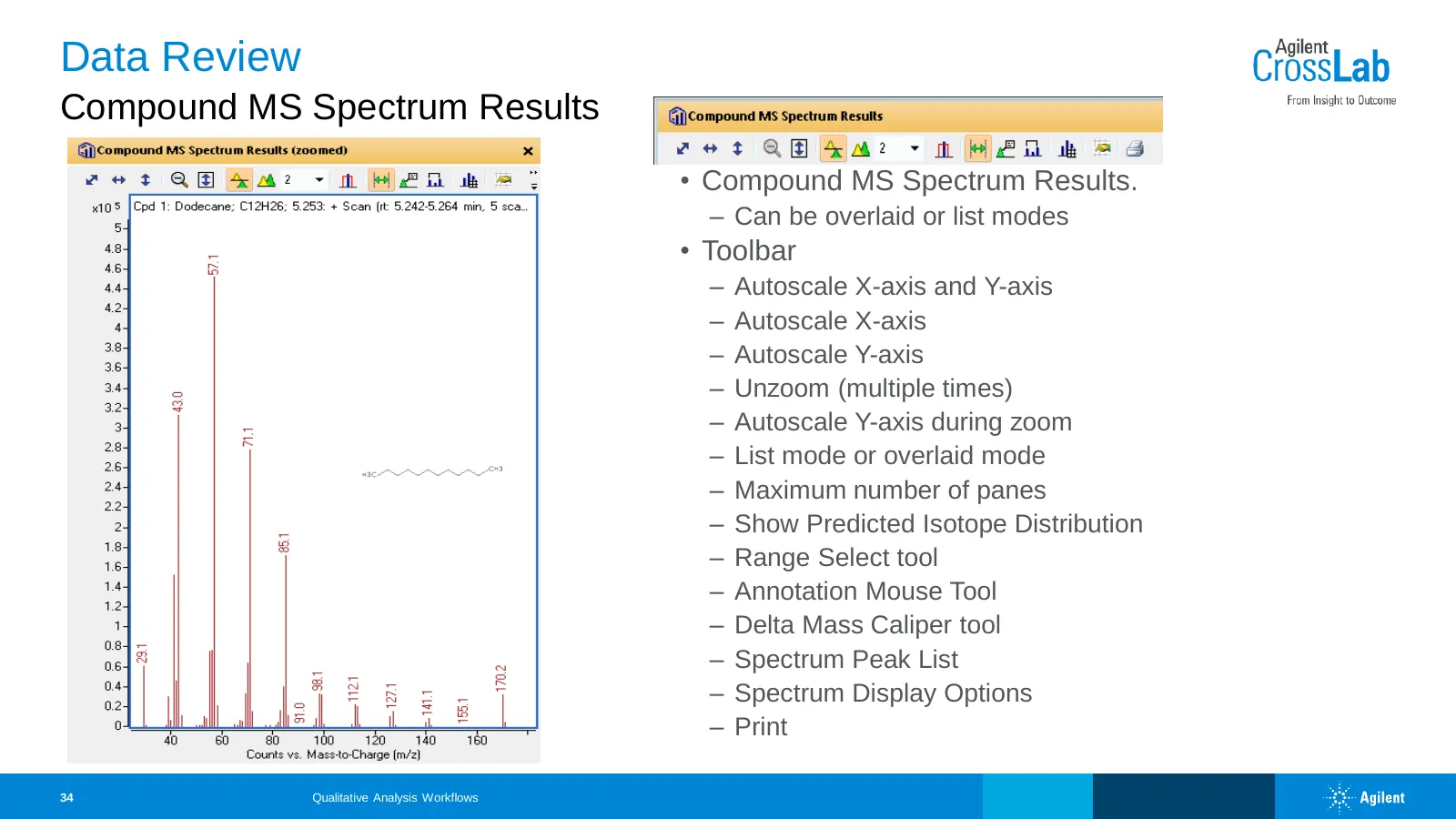
Slide 34: Compound MS Spectrum Results
Data Review Compound MS Spectrum Results • Compound MS Spectrum Results. – Can be overlaid or list modes • Toolbar – Autoscale X-axis and Y-axis – Autoscale X-axis – Autoscale Y-axis – Unzoom (multiple times) – Autoscale Y-axis during zoom – List mode or overlaid mode – Maximum number of panes – Sho
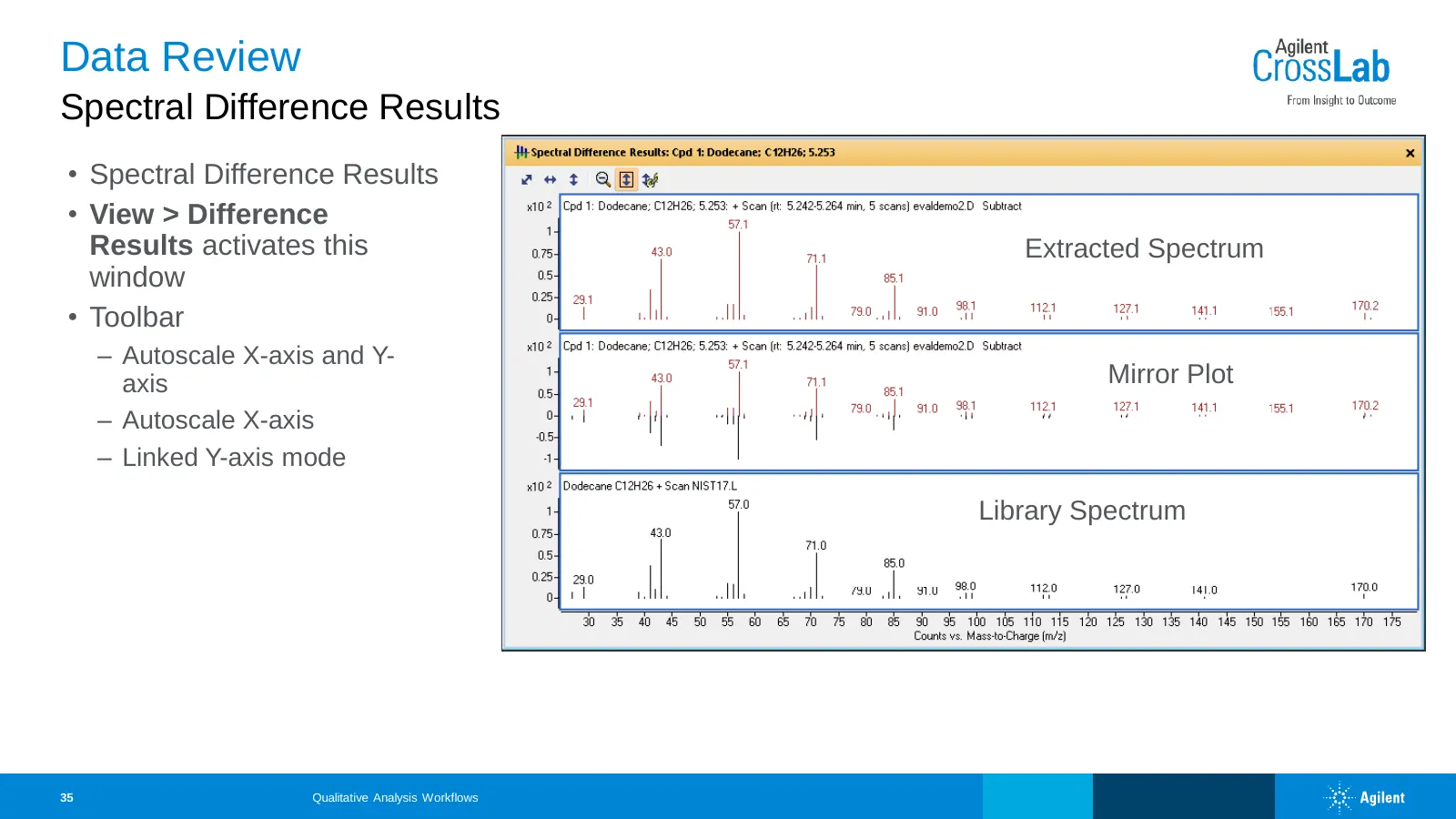
Slide 35: Spectral Difference Results
Data Review Spectral Difference Results • Spectral Difference Results • View > Difference Results activates this Extracted Spectrum window • Toolbar – Autoscale X-axis and Y- axis Mirror Plot – Autoscale X-axis – Linked Y-axis mode Library Spectrum 35 Qualitative Analysis Workflows
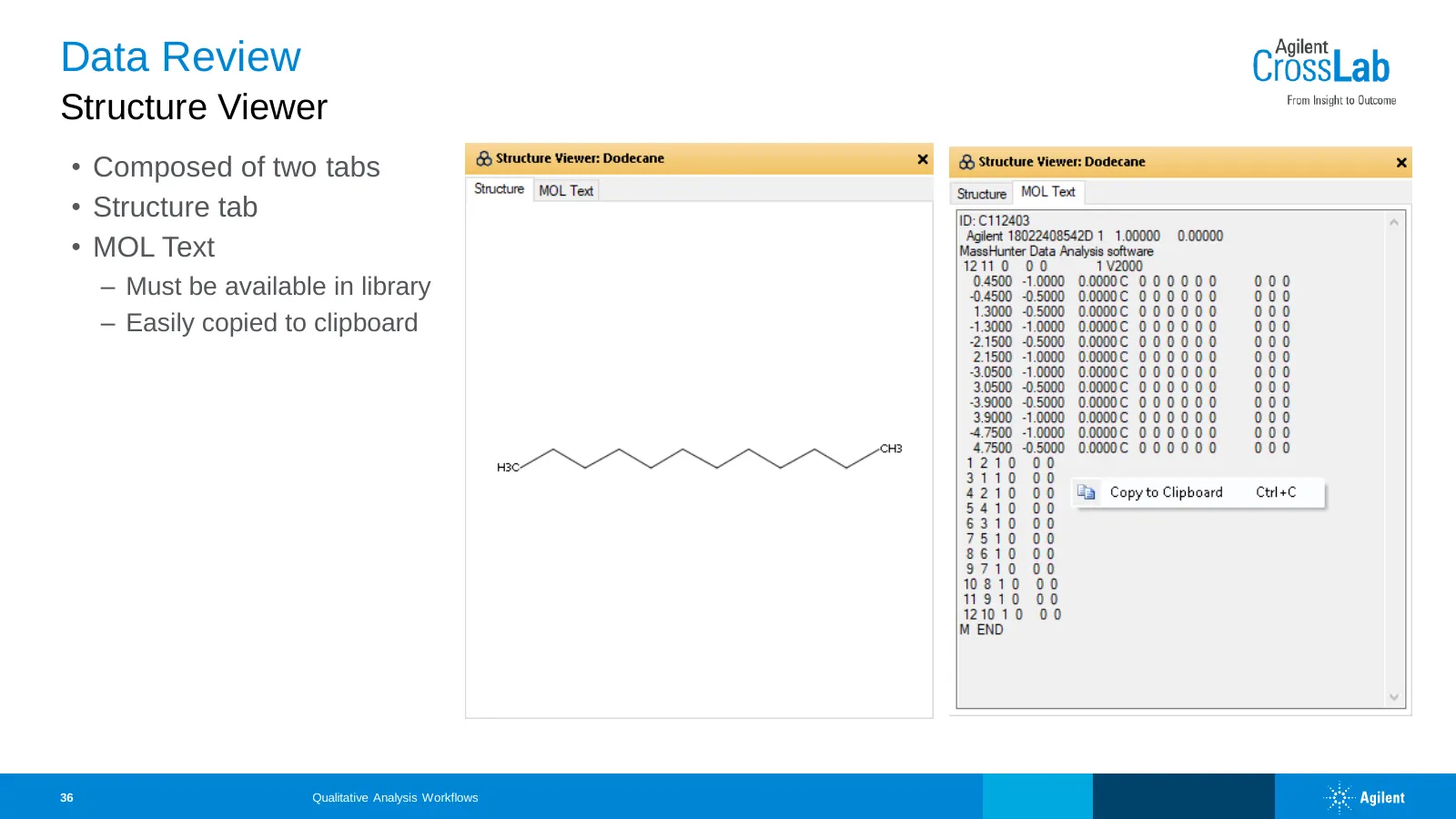
Slide 36: Structure Viewer
Data Review Structure Viewer • Composed of two tabs • Structure tab • MOL Text – Must be available in library – Easily copied to clipboard 36 Qualitative Analysis Workflows
Slide 37: Questions on Data Review
Let’s take a moment for questions on Data Review Up Next: Find by Chromatogram Deconvolution 37 MassHunter Webinar Series
Slide 38: Find by Chromatogram Deconvolution
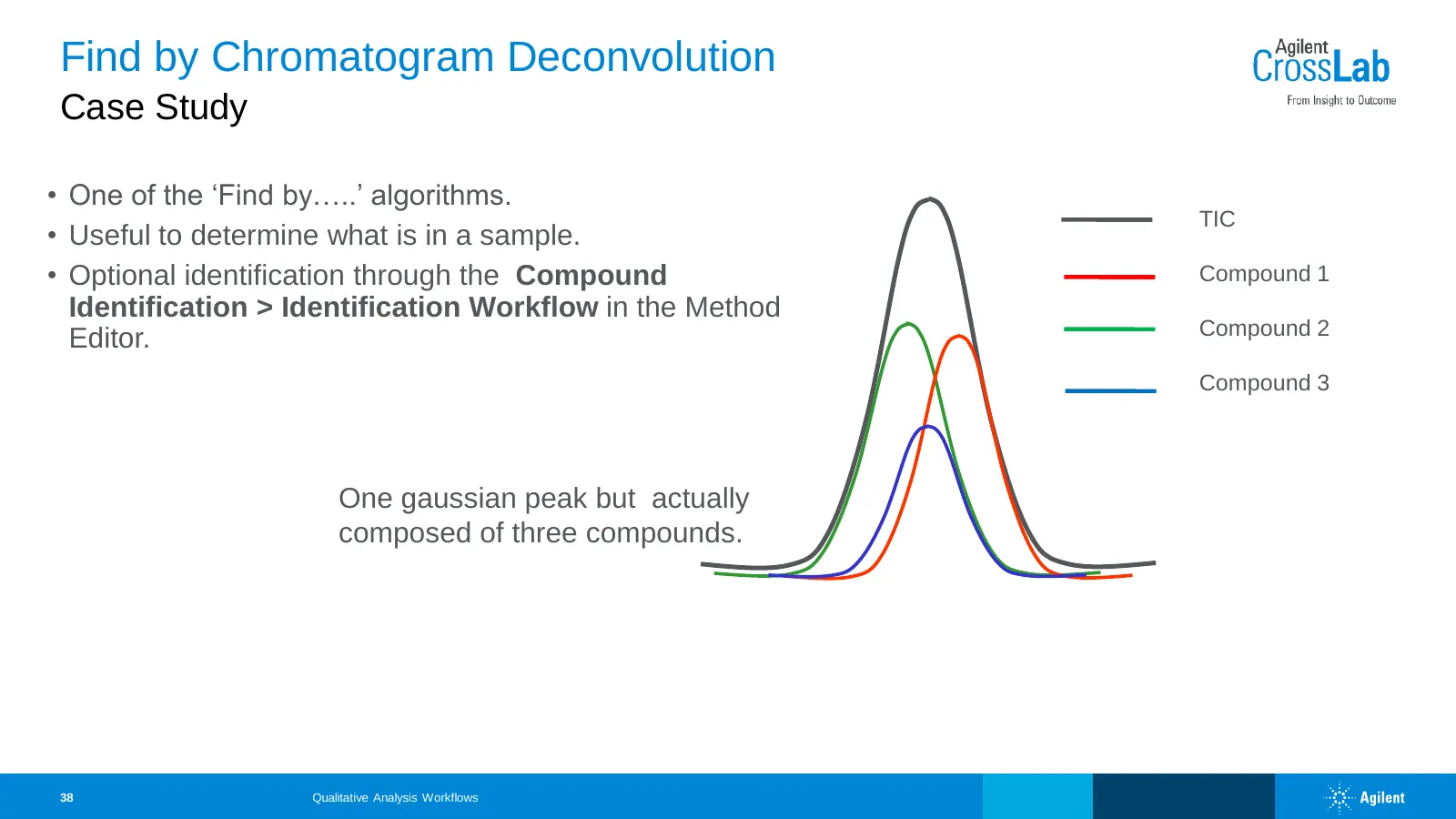
Find by Chromatogram Deconvolution Case Study • One of the ‘Find by…..’ algorithms. TIC • Useful to determine what is in a sample. • Optional identification through the Compound Compound 1 Identification > Identification Workflow in the Method Compound 2 Editor. Compound 3 One gaussian peak but actu
Slide 39: Find by Chromatogram Deconvolution
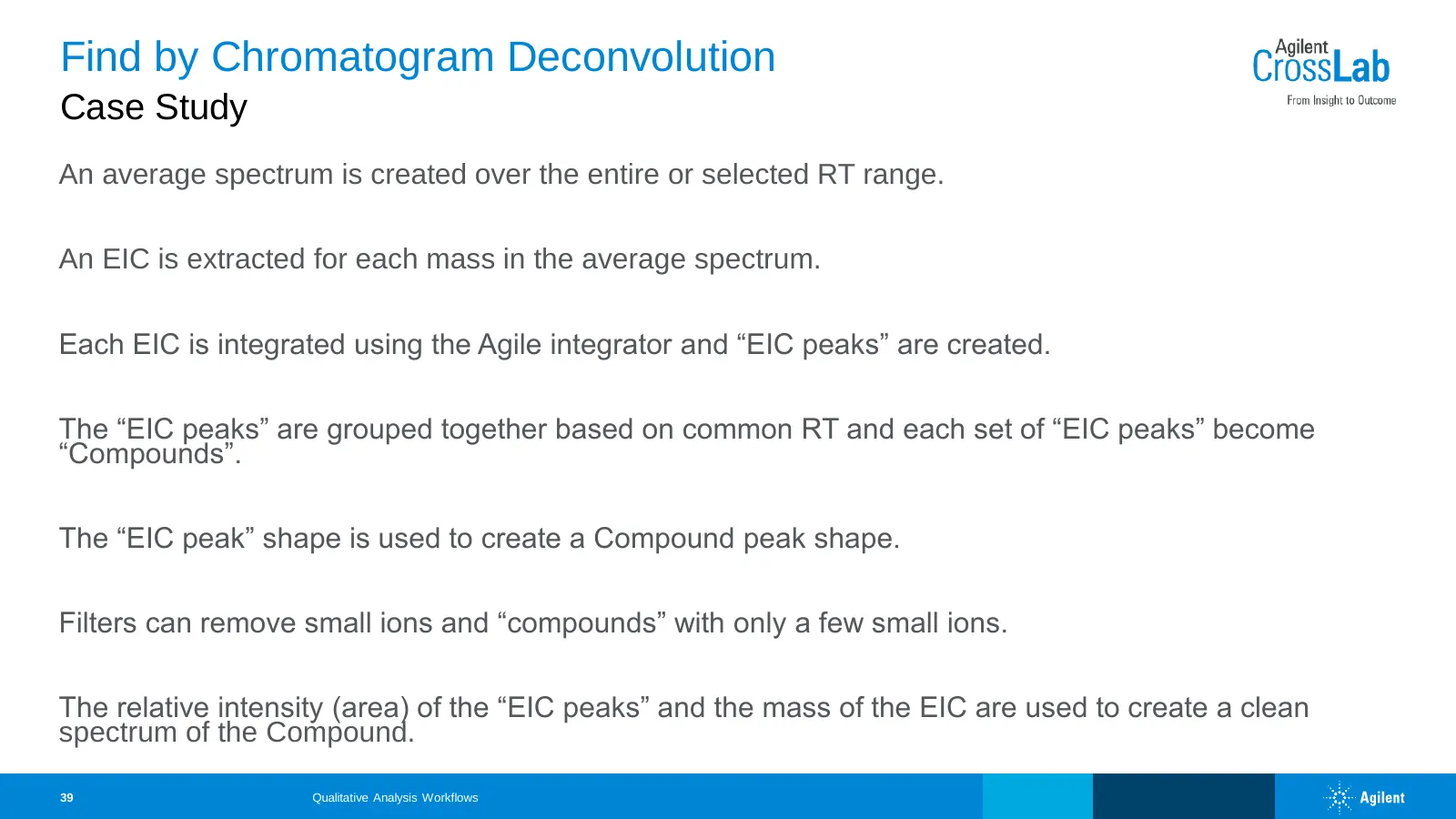
Find by Chromatogram Deconvolution Case Study An average spectrum is created over the entire or selected RT range. An EIC is extracted for each mass in the average spectrum. Each EIC is integrated using the Agile integrator and “EIC peaks” are created. The “EIC peaks” are grouped together based on c
Slide 40: Find by Chromatogram Deconvolution
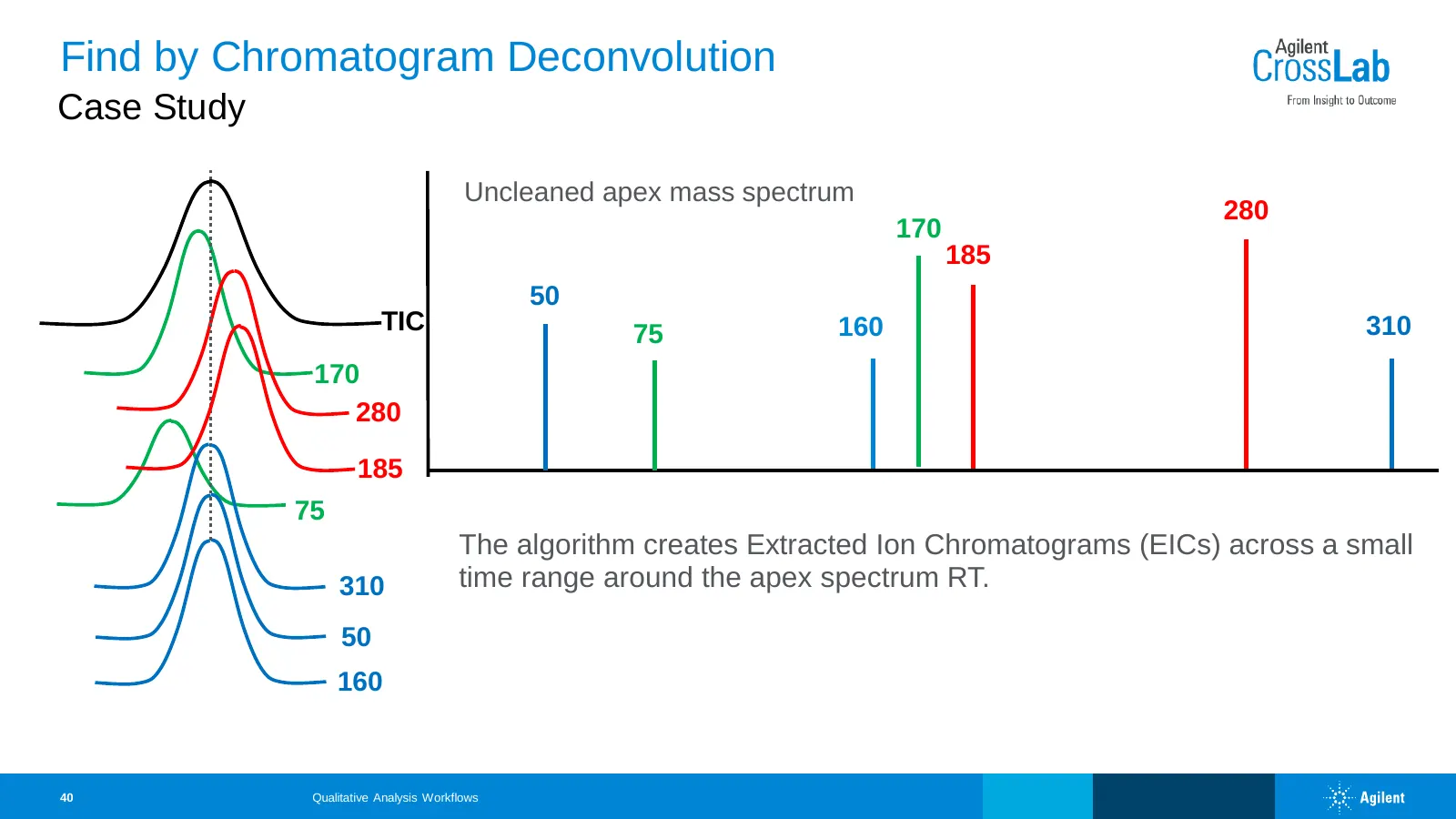
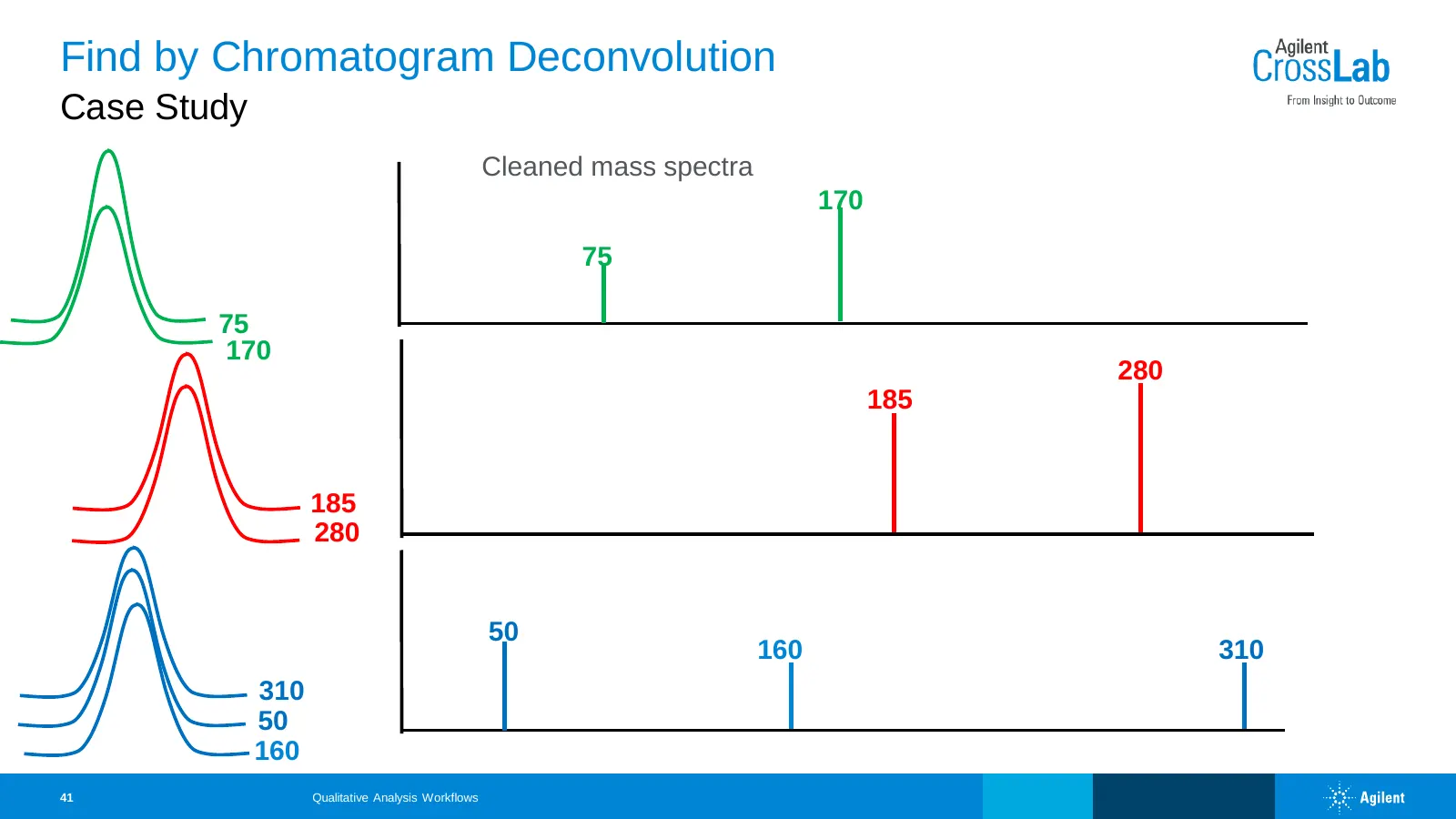
Find by Chromatogram Deconvolution Case Study Uncleaned apex mass spectrum 280 170 185 50 TIC 75 160 310 170 280 185 75 The algorithm creates Extracted Ion Chromatograms (EICs) across a small 310 time range around the apex spectrum RT. 50 160 40 Qualitative Analysis Workflows
Slide 41: Find by Chromatogram Deconvolution
Find by Chromatogram Deconvolution Case Study Cleaned mass spectra 170 75 75 170 280 185 185 280 50 160 310 310 50 160 41 Qualitative Analysis Workflows
Slide 42: Deconvolution Parameters
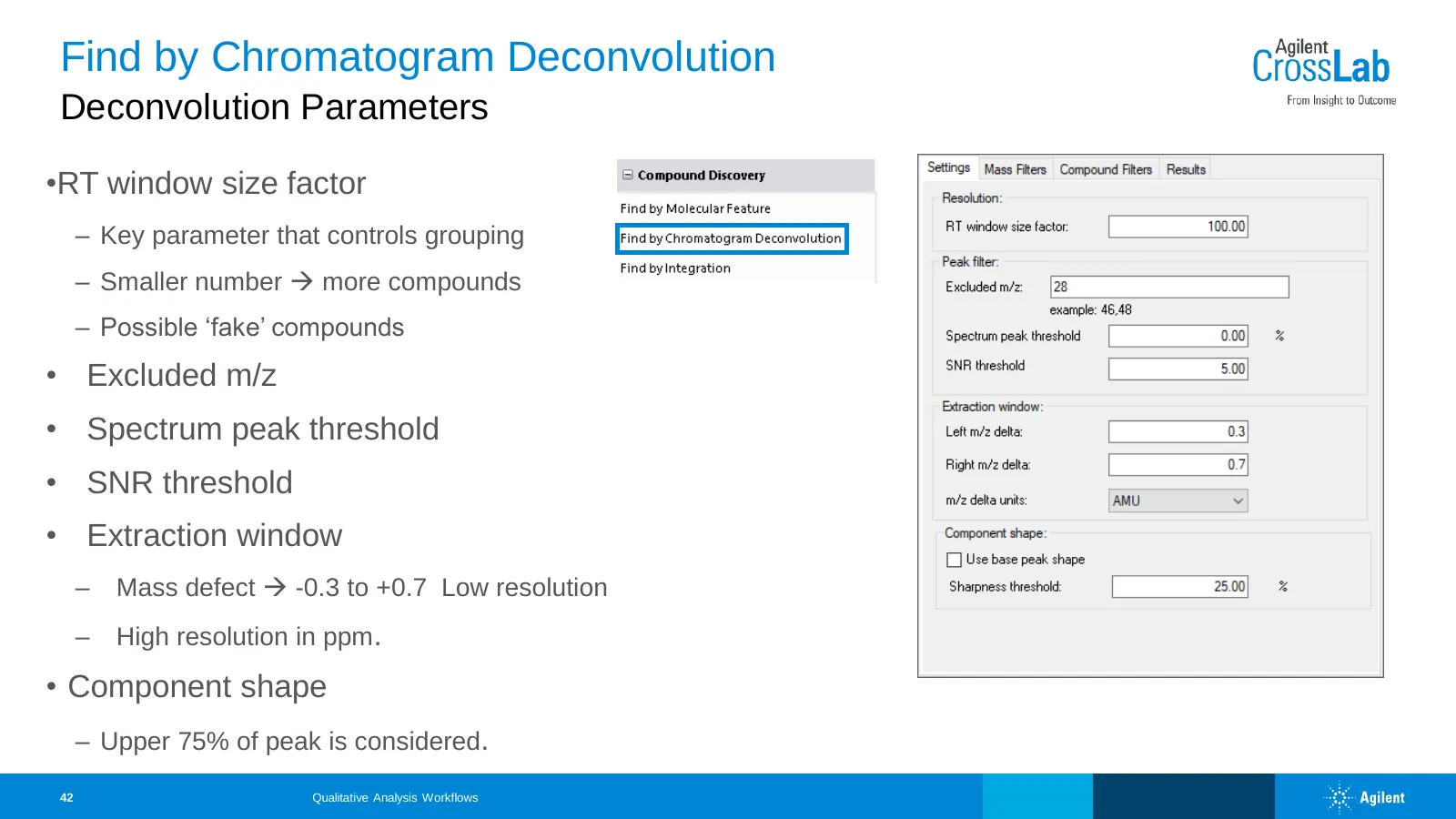
Find by Chromatogram Deconvolution Deconvolution Parameters •RT window size factor – Key parameter that controls grouping – Smaller number → more compounds – Possible ‘fake’ compounds • Excluded m/z • Spectrum peak threshold • SNR threshold • Extraction window – Mass defect → -0.3 to +0.7 Low resolu
Slide 43: Deconvolution Parameters
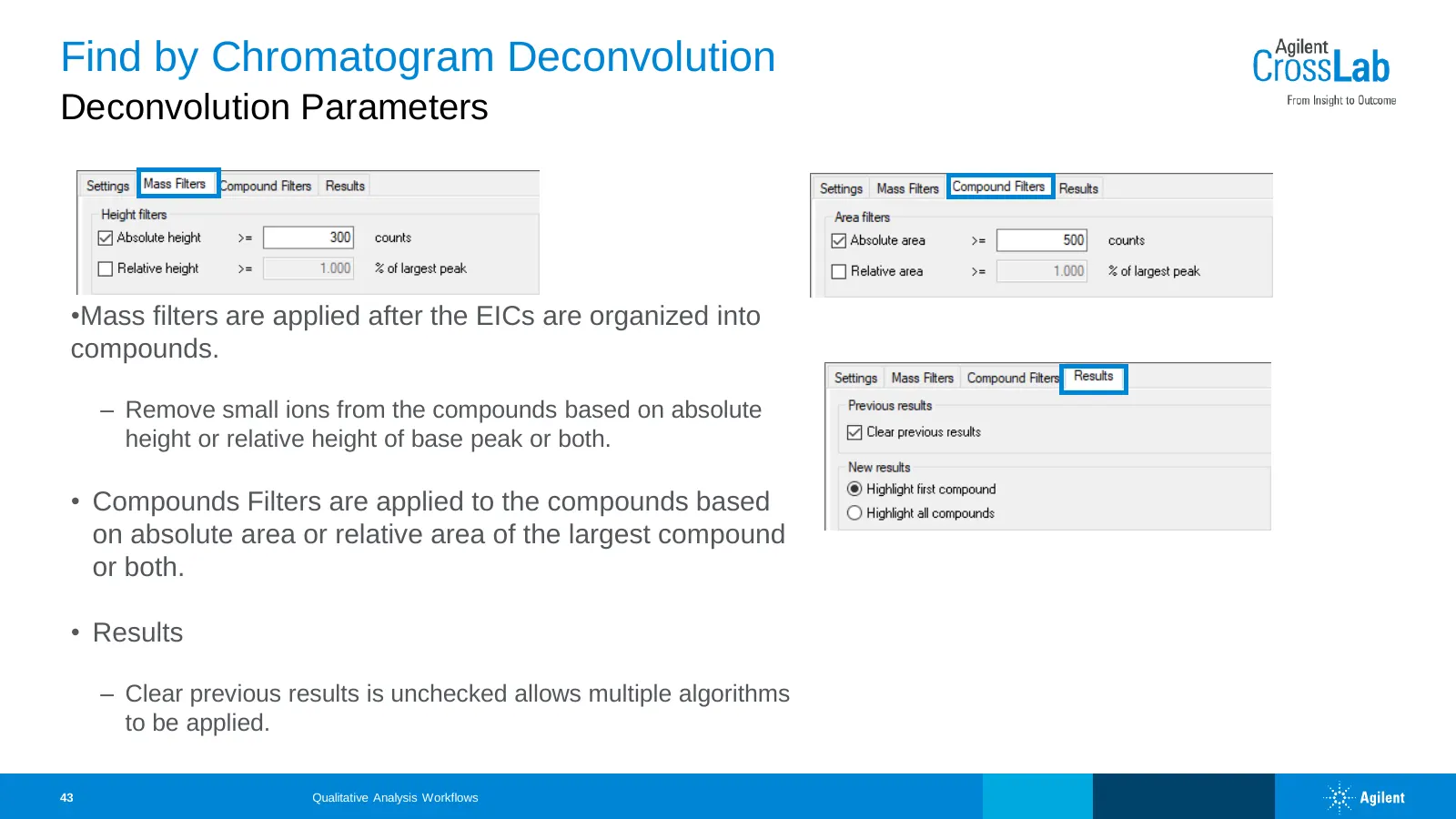
Find by Chromatogram Deconvolution Deconvolution Parameters •Mass filters are applied after the EICs are organized into compounds. – Remove small ions from the compounds based on absolute height or relative height of base peak or both. • Compounds Filters are applied to the compounds based on absolu
Slide 44: Questions on Find by Chromatogram Deconvolution
Let’s take a moment for questions on Find by Chromatogram Deconvolution Up Next: Molecular Feature Extraction 44 MassHunter Webinar Series
Slide 45: Find by Molecular Feature
Find by Molecular Feature Case Study MFE (Molecular Feature Extraction) • Untargeted analysis for a unique molecular entity based on three dimensional array of retention time, mass and abundance in GC or LC MS data. Operates on raw scan data. – Evaluates the data as a three dimensional array based o
Slide 46: Find by Molecular Feature
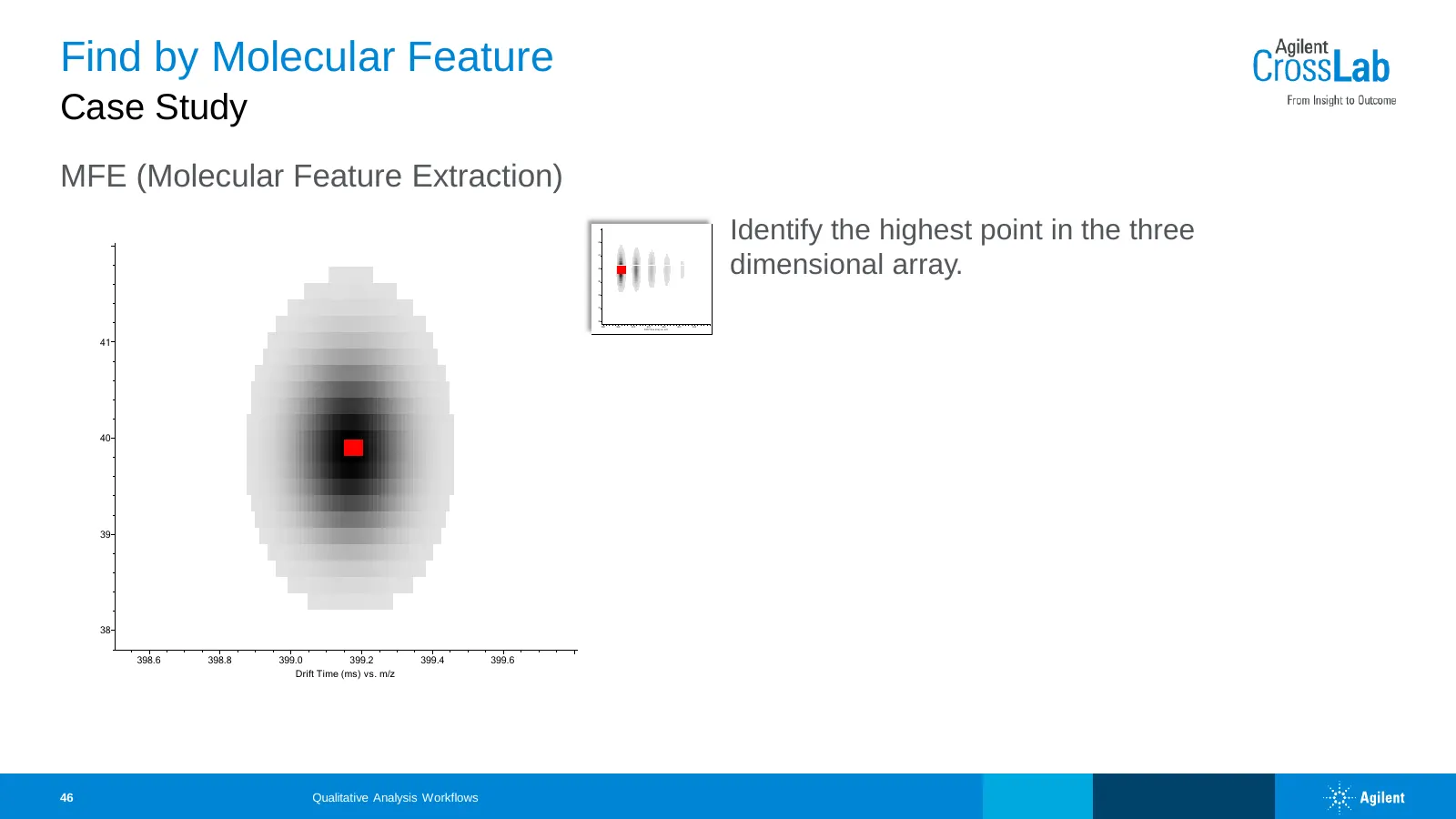
Find by Molecular Feature Case Study MFE (Molecular Feature Extraction) 42 Identify the highest point in the three dimensional array. 41 40 39 38 37 36 398 399 400 401 402 403 404 Drift Time (ms) vs. m/z 41 40 39 38 398.6 398.8 399.0 399.2 399.4 399.6 Drift Time (ms) vs. m/z 46 Qualitative Analysis
Slide 47: Find by Molecular Feature
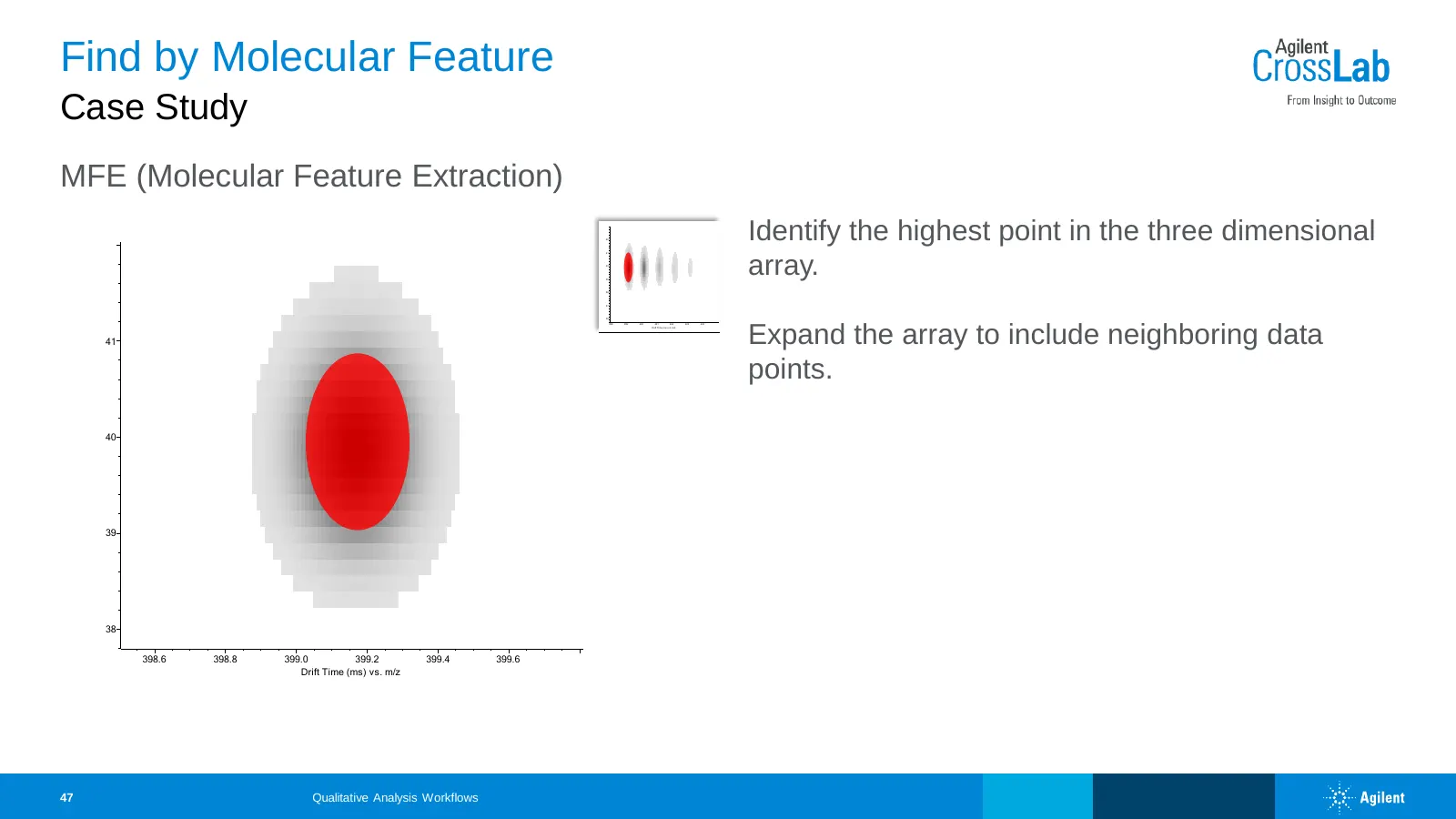
Find by Molecular Feature Case Study MFE (Molecular Feature Extraction) 42 41 Identify the highest point in the three dimensional 40 39 array. 38 37 36 398 399 400 401 402 403 404 Expand the array to include neighboring data Drift Time (ms) vs. m/z 41 points. 40 39 38 398.6 398.8 399.0 399.2 399.4 3
Slide 48: Find by Molecular Feature
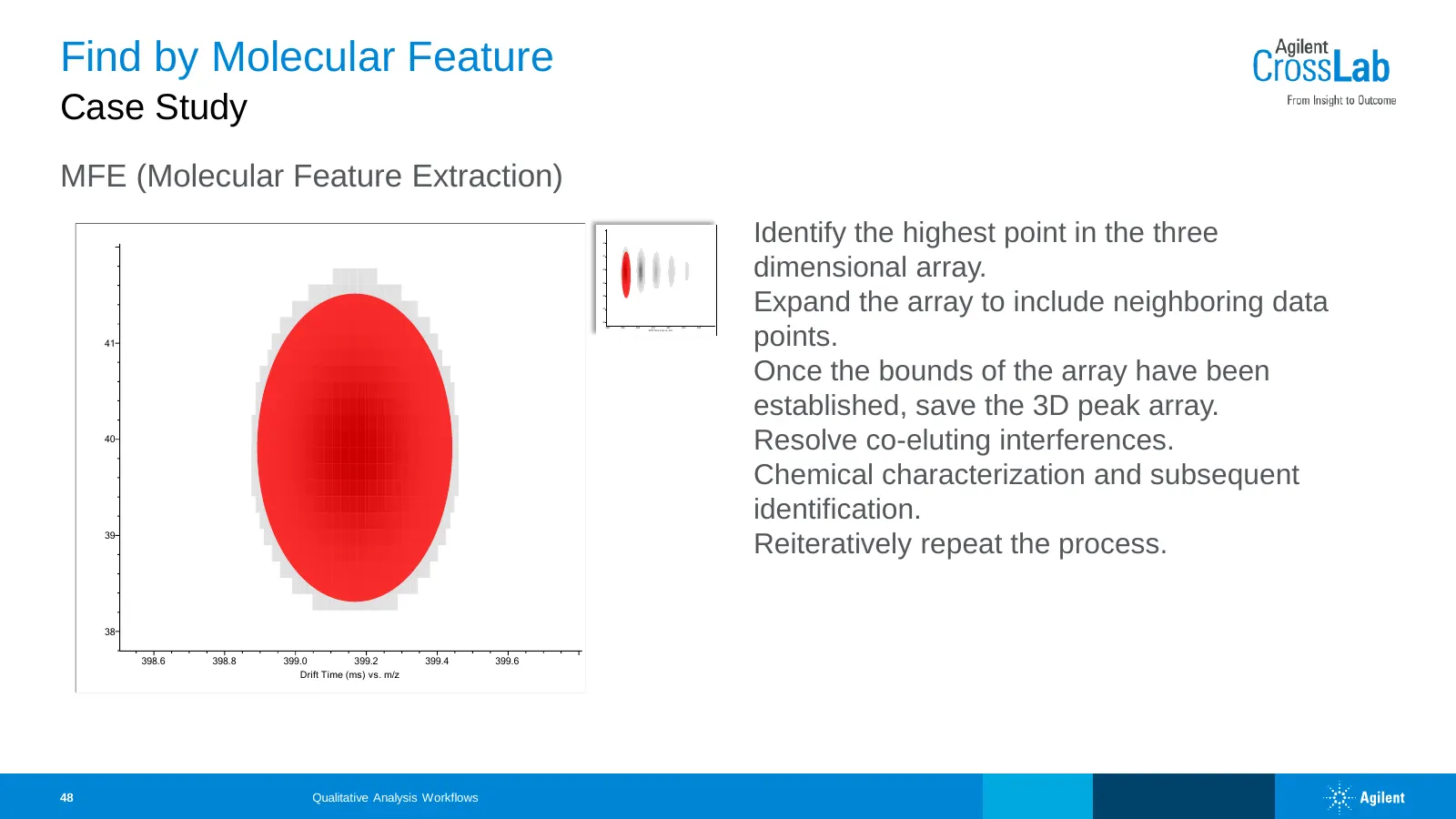
Find by Molecular Feature Case Study MFE (Molecular Feature Extraction) 42 Identify the highest point in the three 41 40 39 dimensional array. Expand the array to include neighboring data 38 37 36 points. 398 399 400 401 402 403 404 Drift Time (ms) vs. m/z 41 Once the bounds of the array have been e
Slide 49: Find by Molecular Feature
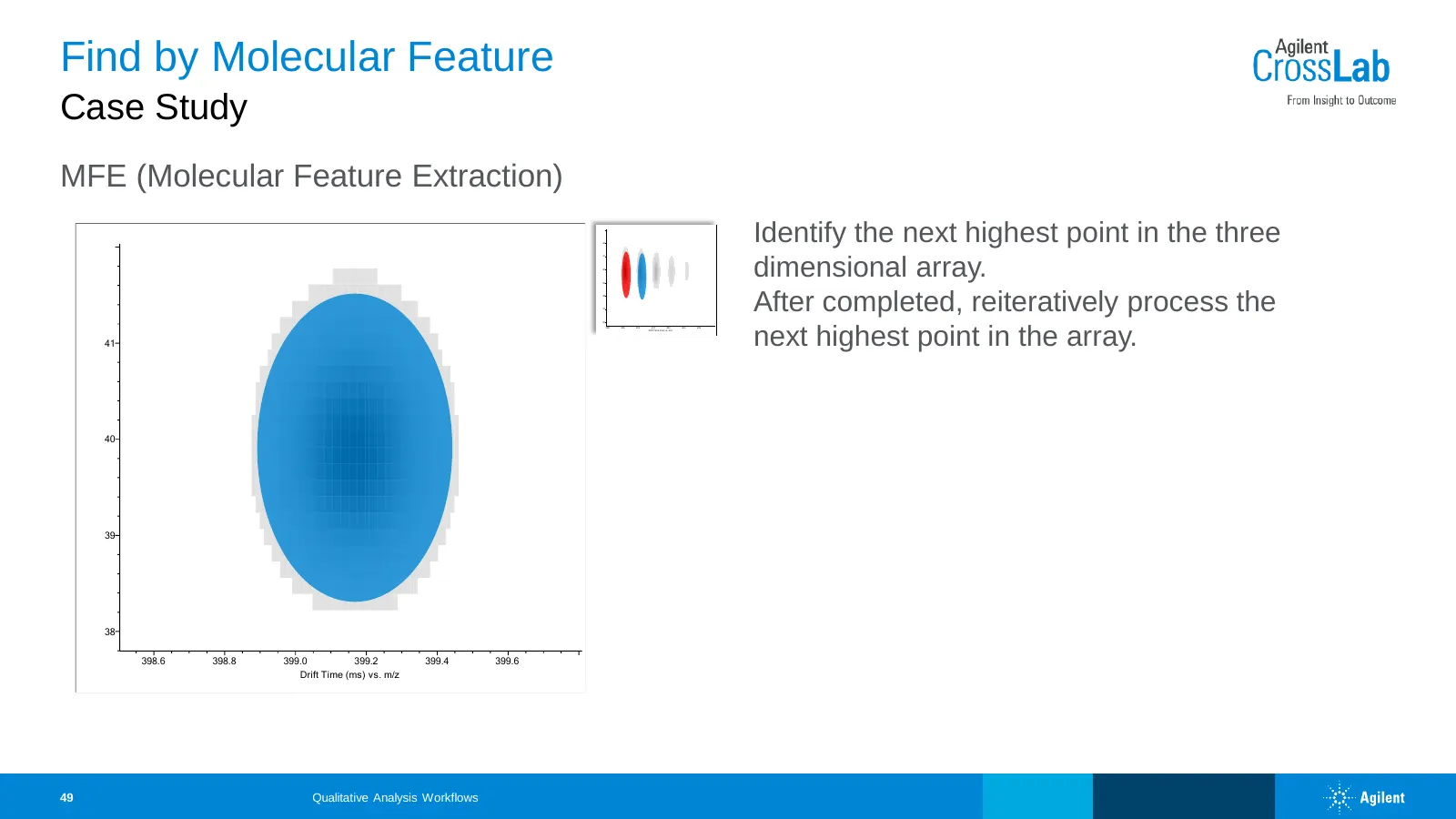
Find by Molecular Feature Case Study MFE (Molecular Feature Extraction) 42 Identify the next highest point in the three 41 40 39 dimensional array. After completed, reiteratively process the 38 37 36 next highest point in the array. 398 399 400 401 402 403 404 Drift Time (ms) vs. m/z 41 40 39 38 398
Slide 50: Find by Molecular Feature
Find by Molecular Feature Case Study MFE (Molecular Feature Extraction) • The algorithm effectively processes the three dimensional array based on retention time, mass and abundance. • The algorithm does not evaluate the information based on spectra or chromatograms. • The process is reiteratively a
Slide 51: Find by Molecular Feature Parameters (GC/MS)
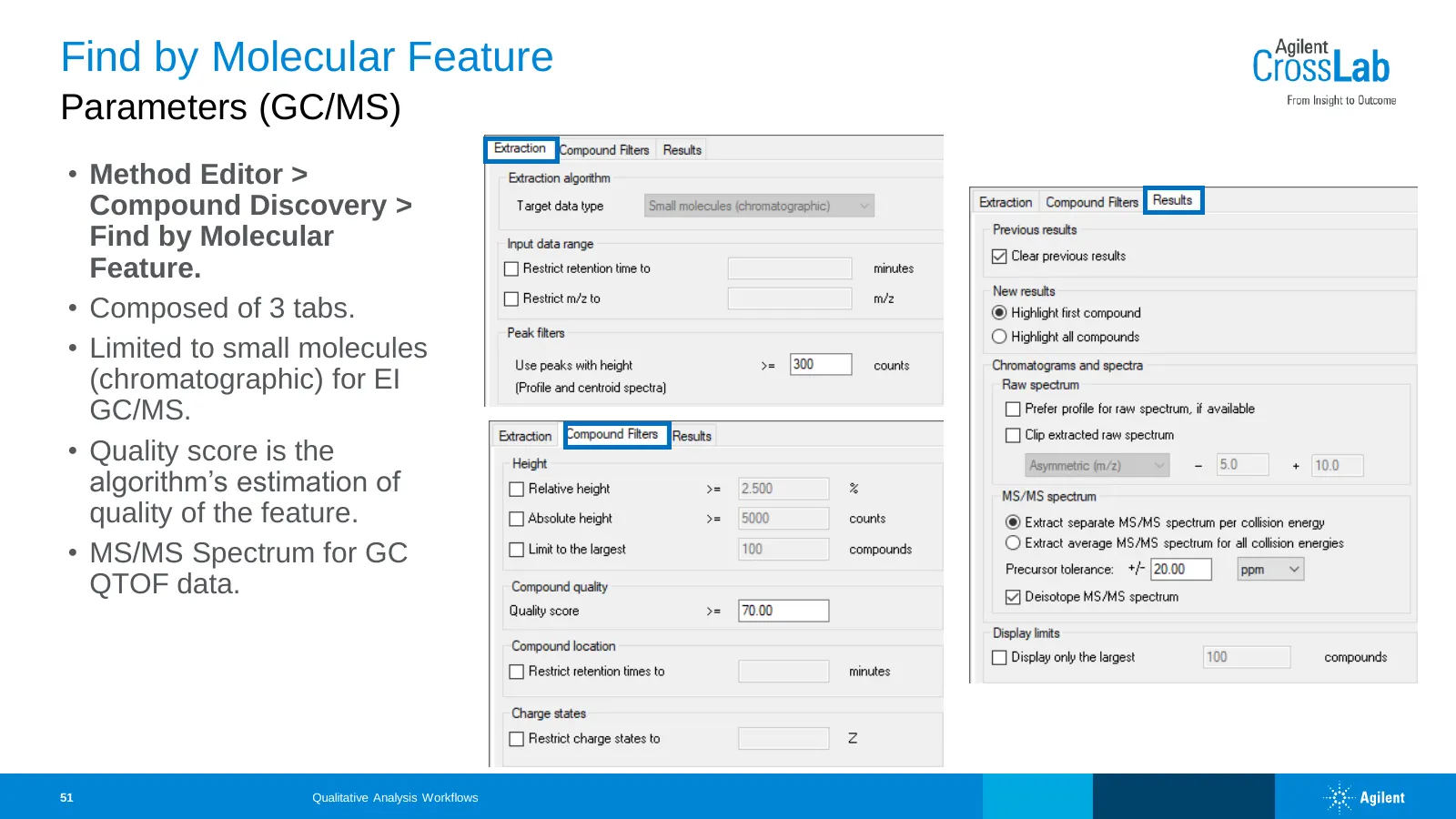
Find by Molecular Feature Parameters (GC/MS) • Method Editor > Compound Discovery > Find by Molecular Feature. • Composed of 3 tabs. • Limited to small molecules (chromatographic) for EI GC/MS. • Quality score is the algorithm’s estimation of quality of the feature. • MS/MS Spectrum for GC QTOF data
Slide 52: Parameters (LC/MS) (1)
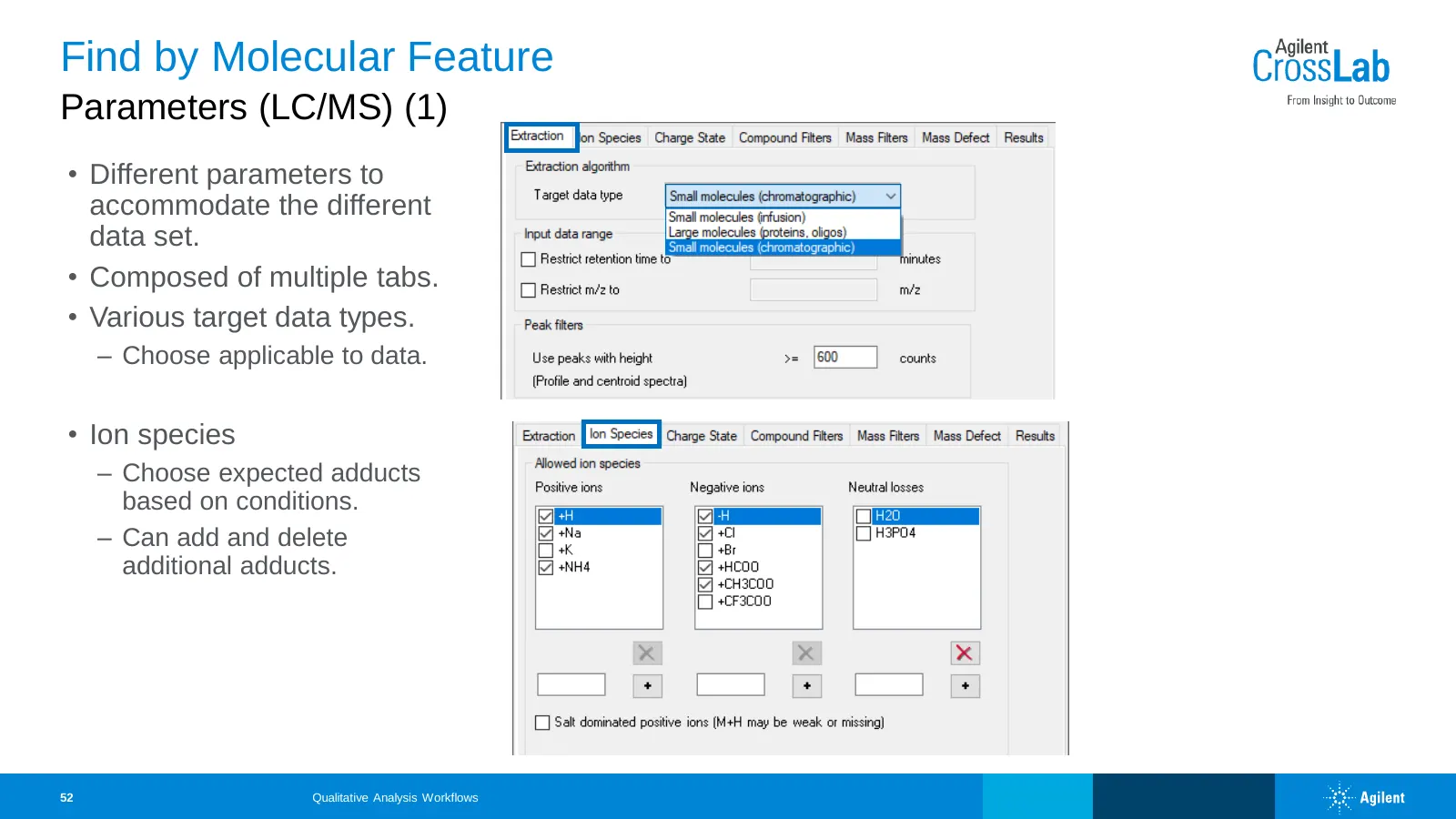
Find by Molecular Feature Parameters (LC/MS) (1) • Different parameters to accommodate the different data set. • Composed of multiple tabs. • Various target data types. – Choose applicable to data. • Ion species – Choose expected adducts based on conditions. – Can add and delete additional adducts.
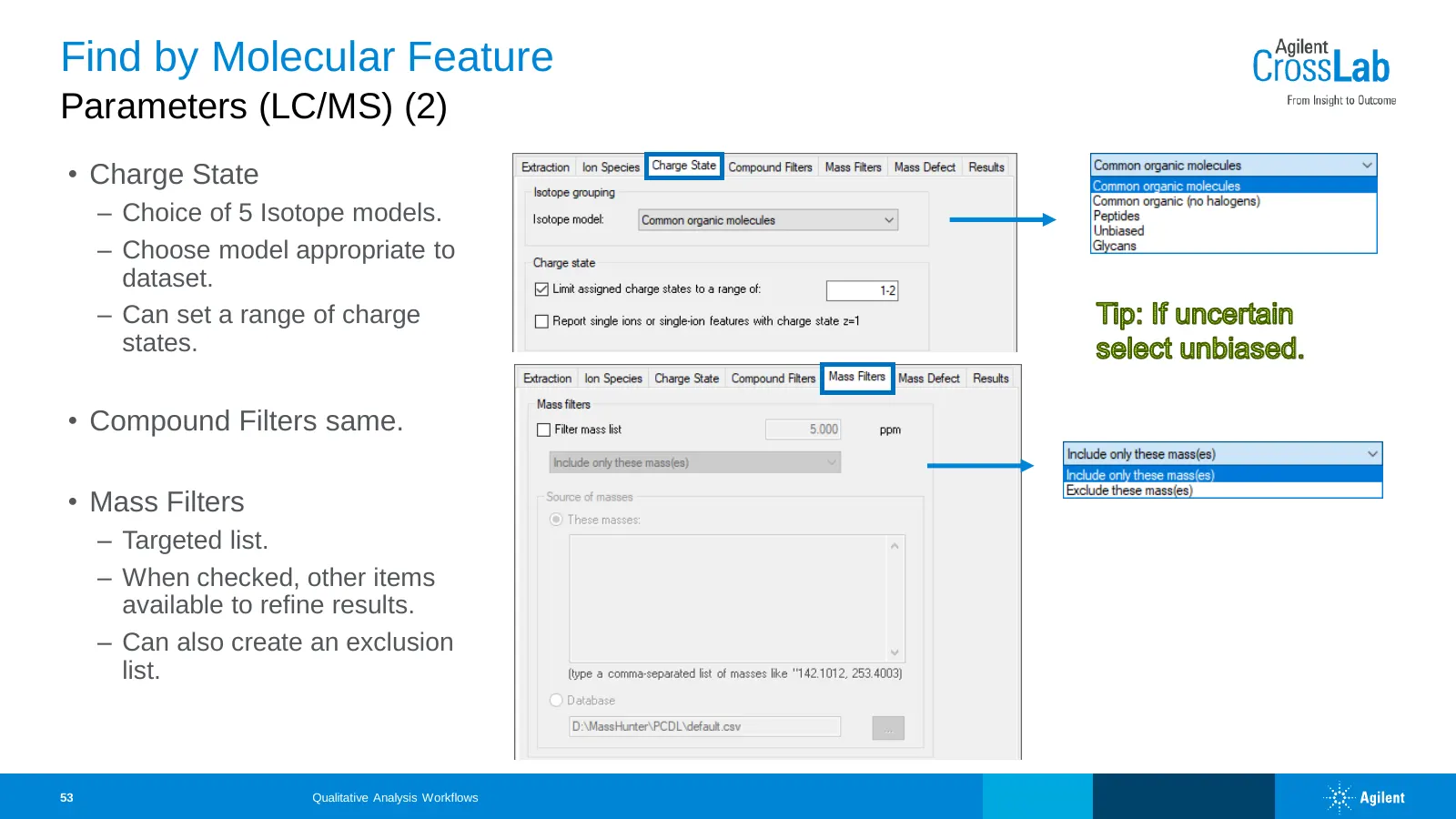
Slide 53: Parameters (LC/MS) (2)
Find by Molecular Feature Parameters (LC/MS) (2) • Charge State – Choice of 5 Isotope models. – Choose model appropriate to dataset. – Can set a range of charge states. • Compound Filters same. • Mass Filters – Targeted list. – When checked, other items available to refine results. – Can also create
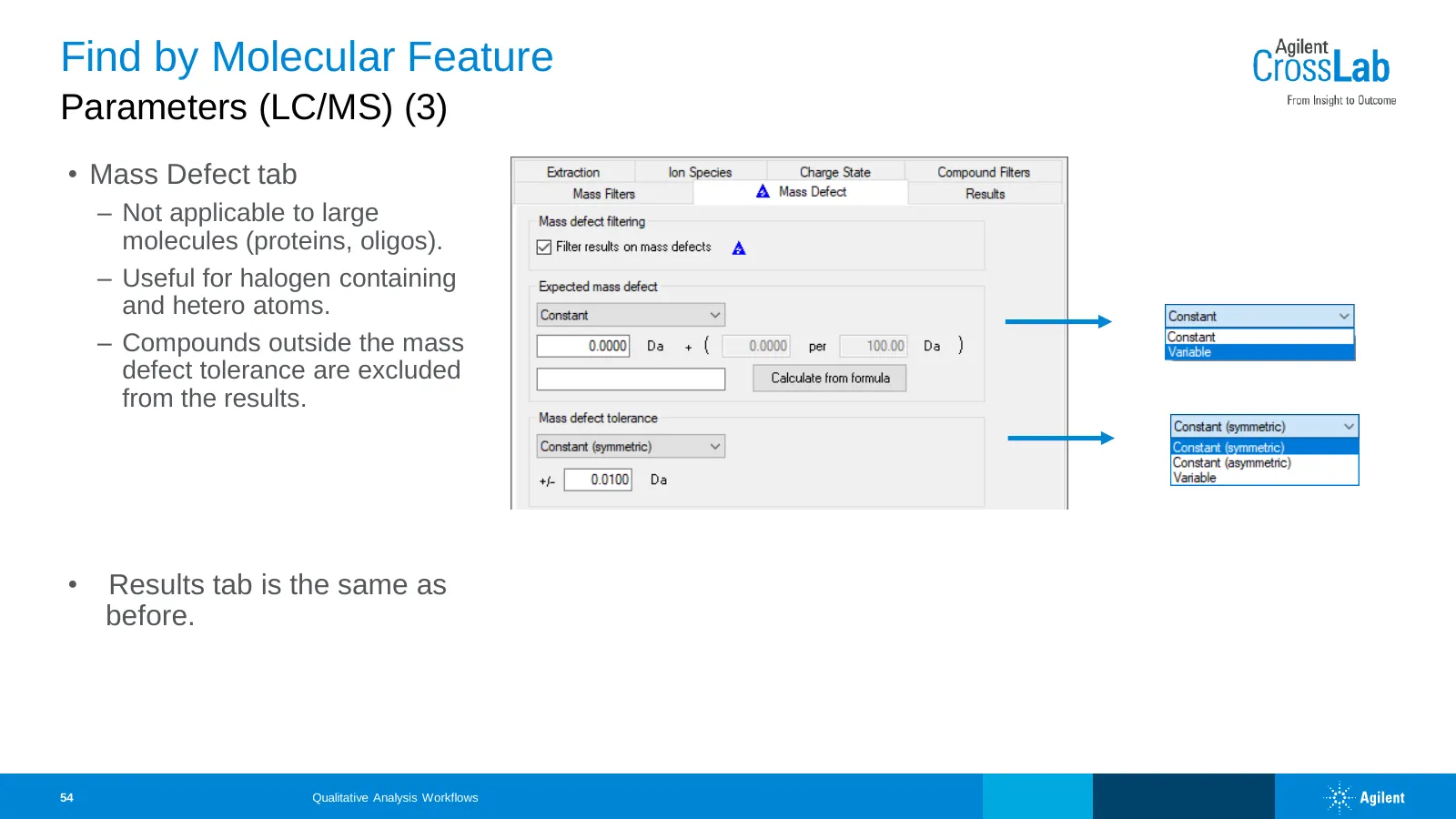
Slide 54: Parameters (LC/MS) (3)
Find by Molecular Feature Parameters (LC/MS) (3) • Mass Defect tab – Not applicable to large molecules (proteins, oligos). – Useful for halogen containing and hetero atoms. – Compounds outside the mass defect tolerance are excluded from the results. • Results tab is the same as before. 54 Qualitativ
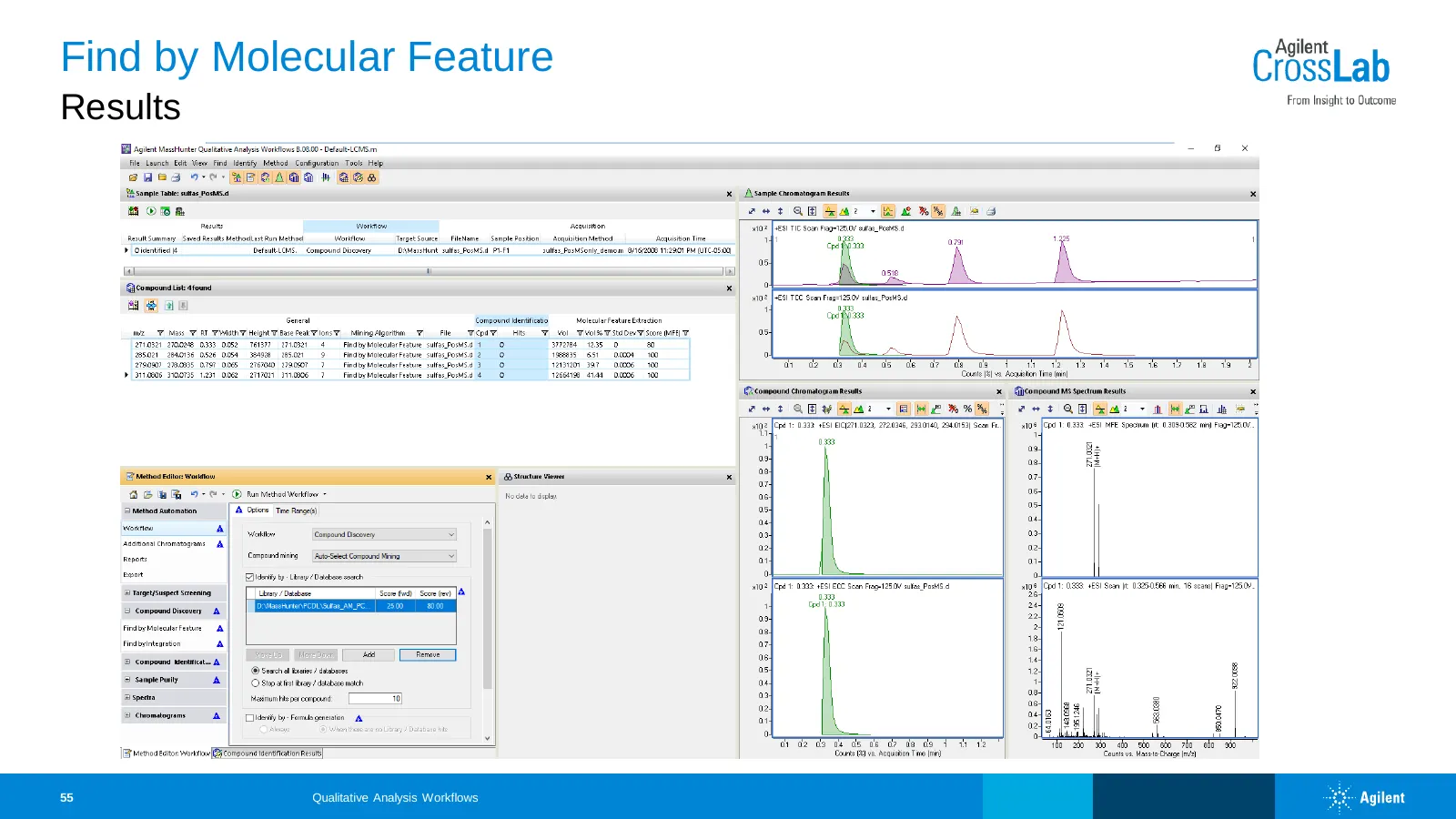
Slide 55: Find by Molecular Feature Results
Find by Molecular Feature Results 55 Qualitative Analysis Workflows
Slide 56: Questions on Molecular Feature Extraction (MFE)
Let’s take a moment for questions on Molecular Feature Extraction (MFE) Up Next: Find by Formula and Compound Identification 56 MassHunter Webinar Series
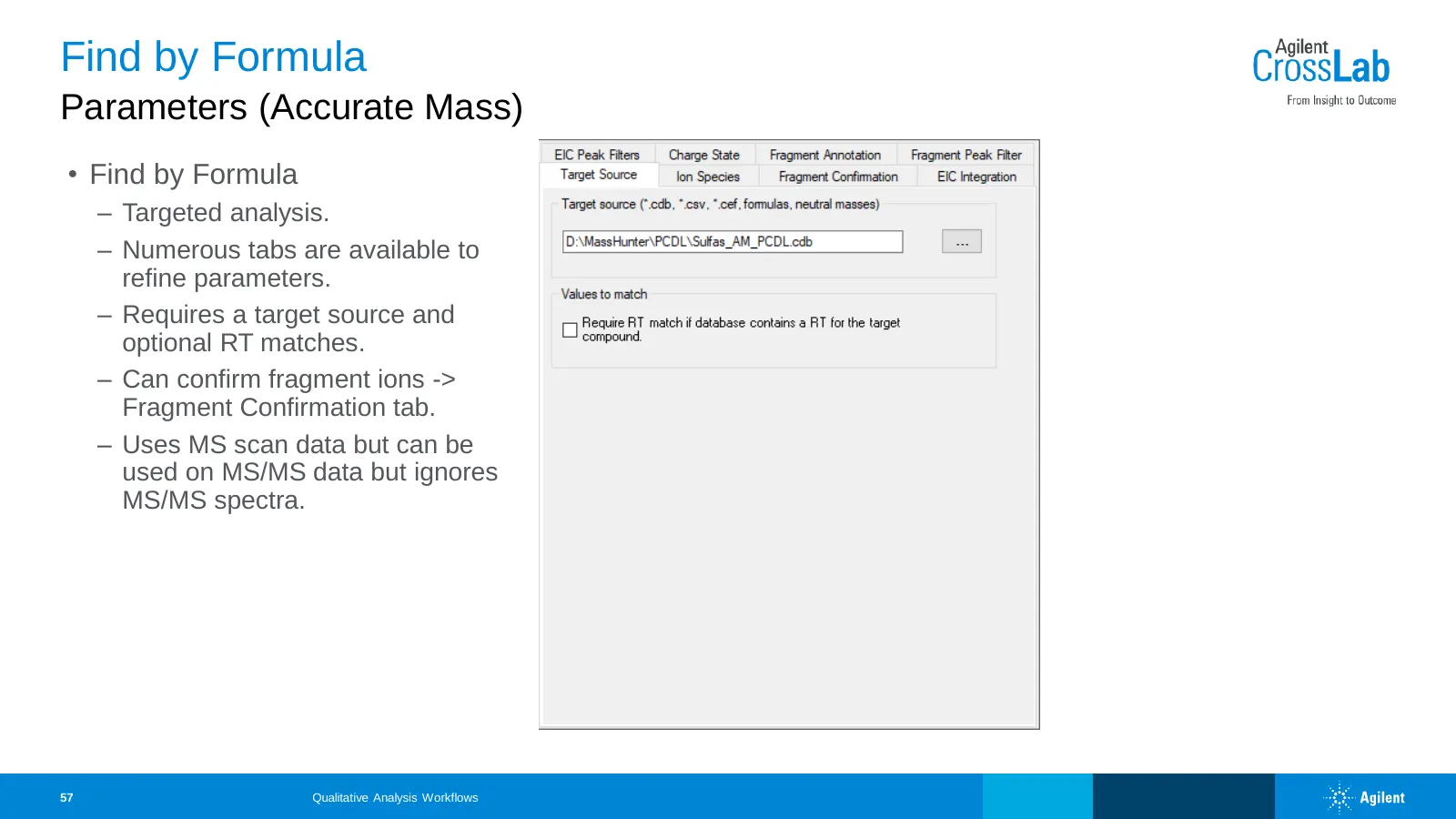
Slide 57: Find by Formula Parameters
Find by Formula Parameters (Accurate Mass) • Find by Formula – Targeted analysis. – Numerous tabs are available to refine parameters. – Requires a target source and optional RT matches. – Can confirm fragment ions -> Fragment Confirmation tab. – Uses MS scan data but can be used on MS/MS data but ig
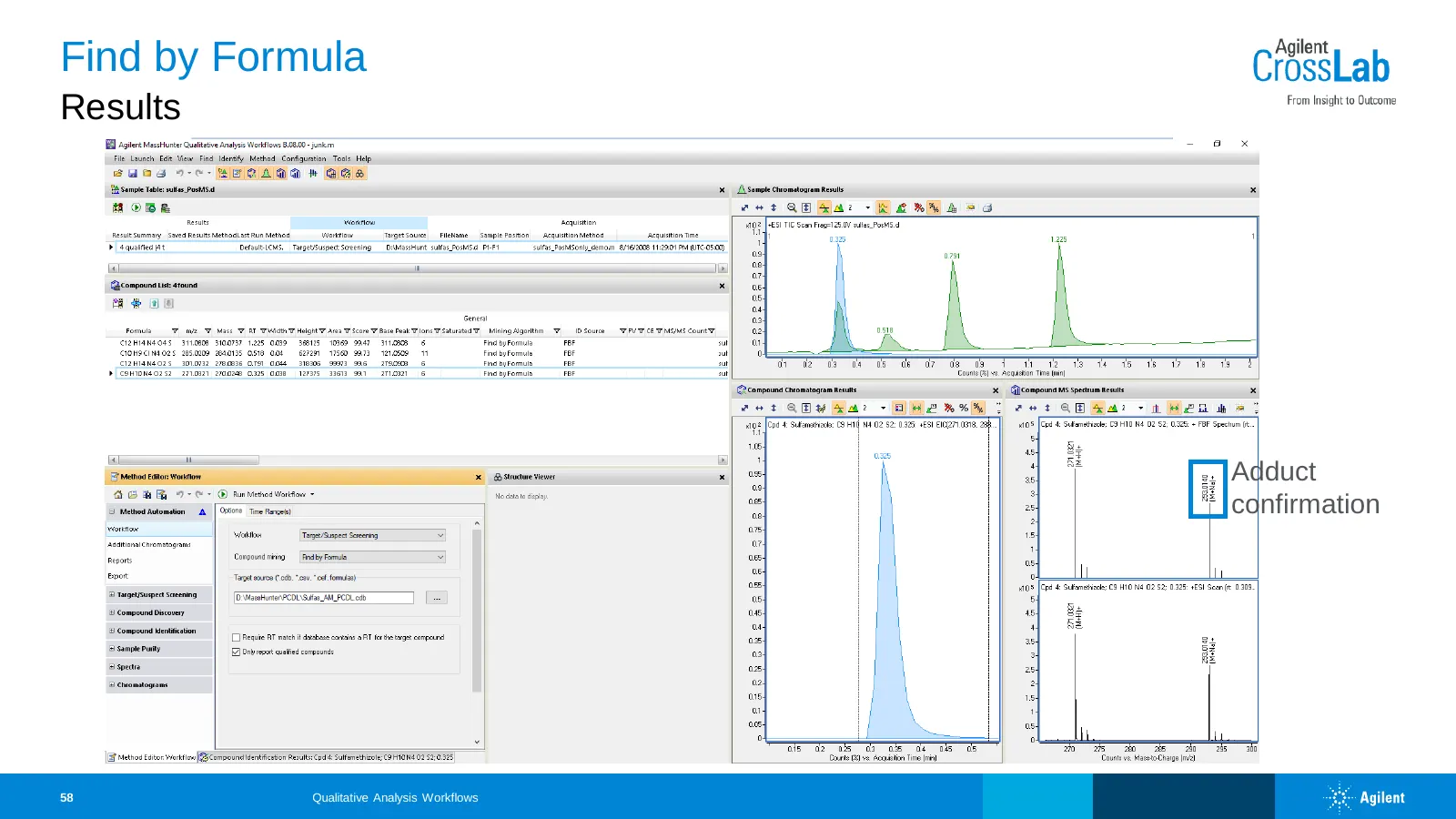
Slide 58: Find by Formula Results
Find by Formula Results Adduct confirmation 58 Qualitative Analysis Workflows
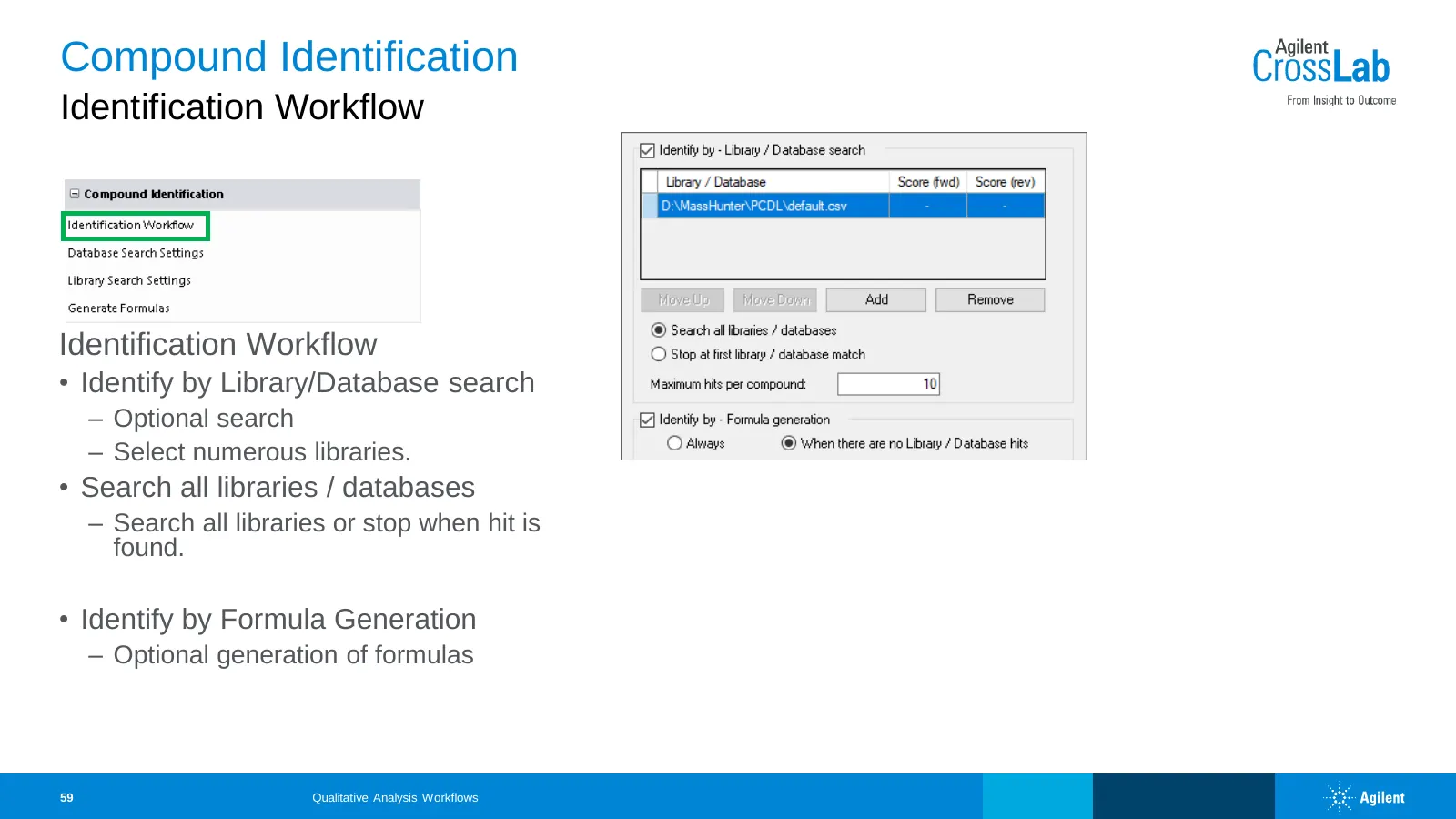
Slide 59: Identification Workflow
Compound Identification Identification Workflow Identification Workflow • Identify by Library/Database search – Optional search – Select numerous libraries. • Search all libraries / databases – Search all libraries or stop when hit is found. • Identify by Formula Generation – Optional generation of
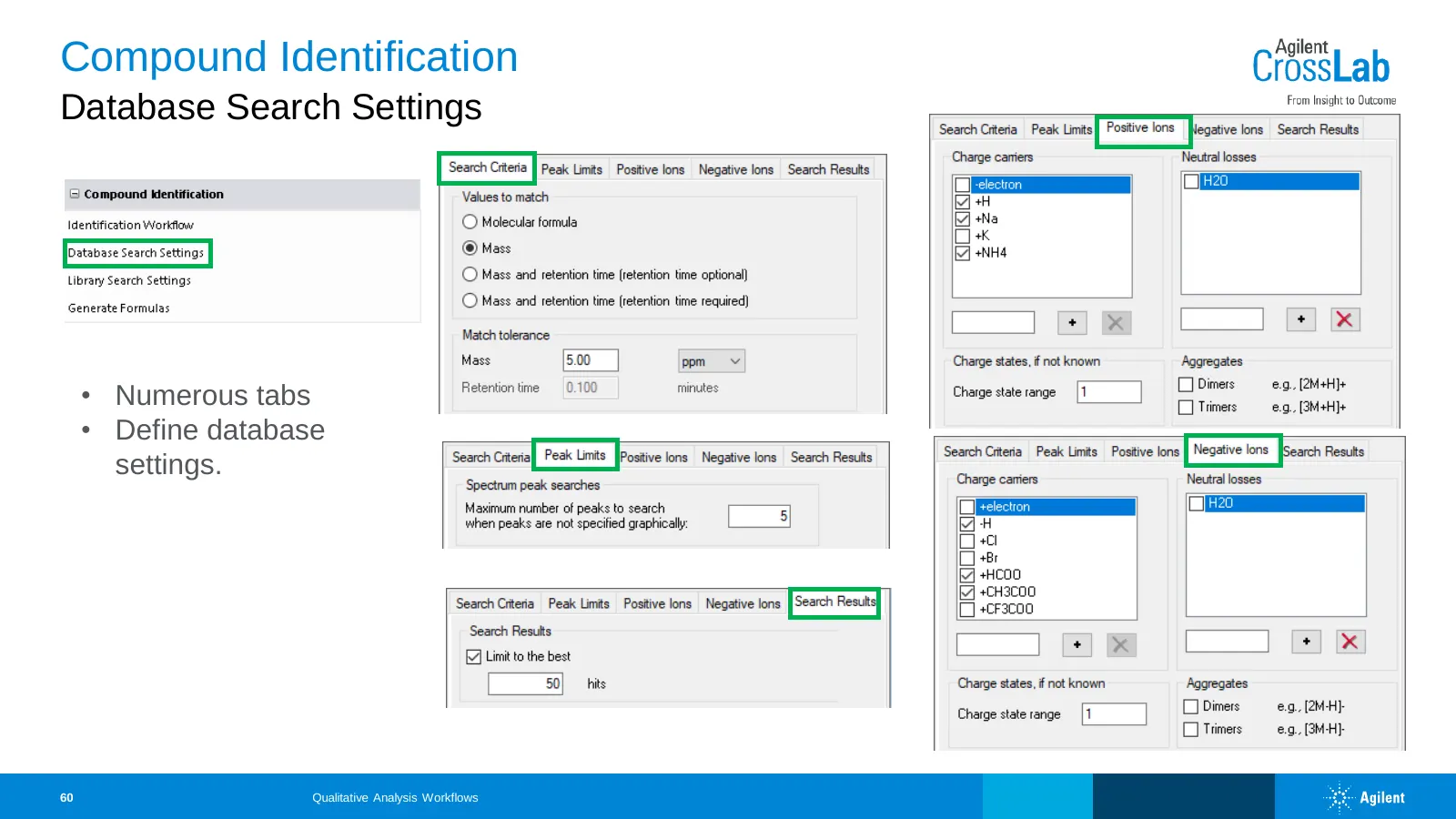
Slide 60: Database Search Settings
Compound Identification Database Search Settings • Numerous tabs • Define database settings. 60 Qualitative Analysis Workflows
Slide 61: Library Search Settings
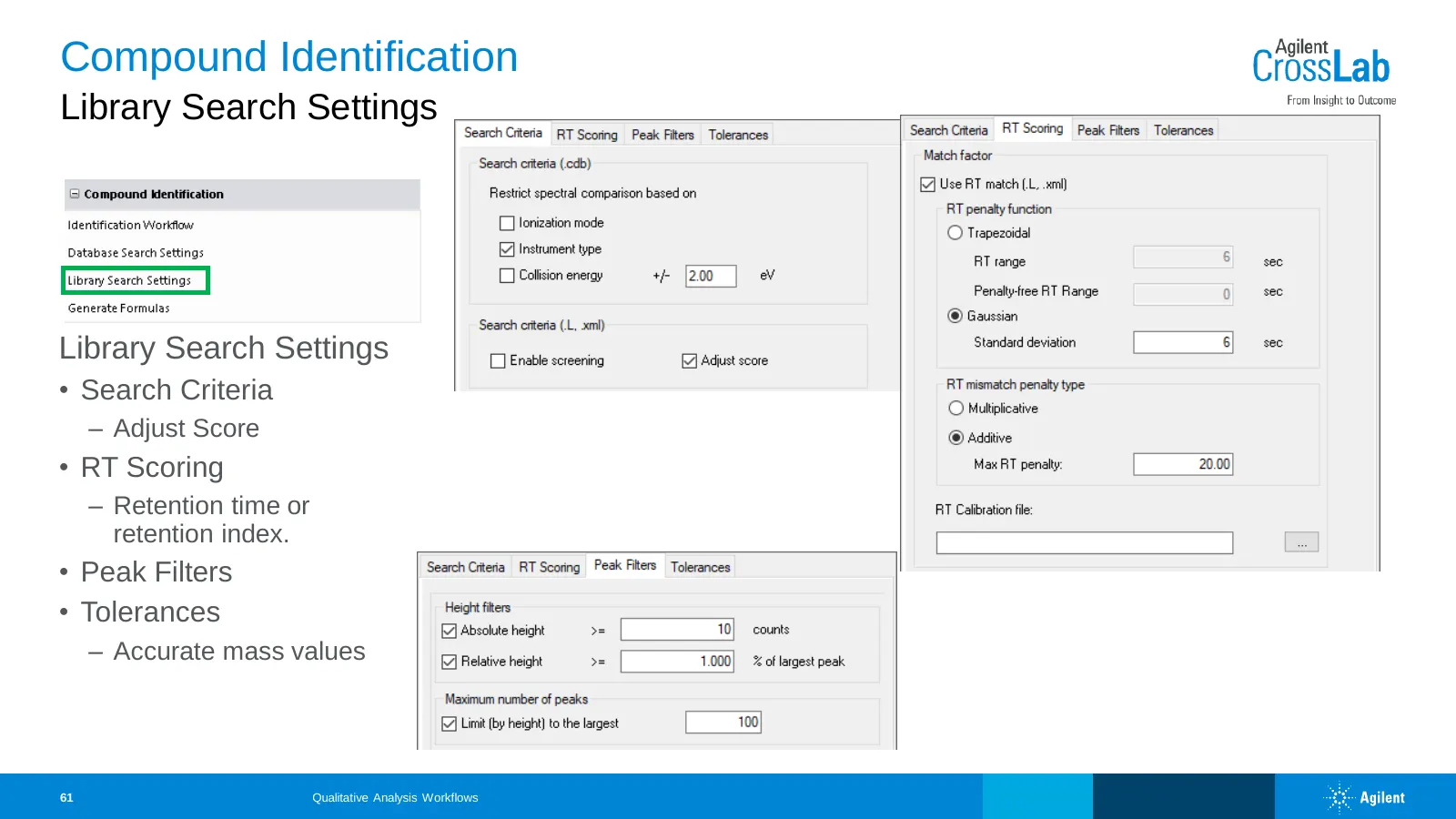
Compound Identification Library Search Settings Library Search Settings • Search Criteria – Adjust Score • RT Scoring – Retention time or retention index. • Peak Filters • Tolerances – Accurate mass values 61 Qualitative Analysis Workflows
Slide 62: Database and Library Tools: Library Editor
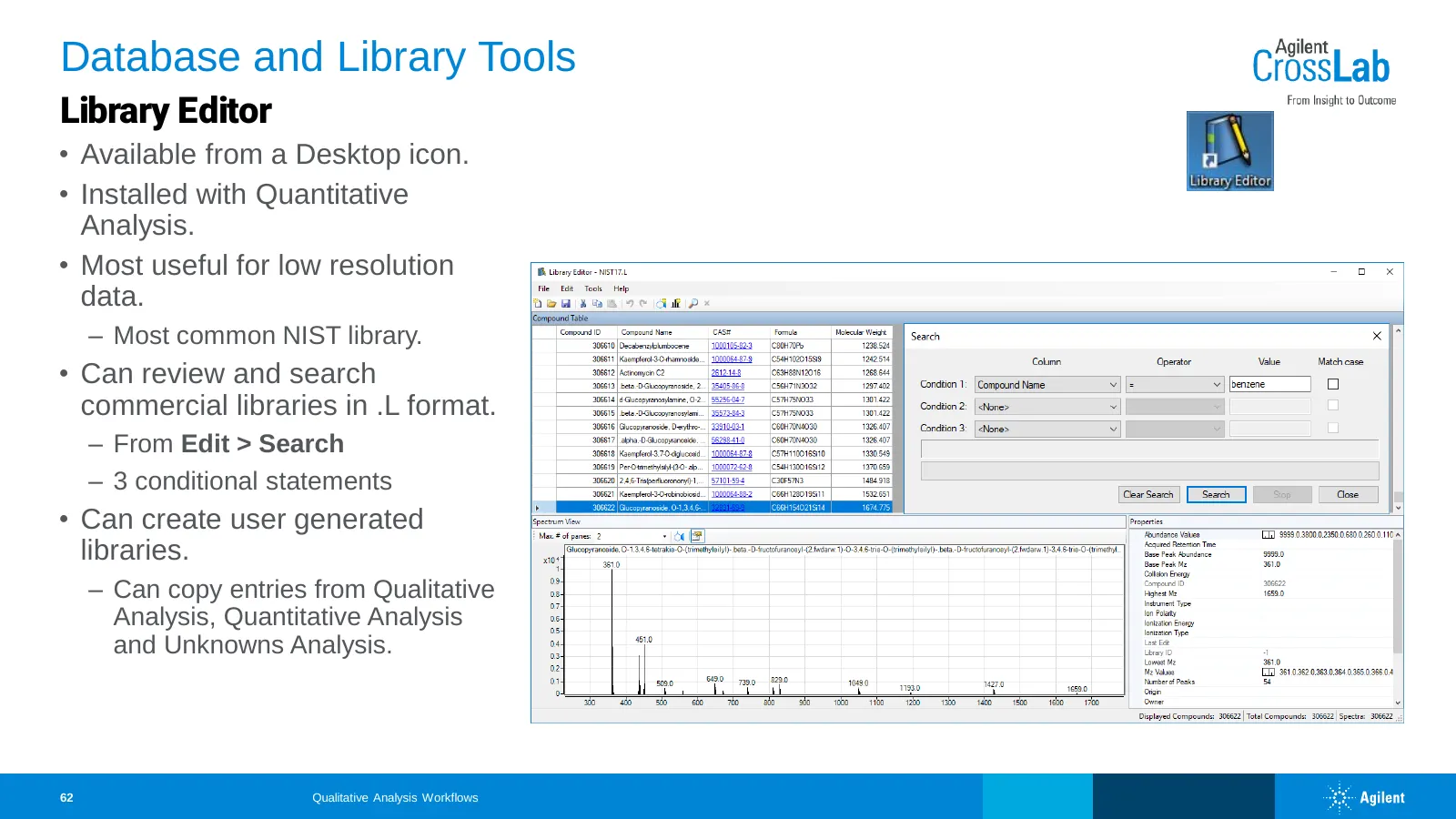
Database and Library Tools Library Editor • Available from a Desktop icon. • Installed with Quantitative Analysis. • Most useful for low resolution data. – Most common NIST library. • Can review and search commercial libraries in .L format. – From Edit > Search – 3 conditional statements • Can creat
Slide 63: Database and Library Tools: PCDL Manager
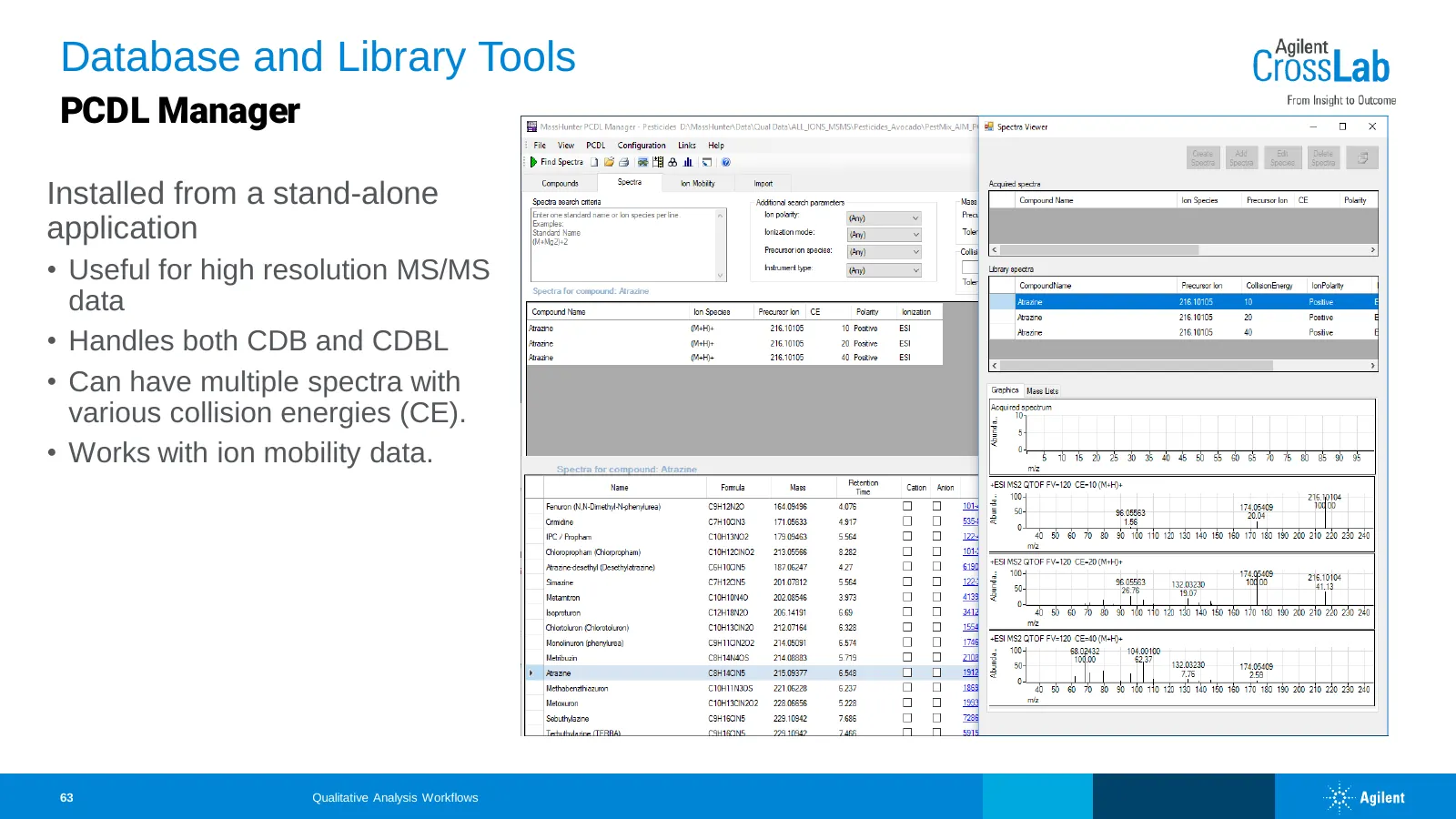
Database and Library Tools PCDL Manager Installed from a stand-alone application • Useful for high resolution MS/MS data • Handles both CDB and CDBL • Can have multiple spectra with various collision energies (CE). • Works with ion mobility data. 63 Qualitative Analysis Workflows
Slide 64: Generate Formulas
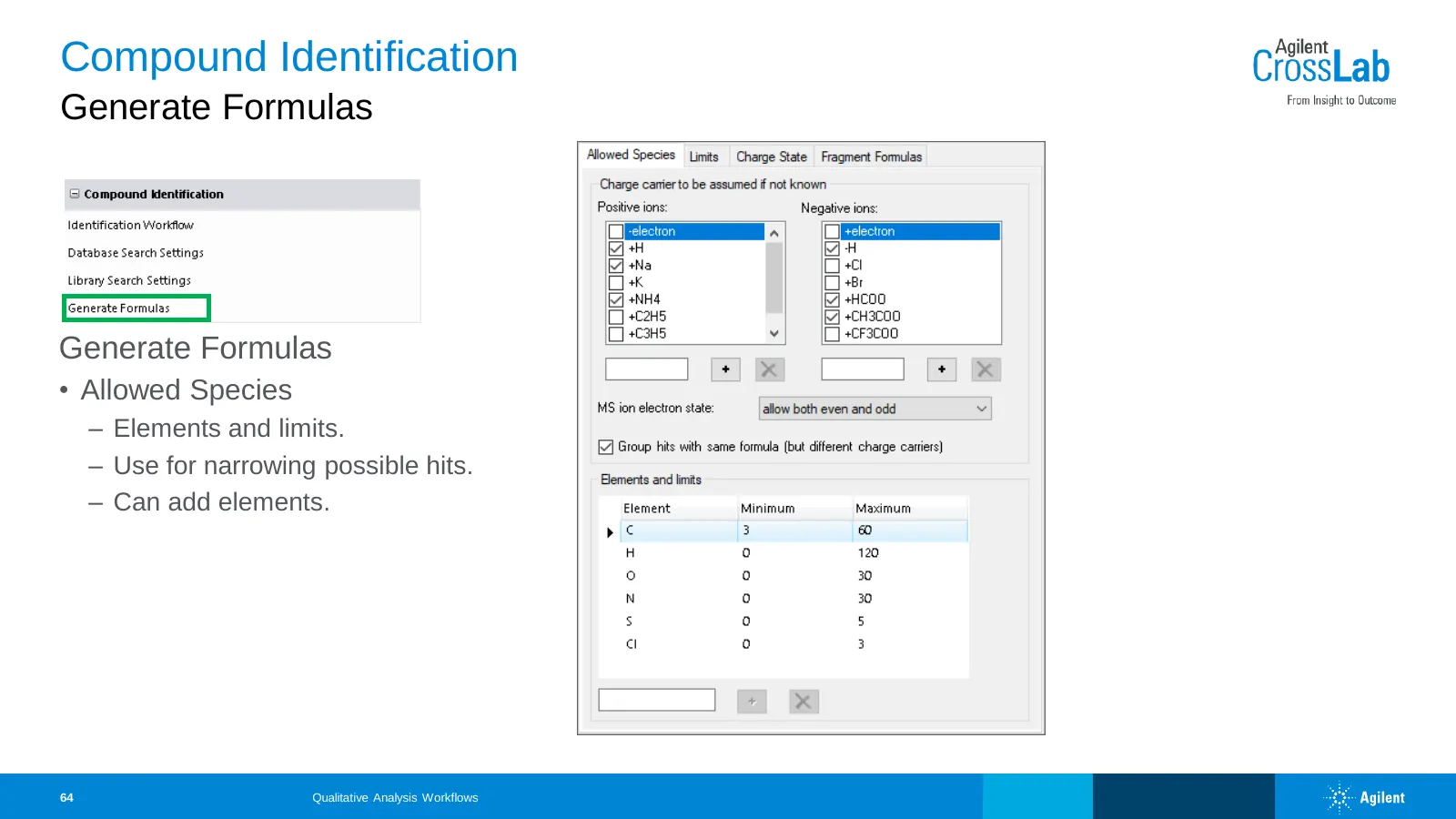
Compound Identification Generate Formulas Generate Formulas • Allowed Species – Elements and limits. – Use for narrowing possible hits. – Can add elements. 64 Qualitative Analysis Workflows
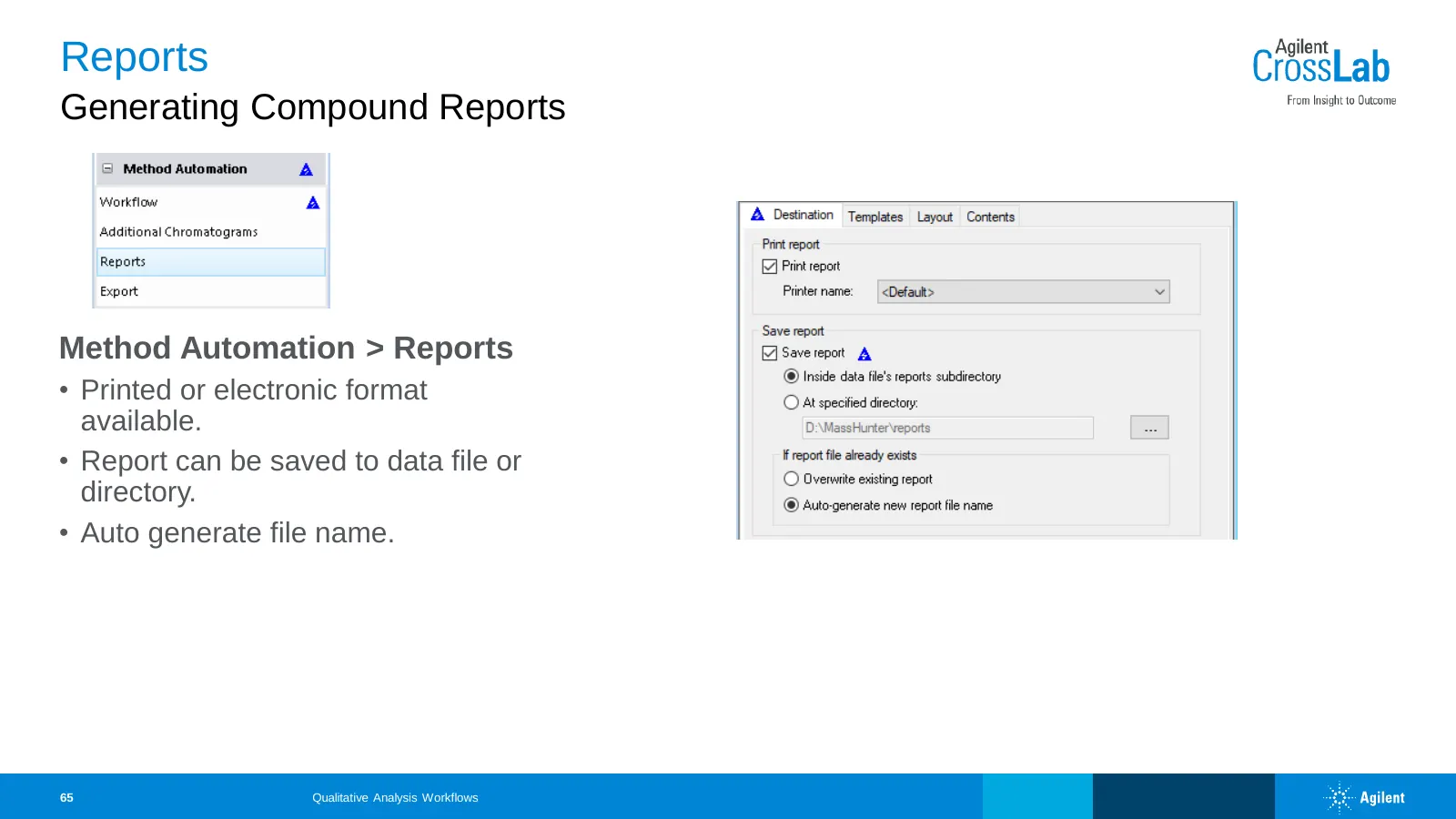
Slide 65: Generating Compound Reports
Reports Generating Compound Reports Method Automation > Reports • Printed or electronic format available. • Report can be saved to data file or directory. • Auto generate file name. 65 Qualitative Analysis Workflows
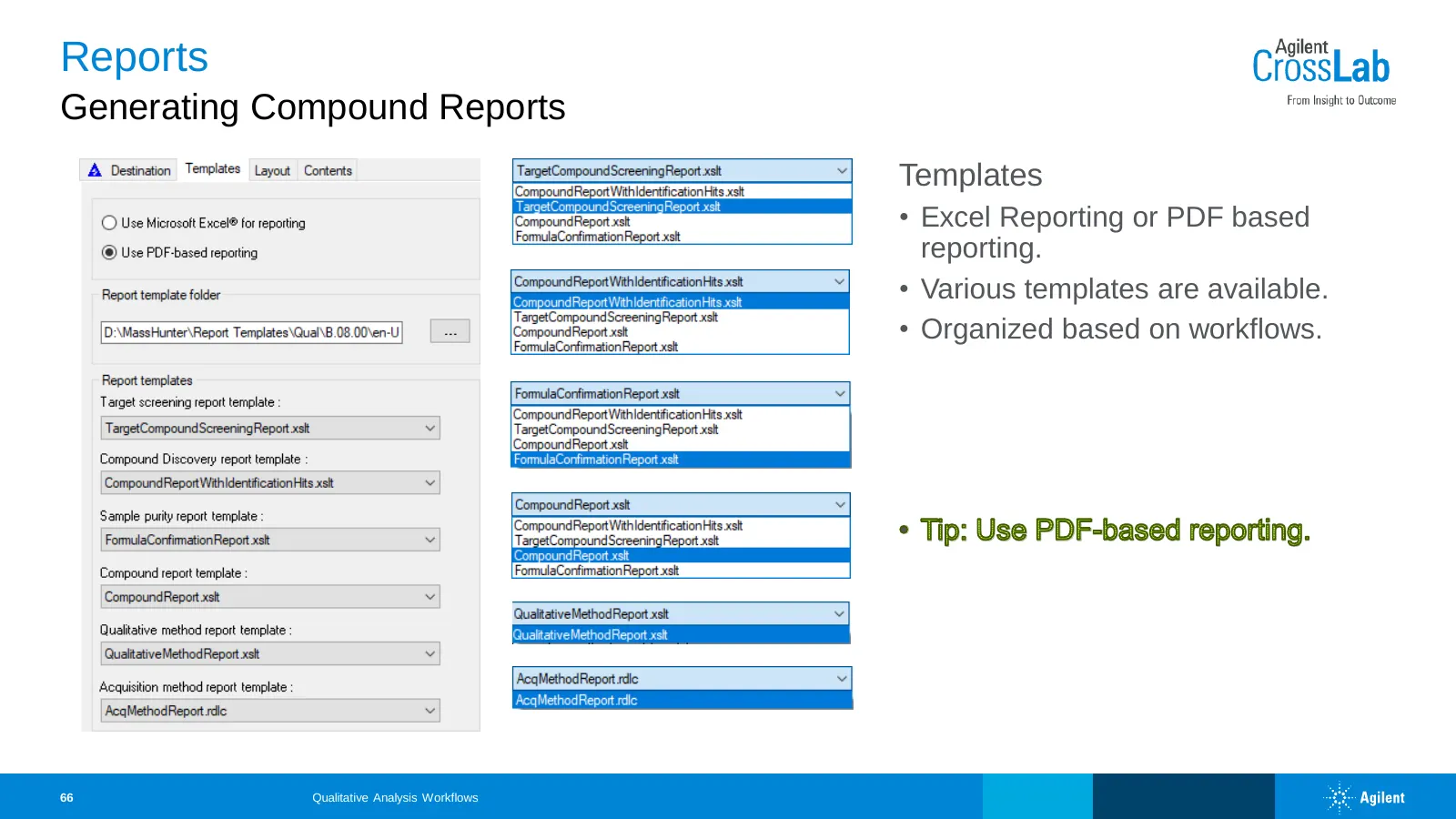
Slide 66: Report Templates
Reports Generating Compound Reports Templates • Excel Reporting or PDF based reporting. • Various templates are available. • Organized based on workflows. 66 Qualitative Analysis Workflows
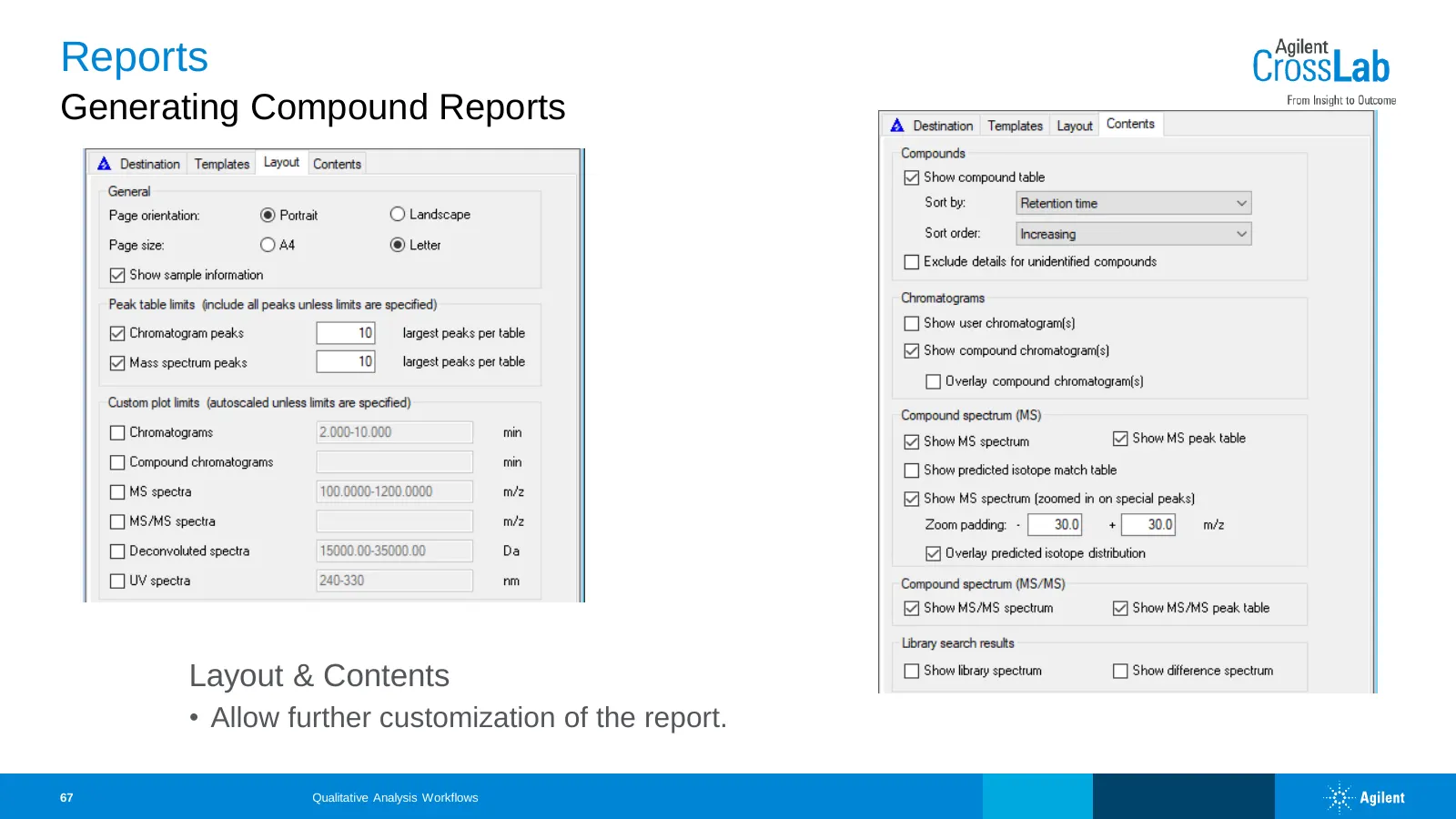
Slide 67: Report Layout & Contents
Reports Generating Compound Reports Layout & Contents • Allow further customization of the report. 67 Qualitative Analysis Workflows
Slide 68: Questions on Compound Identification and Reporting
Let’s take a moment for questions on Compound Identification and Reporting Up Next: Training Resources 68 MassHunter Webinar Series
Slide 69: Training Resources
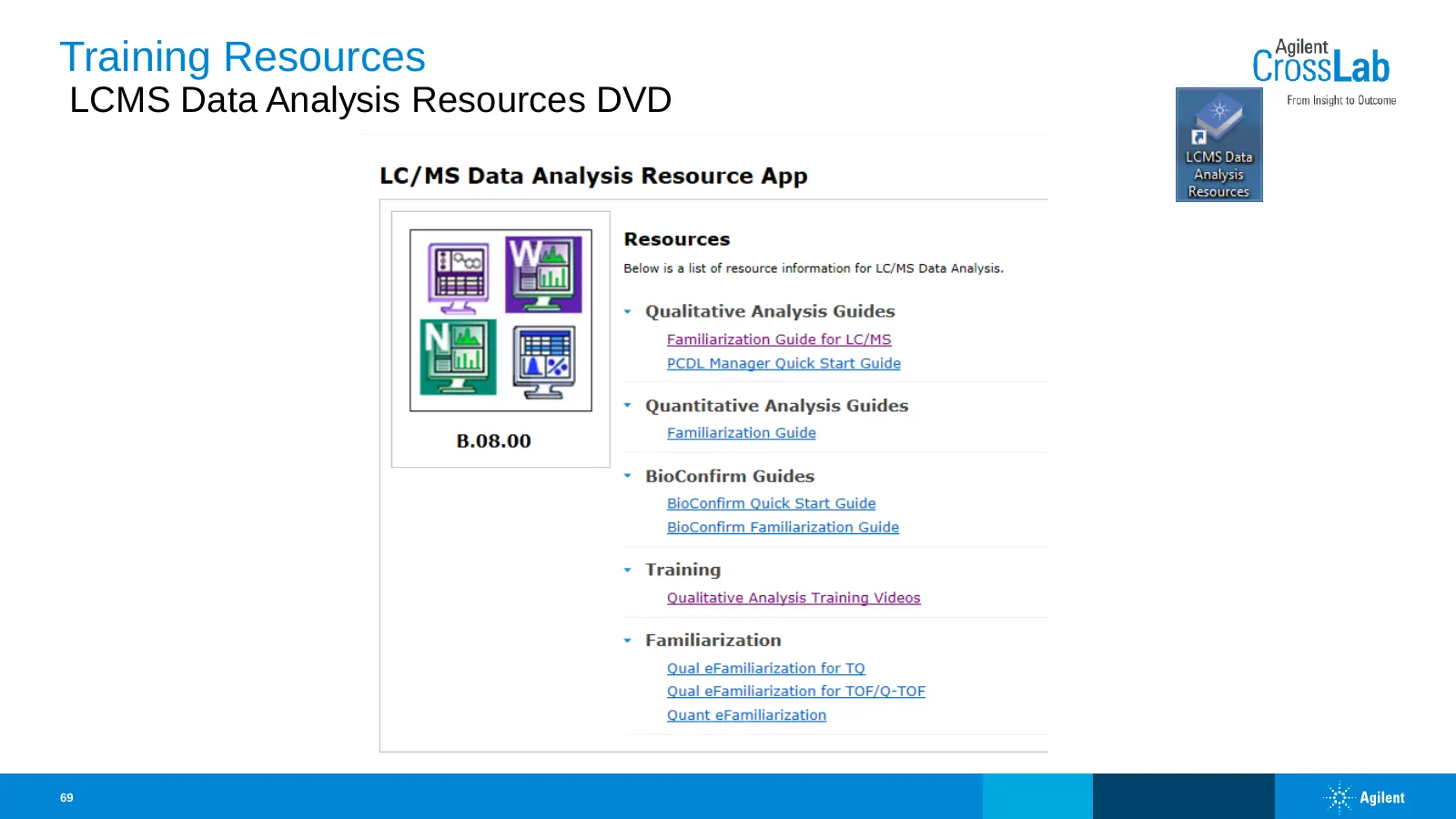
Training Resources LCMS Data Analysis Resources DVD 69
Slide 70: Training Resources: Help
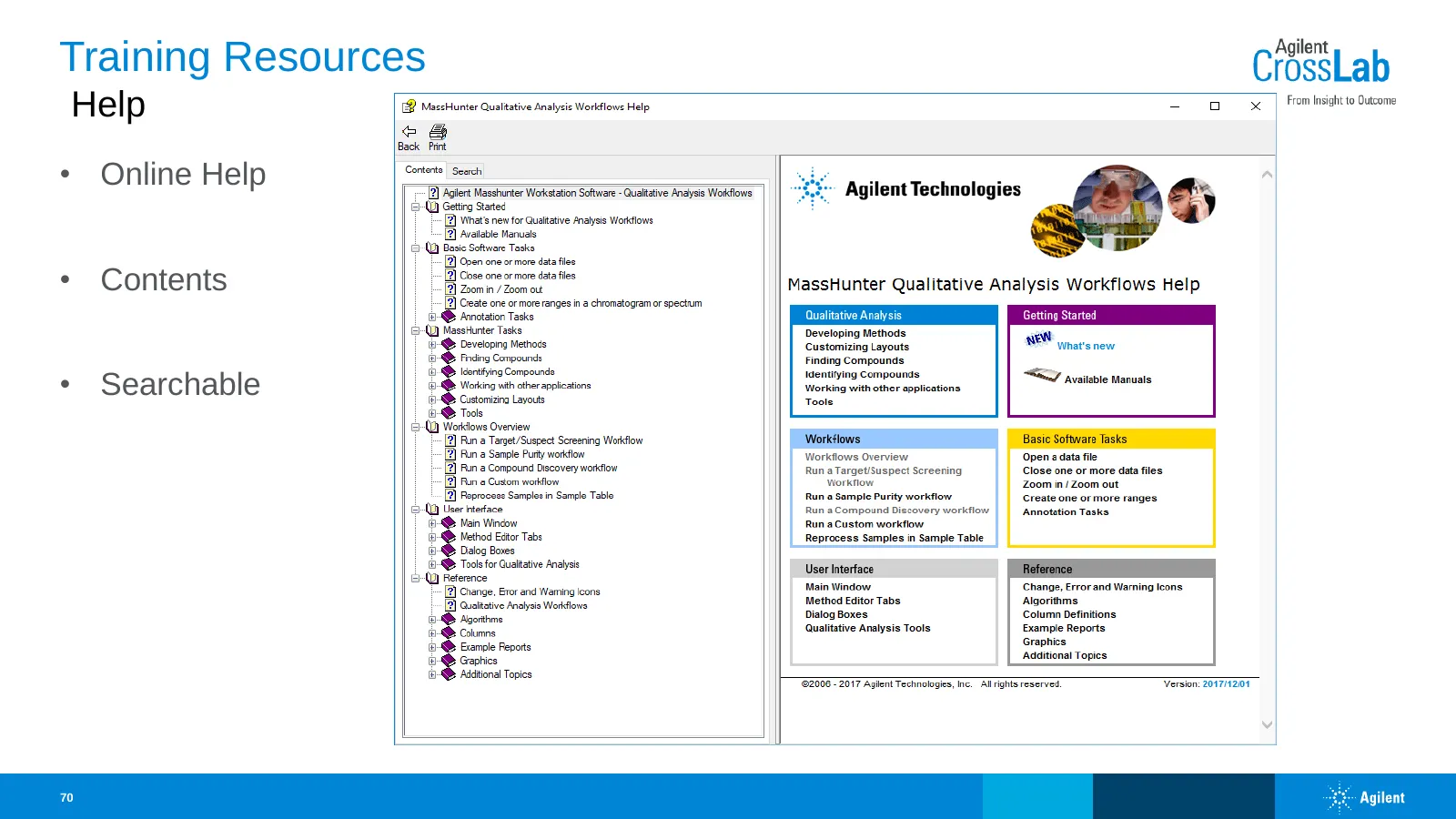
Training Resources Help • Online Help • Contents • Searchable 70
Slide 71: Available Training Resources
Training Resources Available Training Resources Convenient Training In our classrooms, at your site or online. From a team of industry experts that deliver a high quality learning experience. Classroom Training Introductory level to in-depth, hands-on for laboratory instrumentation and software. Cus
Slide 72: Agilent University
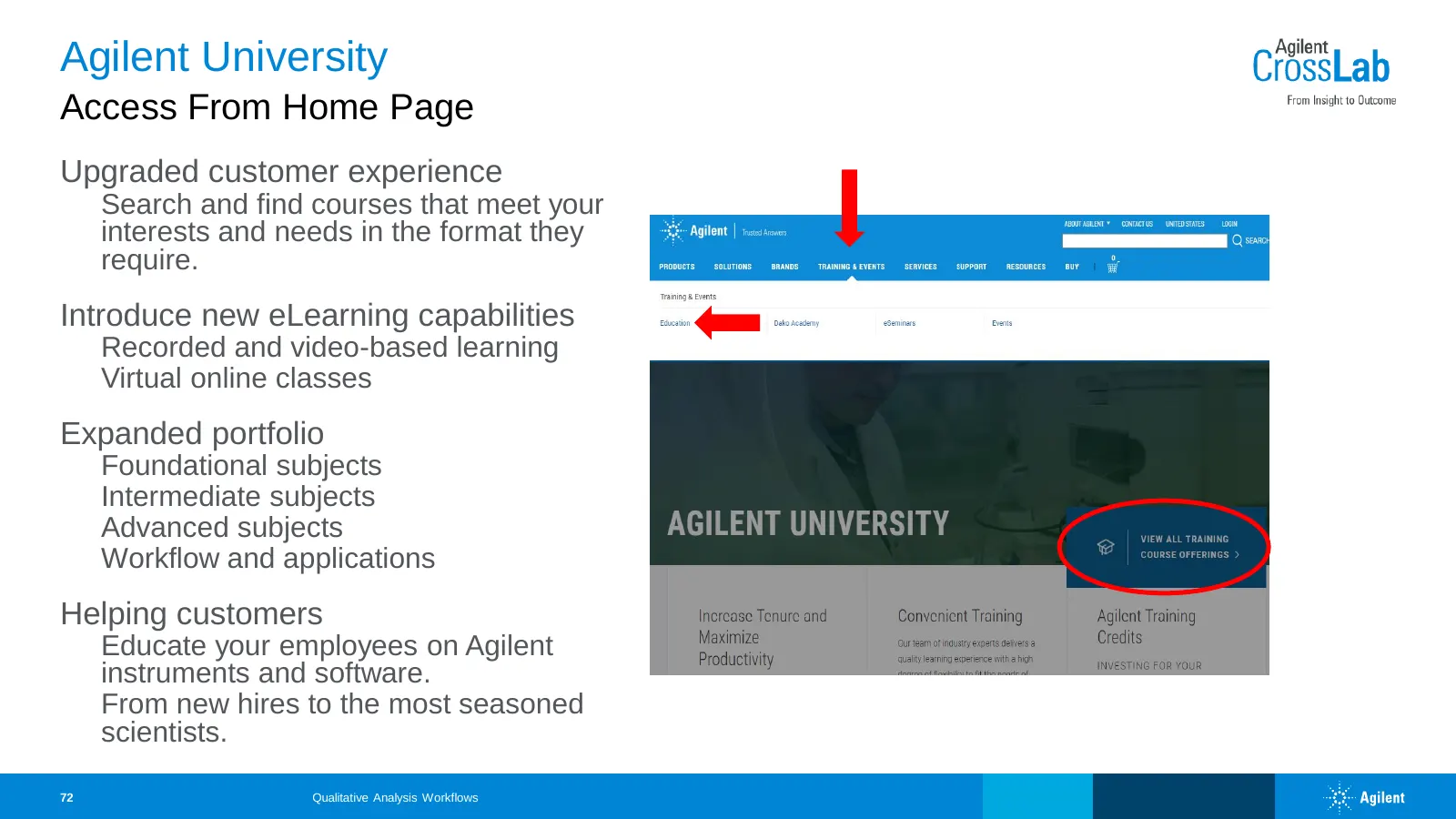
Agilent University Access From Home Page Upgraded customer experience Search and find courses that meet your interests and needs in the format they require. Introduce new eLearning capabilities Recorded and video-based learning Virtual online classes Expanded portfolio Foundational subjects Intermed
Slide 73: Agilent Community
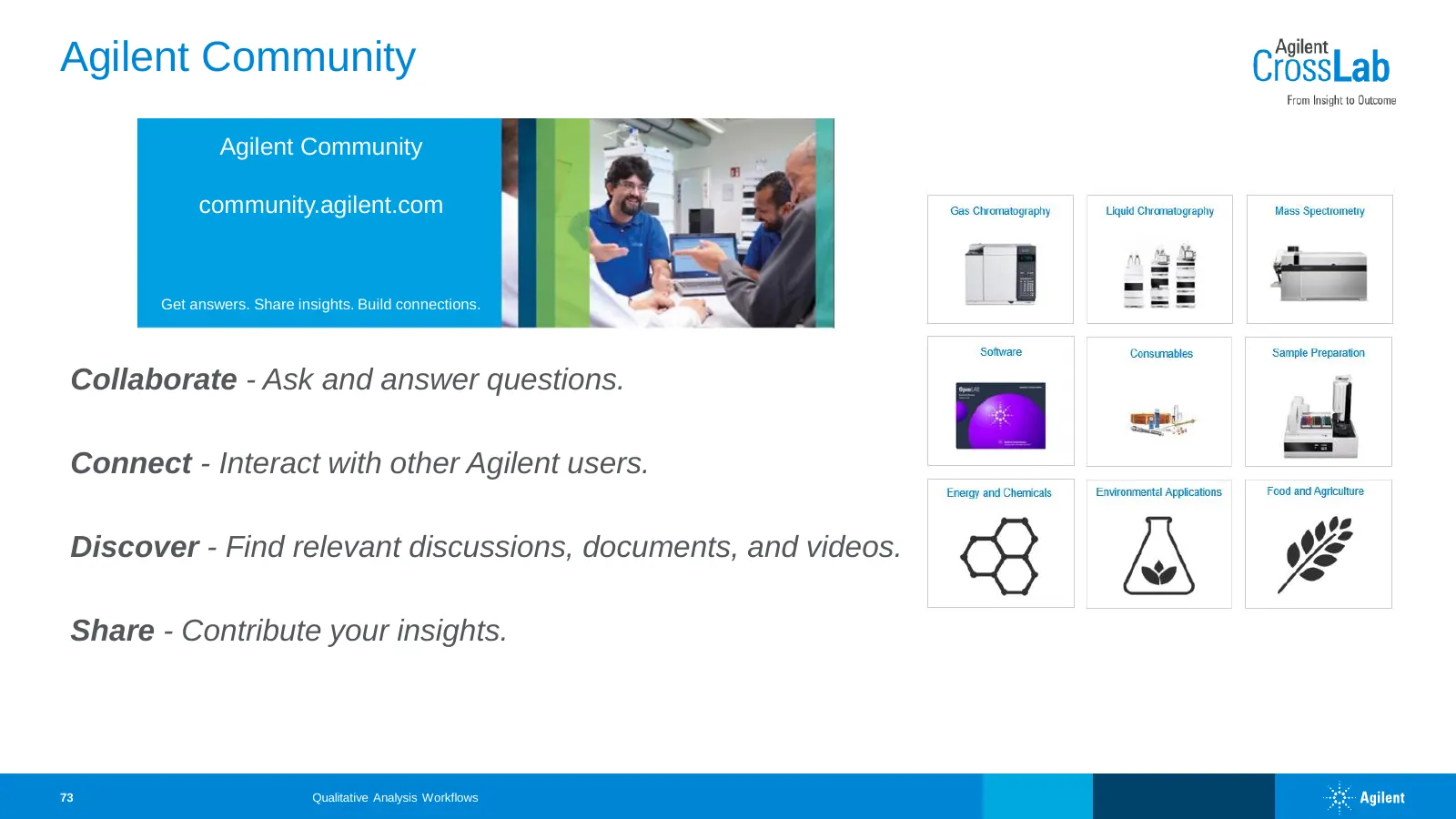
Agilent Community Agilent Community community.agilent.com Get answers. Share insights. Build connections. Collaborate - Ask and answer questions. Connect - Interact with other Agilent users. Discover - Find relevant discussions, documents, and videos. Share - Contribute your insights. 73 Qualitative
Source: Internet Archive copy of agilent.com
More decks from Agilent Technologies, Inc.
 Investor Presentation (October 2026)10 slides · Oct 8, 2026
 Technical Presentation (October 2026)11 slides · Oct 7, 2026
 Q3 2026 Earnings Presentation10 slides · Aug 26, 2026
 Q2 2026 Earnings Presentation11 slides · May 27, 2026
 Q1 2026 Earnings Presentation10 slides · Feb 25, 2026
 Q4 2025 Earnings Presentation10 slides · Nov 24, 2025